Learn how to create high-quality PDF files from Microsoft Office documents using the two main methods: Save As/Export and Print to PDF. This guide compares both approaches so you can choose the best one for your needs. Whether you want clickable hyperlinks, bookmarks, backgrounds, or a simple fixed layout PDF from Word, Excel, PowerPoint, Outlook, and other Office apps.
Saving Office documents to Adobe Acrobat PDF files has always been popular – more these days because the tools to do it are commonly available and often free. PDF files are typically smaller than Office documents and have a fixed format, which means the reader has limited ability to make changes to them.
There are two ways to convert a document to the PDF format:
- ‘Save As’ to save a version of the original document to a different format.
- Modern Office lets you make a PDF directly. This option is sometimes referred to as ‘Export’ or ‘Convert’.
- ‘Print‘ which intercepts the printer output from a program to make a PDF file.
- Instead of printing on paper, a PDF file is generated that looks just like the printed pages.
- Both Windows and Mac have in-built options to do this from any program, not just Office.
Which one to use, PDF Save As or Print?
Which is better, to Save to PDF or Print to PDF? There’s no simple answer.
‘Save As’ will more accurately copy the look and actions of the original document into the PDF clone. That might not be ideal because the extra document details (what Microsoft calls ‘metadata’) and comments can end up being copied into the PDF and visible to the reader. “Save As” is better for accesiblility because the PDF contains structure and other hidden info used by screen reading software.
‘Print’ options will make a PDF that looks like a printed page. Broadly speaking, if you can’t read it on a printed page it won’t be available in a PDF version. This effectively hides the additional ‘metadata’, comments and other details from PDF readers. That means active hyperlinks from the document, bookmarks and usually backgrounds won’t appear in the PDF.
Save As to PDF
In modern Word, Excel, PowerPoint or Outlook you can Save As or Export to a PDF file. Choose ‘PDF’ from the Save as type list.
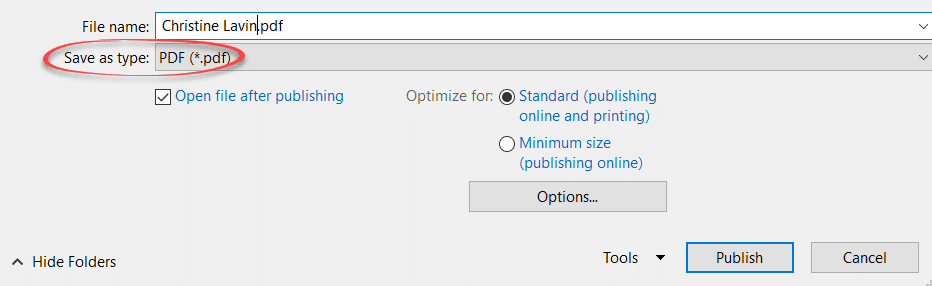
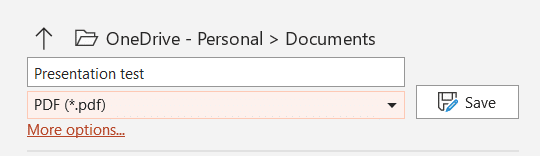
Warning! The modern pane also lets you choose PDF but without the important choice of exporting options. Click on ‘More options’ to open the traditional (full) Save as dialog with the important extra choices for making a PDF (like Standard or Minimum size).
‘Print’ to PDF
‘Printing’ to a PDF is a common and popular option because it’s independent of any particular program.
Windows
The option is set up as a Windows printer driver and appears as a ‘printer’ in the Print menu of any program. Look in the list of Printers for ‘Print to PDF’.
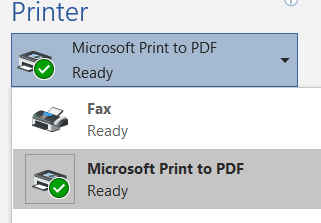
There can be other PDF options in your Printer list, for example Adobe Acrobat Pro adds its own Print to PDF choice.
Mac
On the Mac, it’s a separate option at the bottom of the Print dialog.

When you choose to ‘print’ to PDF, you’ll be asked to enter a file name and pick a folder to save it in. The program you’re printing from doesn’t realize—or care—that no actual paper is being produced.
Differences between Save or Print to make a PDF file
There are important differences between converting a document to a PDF and ‘printing’ to make a PDF file. When printing, the source program (Word, Excel, a browser, etc.) only sends the essential information needed to appear on the printed page.
Links
PDF files can have clickable links to web pages or other documents – but they don’t always work when created from a Word document even when they look like a link. Why?
Hyperlinks or URLs in documents don’t carry over as clickable links when printing to a PDF, since a paper page can’t have interactive elements, so the link data isn’t sent to the “printer.” However, the visual style of a link, like blue, underlined text, is part of the formatting and will appear. We’ve all seen printouts where links are shown on the page, and in a “printed” PDF, they’ll look like links but won’t function as ones.
Most PDF display software has a trick to make working links ‘on the fly’. If recognizable ‘link’ text is in a PDF (eg starting with ‘http://’ ) then the PDF viewing software will convert that into a working link. This is NOT part of the PDF but a feature of the software that puts the PDF onto your screen.
Sidebar: Outlook does a similar trick – plain text emails can’t have links but Outlook looks for ‘http://’ in the text and converts that into a clickable link when displaying the message to you.
This means you can ‘print’ to create a PDF with clickable links, but only if the original source contains the links in plain text.Embedded links (ie links ‘under’ some text) will NOT work in a PDF made by ‘printing’ but text links can be made to work.
Confused? Here’s a table of examples showing whether they’ll be clickable links, depending on how the PDF is created:
| Sample | Type | Works as a link | |
|
|
| Print to PDF |
‘Save as PDF’ |
| Office Watch |
Plain Text – no link | No |
No |
Office Watch
|
Text with link attached |
No1 |
Yes |
https://office-watch.com |
Text with http:// prefix |
Probably2 |
Probably2 |
- The text looks like a link in the PDF file (ie blue, underlined text) but is not a working link because the underlying url wasn’t included.
- The link doesn’t exist in the PDF file when made but a working / clickable link is usually displayed by the PDF viewing software when the file is opened. If the PDF viewer has an “Automatically Detect URL’s from text” option set ON (the default in most PDF viewers) then the plain text in the PDF will be converted into a working link. If the PDF viewing software can’t detect links or the option is switched off then no working link will appear in the PDF. ‘http://’ prefixes are the most common links created this way but may also work for text starting with other url prefixes such as ftp:// , // and mailto: .
If you want working links in a PDF file – stick with Save As / Convert or Export options because they’ll pass along all link details from the source document to the PDF.
Bookmarks
In PDF’s bookmarks show up as a navigable tree of links along with the document. It’s an interactive ‘Table of Contents’ – we’ve done that in all our Office Watch ebooks:

Note: The word ‘bookmarks‘ has different meanings in MS Word and PDF. In Word ‘bookmarks’ are references to places or blocks of text within a document. Word’s equivalent to PDF bookmarks is the Document Map which is created from headings in the document.
A PDF with the bookmark tree is created from either the Word heading styles or explicit bookmarks in the source document.
If you ‘Print’ to a PDF the details of Word styles or bookmarks are NOT included and no PDF bookmark tree can be created.
Backgrounds
Normally Word does NOT print page backgrounds because a paper page printed with a background to the main text is often expensive, slow to print and unreadable compared to the screen display.
That applies to anything output to Word’s print function, whether the destination is a paper page or not. If you print to a PDF utility you normally won’t see a page background in the PDF file.
But if you save to a PDF file, you should expect the background to be included in the PDF.

Printing backgrounds is controlled in Word. Under the Print dialog, click on the Options button. In Word 2007 and later versions:
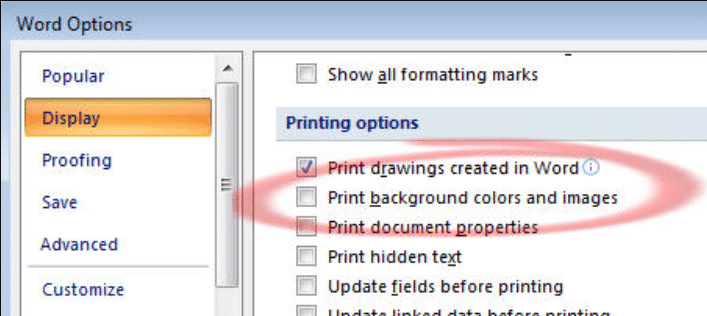
Warning: don’t confuse the ‘Print in background’ or ‘Background printing’ options which control the speed of printing not what is printed.
Watermarks
Document watermarks (usually ‘Confidential’ ‘ASAP’ ‘Do not copy’ ‘Urgent’ etc.) act like page backgrounds in Word but are handled differently to standard page backgrounds.
Watermarks will be included in printouts including ‘Print to PDF’ and should also appear in PDF’s made via ‘Save As’ options.
The ‘Print background colors and images’ option does NOT apply to Word watermarks.
See Also
- Mending an Inkjet printer
- Why some PDF’s won’t work in Word 2013
- Adding a background image to a Word page
- Watermarks in Word using VBA
- Font Embedding in Microsoft Office
- Font embedding problems in Office
- Word for Mac can’t print backgrounds
- Printing a selection in Office
- Cross Referencing in Word
- Fitting a Word or Excel doc to your printer
- Paper sizes on another computer
