Office for Mac Won’t Open? Fix “Unknown Error 0x0” and “License Not Found” in Two Minutes
If Word, Excel, Outlook, PowerPoint or OneNote suddenly refuse to open on your Mac and flash Unknown Error 0x0 or License Not Found, you are not locked out and your subscription is fine. It was a licensing bug on Microsoft’s side, now fixed. The repair is free, needs no reinstall, and takes about two minutes: update the apps through Microsoft AutoUpdate or the App Store. Here is exactly how, depending on where you got Office.
Microsoft has resolved a bug that stopped Word, Excel, Outlook, PowerPoint and OneNote from opening on Macs, throwing either Unknown Error 0x0 or License Not Found the moment you launched the app.
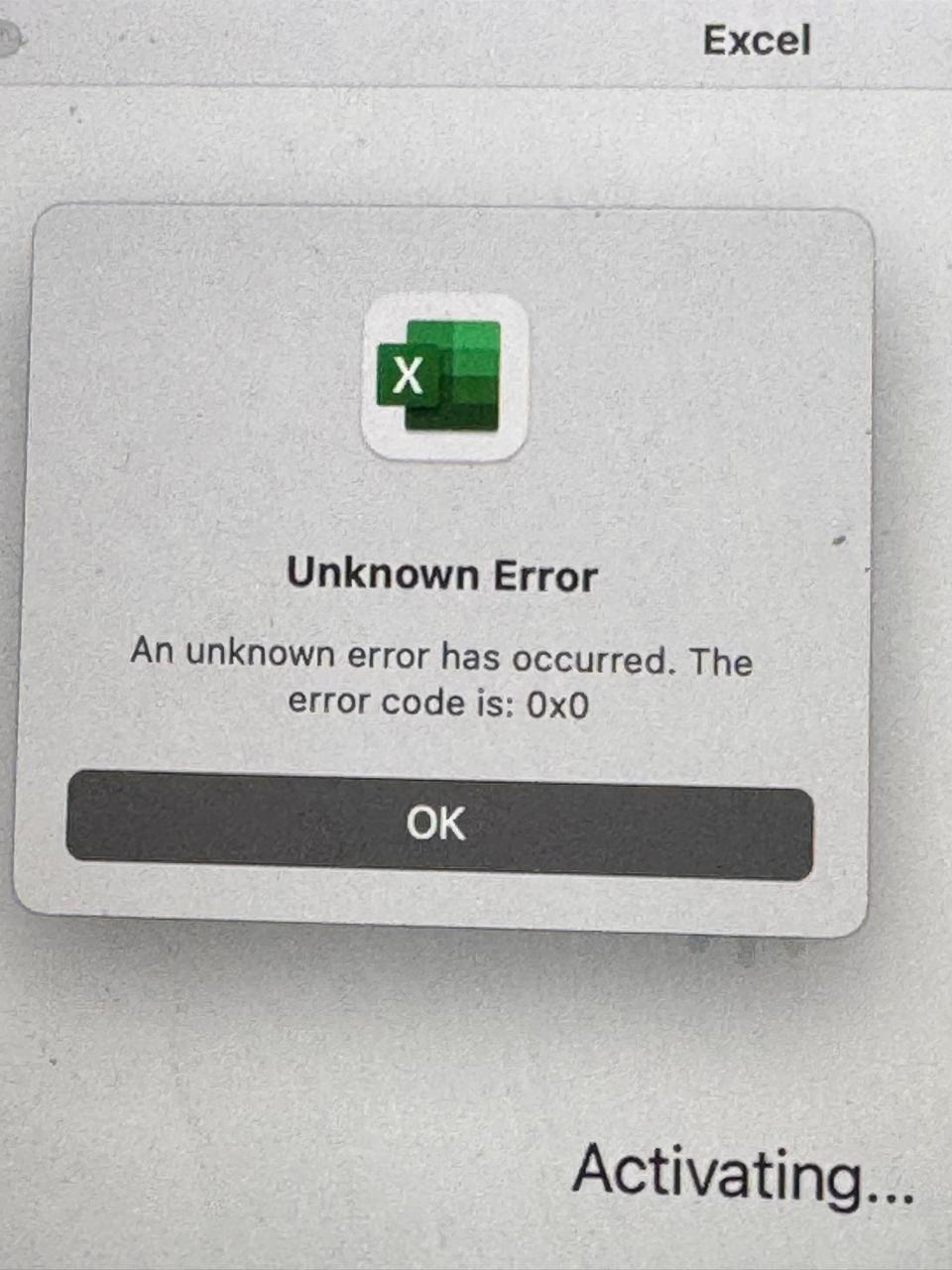
The fix, originally published on July 15, 2026, is simply to install the latest update. No reinstall and no need to phone support. But there’s a trick to getting the update.
What this means for you
If your Office apps on a Mac suddenly refused to open and flashed one of those two errors, you were not locked out and your subscription was not canceled. It was a licensing glitch on Microsoft’s side, and the repair is to update the apps. Once updated, they open normally.
This affects a wide spread of versions: Microsoft 365 for Mac, Office 2024 for Mac, Office 2021 for Mac, and even Office 2019 for Mac (which has other problems). It applies to both home and business installs.
One firm requirement to note: you must be running macOS 12 (Monterey 2021) or higher. If you are on an older macOS, update the operating system first or the fix will not stick.
The good news is that this is now a solved problem and the repair takes about two minutes. The mildly annoying part is that a Microsoft side licensing bug managed to fully block paying customers from opening their own documents, and the only signal was a useless error code. Unknown Error 0x0 tells you nothing. That’s exactly the kind of message that sends people down a rabbit hole of reinstalling when all they needed was the update button.
Fix if you installed from Microsoft.com
This is how most people get Office on a Mac, so try this route first.
In short: find then start the Microsoft AutoUpdate app.
- Confirm you are on macOS 12 or higher from Apple (top-left) | About This Mac.
- Quit all Office apps.
- Find the Microsoft AutoUpdate app in one of these ways:
- Use the Apps search, look for “autoupdate” or just “autou”
- Go to Finder then Applications then look for Microsoft AutoUpdate.
- If it is not there, look in /Library/Application Support/Microsoft/MAU2.0/.
- Use the Apps search, look for “autoupdate” or just “autou”
- Start Microsoft AutoUpdate
- Click Update All, or click the arrow next to Update first if you want to see the version numbers and dates before installing.
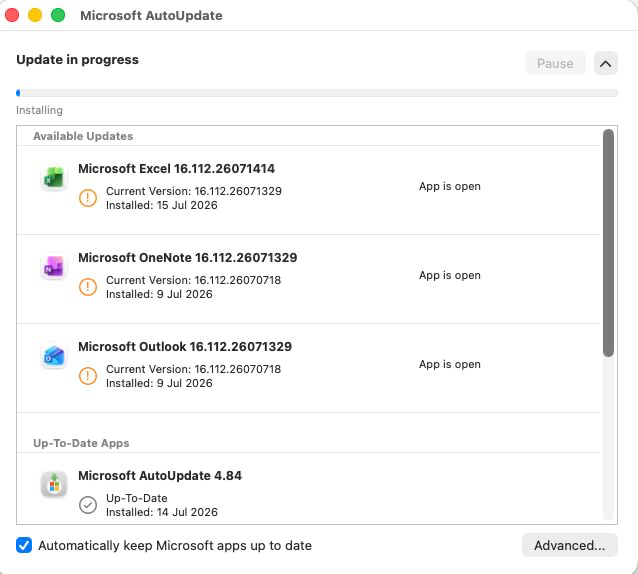
- Relaunch an Office app to confirm it opens.
Why find the update app? Normally, Microsoft AutoUpdate runs in the background or from any Office app via Help | Check for Updates. But the activation bug means neither of those options is available.
Fix if you installed from the App Store
This is the less common route, but the steps are just as quick.
- Confirm you are on macOS 12 or higher.
- Quit every Office app.
- Open the App Store and click Updates in the sidebar.
- Look for Microsoft Word, Microsoft Excel, Microsoft PowerPoint, Microsoft Outlook and Microsoft OneNote.
- Click Update beside each one, or Update All.
- Relaunch an Office app to confirm it opens.
How to stop auto updating Office for Mac
Microsoft Kills Office 2019 for Mac: Apps Stop Working July 13, 2026