Microsoft has quietly flipped a major switch. Copilot Agent Mode is now the default experience in Word, Excel, and PowerPoint. It works very differently from the Copilot you may have ignored until now. Instead of suggesting what you should do, it actually works on your document, spreadsheet, or presentation and makes changes itself. You describe the goal; Copilot works through it. Here is what that means in practice, who gets it, and whether you should trust it to touch your files.
The difference from the old Copilot is substantial. Previously, Copilot could answer questions and suggest what you should do from a “Chat” side-pane. Now it actually does it, making changes directly inside your document, spreadsheet, or presentation without you having to carry out each step yourself.
The earlier version of Copilot was limited by the capabilities of foundational AI models. While it could answer questions or summarize text, it often struggled to execute complex commands directly on the “canvas” of a document or spreadsheet.
Microsoft says that newer AI models are now good enough at reasoning and following instructions to make multi-step editing reliable.
That’s typical Microsoft hype. AI models now have better reasoning but “good enough” vert much depends on each situation and results wanted. “Reliable” is also overstating things, “more reliable” is likely and more accurate.
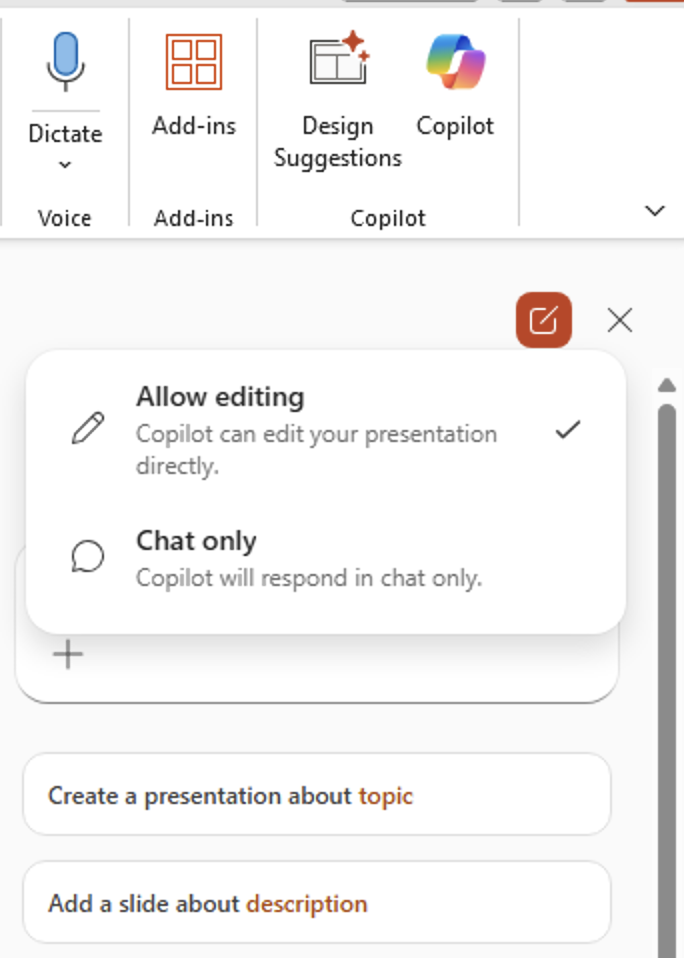
The name for this feature has changed too often. “Vibe Coding”, “Agent Mode”, “Agentic” have all been used except in the Office apps themselves where it appears as “Allow editing”.
What Agent mode means for you
Leaving aside Microsoft’s changing labels, the idea is that you give Copilot a goal and it carries out a set of steps, instead of only answering questions.
You describe what you want in plain language, and the AI works through the task autonomously rather than waiting for you to execute every instruction yourself.
How it works
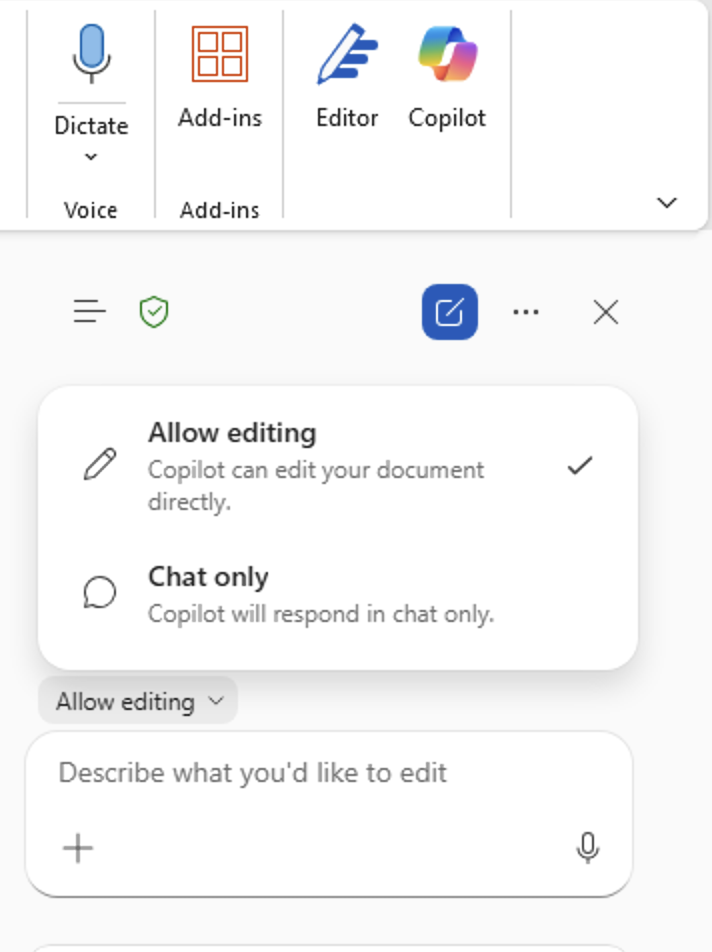
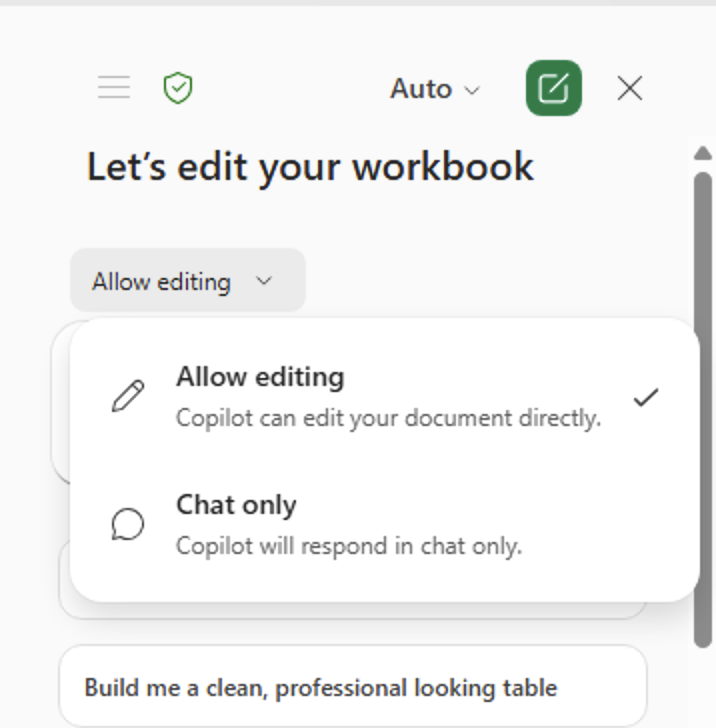
In Word, Excel and PowerPoint, click on the Copilot icon to open the side-pane. The menu now defaults to “Allow editing”.
In all three apps, you can watch what Copilot is doing through a sidebar that shows each step, like seeing a to-do list as it checks items off.
That means you can ask Copilot to change a doc, sheet or slide directly. For example, making a dashboard to explain a long list of data.
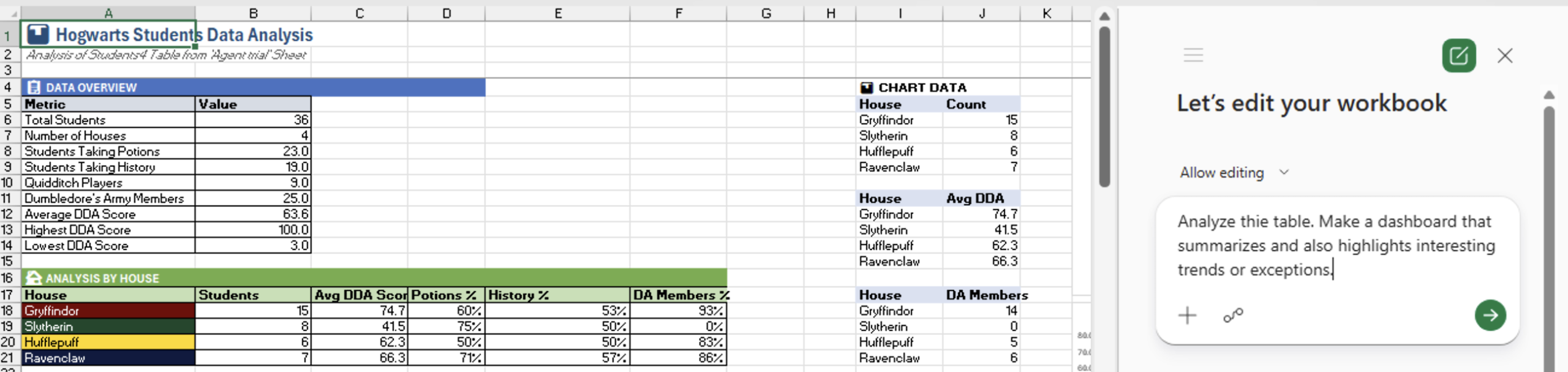
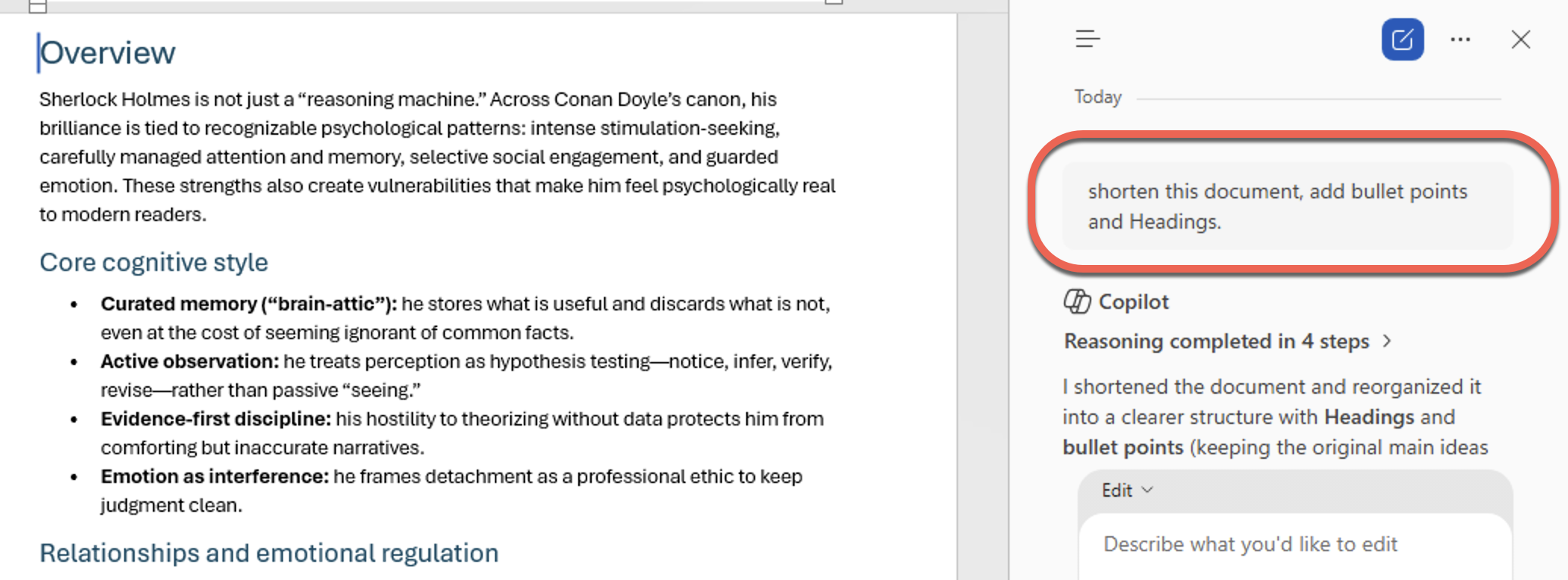
Or ask Copilot to change a Word document. for example make it shorter or longer, change formatting or add headings.
If you like, change the “Allow editing” to the stand-alone “Chat only”. That can be good for using Copilot for additional information to be added manually into a document.
Word
Copilot can now draft, rewrite, restructure, and reformat your document in one go. You focus on intent; Copilot works with Word’s native styles and polished formatting. It can also pull in content from other files or emails you reference in your prompt.
Excel
Copilot can edit a workbook directly by adding formulas, tables or whole sheets. You can ask it to build a pivot table, create a chart, or restructure your data, and it performs the edit in place rather than just telling you how.
PowerPoint
Update an existing slide deck with new information while keeping a company’s template styling. It understands that fonts, colors, and slide layouts need to stay consistent.
Who Gets It and What Does It Cost
These latest Copilot features are now generally available and the default experience for customers with a Microsoft 365 Copilot plan add-on for business/enterprise users and Microsoft 365 Premium subscriptions. They are also available to owners of Microsoft 365 Personal and Family plans with the usual AI credits limitation.
What This Means for You
The honest answer is that this changes what Copilot is actually useful for.
The old Copilot was, at best, a smart autocomplete and a summarizer. You still had to do most of the work. Agent Mode shifts that relationship. You give the instruction at a high level, Copilot works through it, and you review the result. That is a genuinely different workflow, and for tasks like updating a monthly report, restructuring a spreadsheet model, or refreshing a slide deck with new data, it could save meaningful time.
The risks have not gone away. AI still makes mistakes, particularly with numbers and nuanced language. The sidebar showing each step Copilot takes is important precisely because you need to review what it has done rather than assume it is correct. Think of it less like hiring a junior colleague and more like having a very fast editor who occasionally invents facts.
The practical advice: start with tasks where you can easily verify the output. A reformatted report is easy to check. A financial model with new formulas requires more scrutiny before you trust it.
Microsoft says it is working on deeper transparency features so you can see not just what Copilot changed, but why it made each decision. That would be genuinely useful, and it is not here yet.
Microsoft 365 Copilot Explained: Features, Limitations and Your Choices
Copilot Chat in Word, Excel and PowerPoint: A Practical Guide for Microsoft 365 Users
Turn Copilot Off in Microsoft 365: How to Guide for Word, Excel, PowerPoint and Outlook
Microsoft Kills Free Copilot Chat in Word, Excel and PowerPoint: What Happens on April 15
Copilot Access Levels for Microsoft 365 Consumer Plans: What You Actually Get
Six More Warnings Hidden in Copilot’s Legal Fine Print: What Office Users Need to Know
Microsoft 365 Premium: Copilot AI, New Features and Pricing Explained
Microsoft Rewrites How Microsoft 365 Updates Are Delivered: What IT Admins Need to Know
