Microsoft Access Zoom Now Reaches 1000%: How to Set It
Microsoft Access zoom now runs from 10% to 1000%, up from the old 50% to 500% range, and it finally works in continuous forms, popup forms and Report View. That’s welcome news if you squint at datasheets on a big monitor or can’t see a whole form at once. You need Access for Microsoft 365 version 2608 or later, because Access 2021 and Access 2024 don’t get zoom at all. Here’s how to set a Default Zoom for a whole database, the four ways to zoom, and what to check if something looks wrong.
The wider range also applies to Default Zoom, tthe setting that controls the zoom level a database opens at.
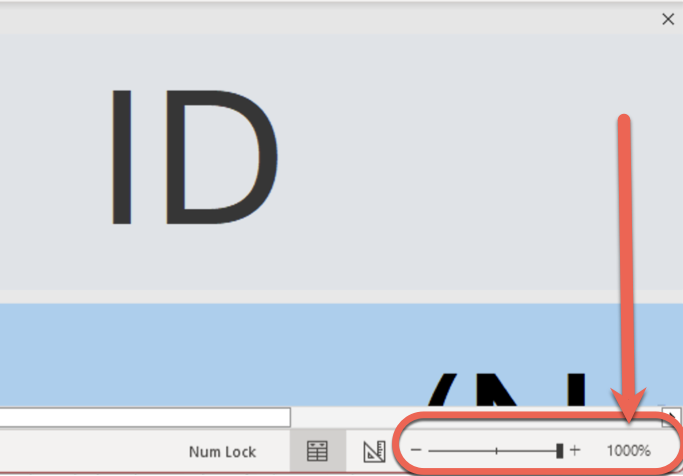
The same update adds zoom to three places it was missing. Continuous forms and popup forms now zoom, and reports can be zoomed in Report View, bringing them in line with forms, tables and queries.
You need Access for Microsoft 365, version 2608 or later. Access 2021 and Access 2024, the one time purchase versions, don’t get zoom at all.
How to set Default Zoom in Microsoft Access
If you’ve been squinting at a datasheet on a big monitor, or wanted to shrink a sprawling form to see all of it at once, you now have far more room to move.
Access still doesn’t remember zoom for individual objects. Close and reopen a form and it opens at the default zoom level, not whatever you last used. So if you want a whole database to always open larger, Default Zoom is the only way to do it without code.
To set it:
- Go to File | Options | Current Database
- Under Application Options, pick your Default Zoom percentage
- Close and reopen the database
How to set Default Zoom in Microsoft Access
You can:
- pick a percentage from the Zoom menu on the Home tab
- drag the status bar slider,
- hold Ctrl and scroll the mouse wheel
- press Ctrl+Alt+Plus and Ctrl+Alt+Minus. Ctrl+Alt+0 takes you straight back to 100%.
Popup forms are the odd one out. They don’t use the status bar zoom control, so zoom them with Ctrl plus the mouse wheel or the keyboard shortcuts.
In a continuous form, the repeating records and their controls scale together, and embedded continuous forms scale with their parent form. Reports shown inside forms also scale with the form around them. That matters if your databases nest subforms and subreports, because in the first release they didn’t resize to match.
If you build databases for other people
Zoom is great for users and occasionally miserable for developers. A form carefully laid out at 100% can look very different at 300%.
Access now gives you controls to rein it in:
- An option to switch zooming off for the whole application
- The AllowZooming property, to block zoom on individual forms
- The ZoomResizesWindow property, which controls whether the form window grows along with its contents
- A new Zoom property for VBA (Visual Basic for Applications, the macro language behind Access).
- It replaces a few old RunCommand constants and lets you do things like open a specific form at 200%.
ActiveX controls won’t cooperate. Zoom only affects native Access controls, so text inside ActiveX controls such as TreeView doesn’t resize.
Expect some rough edges
This feature is still settling in. Many of the Access bugs reported in August 2026 relate to zoom, and Microsoft’s summary of fixes in a recent Current Channel build included a round of zoom improvements. If something looks wrong at an unusual zoom level, check for an Office update before you spend an hour rebuilding the form.
Zoom still doesn’t work everywhere. Design View and Layout View are due in a later third stage.
How we got here
Zoom has arrived in stages. Microsoft has been vague about exact builds, so customers have had to rely on Access MVPs (Microsoft Most Valuable Professionals) for the details.
- March 2026: Stage 1 zoom first appears in Beta Channel version 2604
- May 20 to June 1, 2026: Stage 1 rolls out to Current Channel in version 2605, with the original 50% to 500% range and the first Default Zoom setting
- Around June 20, 2026: Stage 2 turns up in the Beta and Current Channel Preview insider channels
- Version 2608: Stage 2 reaches Current Channel with the 10% to 1000% range, Report View and continuous form support
Colin Riddington’s isladogs.co.uk tracks the exact build numbers.
Don’t trust the Microsoft Support page
Microsoft’s own support article on Access zoom is out of date. It still lists presets topping out at 500% and says zoom isn’t supported in Report View, both of which are no longer true.
More Ways to Get Comfortable in Access and Microsoft 365
Access has finally caught up with the rest of Office, and our guide to Zoom Options in Microsoft Word: Every View Setting Explained shows the Page Width and Whole Page views that Access still doesn’t have. For a trick that works across Word, Excel and PowerPoint, Efficient Zooming in Microsoft Office with a Mouse Scroll explains how to change zoom without clicking anything.
No zoom slider yet? Forcing Microsoft Office Updates: What You Need to Know shows the simple command that pulls down the latest build while Why Microsoft Keeps Paying Customers Guessing explains why two people on the same version can see different features. If you’re still on Windows 10, read Windows 10 Users: Microsoft 365 Just Stopped Getting New Features before you blame Access.
Zoom reached the Beta Channel months before everyone else, and All the options for Microsoft Office 365 update channels untangles what Beta, Preview and Current Channel actually mean. Tempted to jump ahead for the next stage of Access zoom? Read Microsoft 365 Insiders: The Risks Microsoft Does Not Mention before you switch.
Zoom isn’t the only big Access change this year, and Microsoft Is Killing Access Database Compare in June 2026: What You Need to Do Now matters if you ever relied on that tool to spot changes between database versions. Keyboard fans should also try the rebuilt PowerToys Shortcut Guide Now Works With Word, Excel and Outlook that shows Access shortcuts on screen as you work.
Wondering why Access 2024 misses out? Office 2024 for Windows & Mac: Features, Pricing and Everything You Need to Know explains what a single purchase of Office gets you and what it doesn’t.