Linux users still don’t have a native version of Microsoft Office in 2026—but the situation isn’t as simple as “no support.” From Office on the web to workarounds using virtualization and compatibility layers, Microsoft offers limited but usable options for Linux users who rely on Word, Excel, and PowerPoint. Here’s what actually works, what doesn’t, and why Microsoft continues to avoid a full Linux release.
There’s no native Microsoft Office for Linux, despite decades of wishful thinking and forum rumors. Unless Linux becomes a lot more popular and Windows much less popular, Microsoft is unlikely to release native desktop apps.
If you’re running Linux and need Office, you’re choosing between four broad approaches — some sensible, some painful.
If you just need to read and edit Office files, collaborate with others and do everyday work, Office in a browser is the best solution on Linux.
If you rely on advanced Excel tools, macros or business add-ins, a Windows virtual machine is still the only fully reliable option.
WINE remains experimental for Office, and Office suite alternatives only go so far.
In other words, Linux can work very well with Microsoft Office — just not natively, and not without compromise.
Office in a browser
Let’s start with the one Microsoft actually supports.
The simplest and most reliable option is Office in a web browser, delivered through Microsoft’s cloud service from Microsoft.
On Linux, it runs very smoothly in modern browsers such as Google Chrome, Microsoft Edge and Mozilla Firefox, along with most Chromium-based variants like Brave or Opera.
Here’s Word and Excel online open with the Firefox brower that comes “out of the box” with Ubuntu v24.
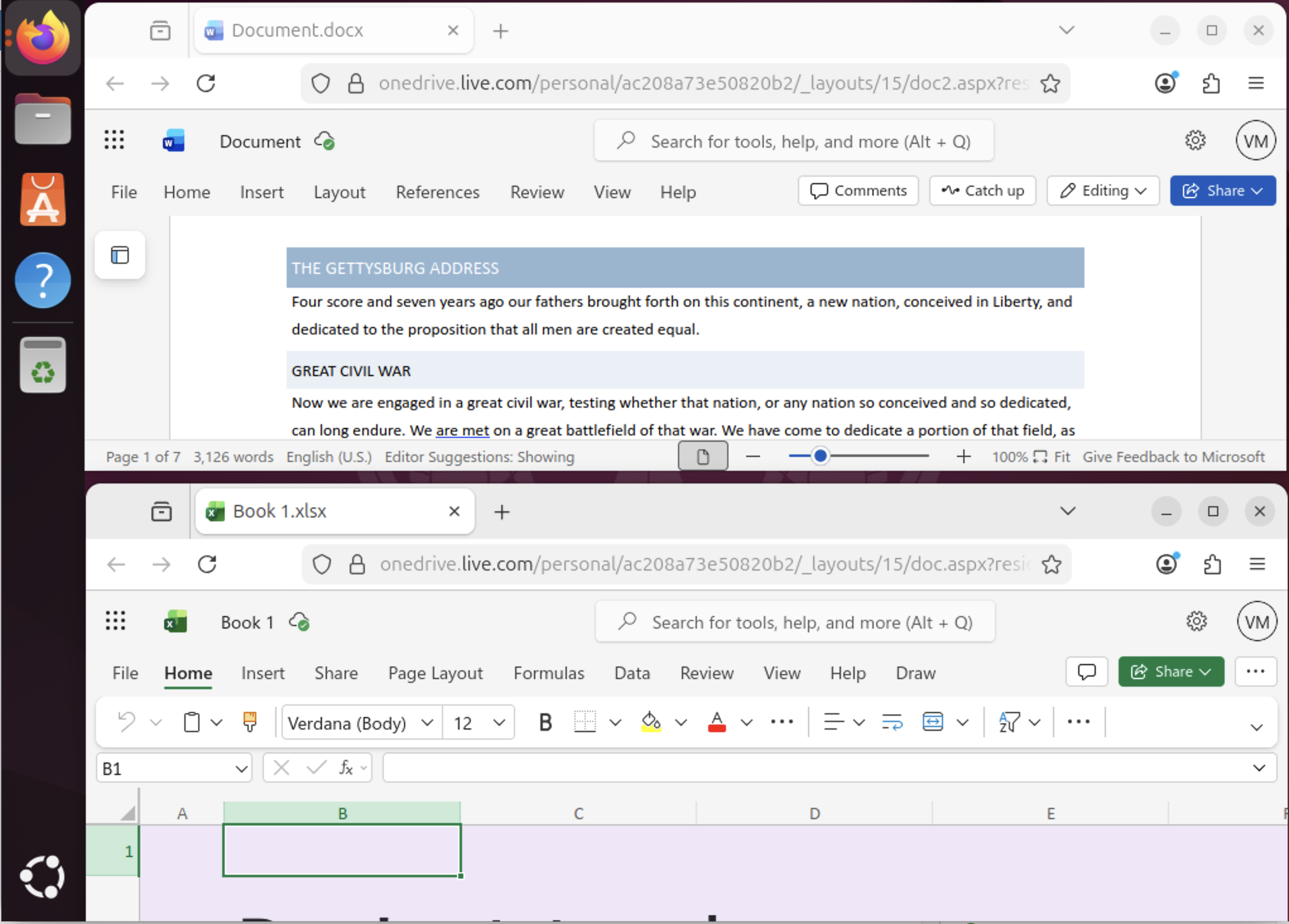
You get browser versions of Word, Excel, PowerPoint, OneNote and Outlook, plus solid OneDrive integration and real-time collaboration. For everyday documents and moderate spreadsheets, it works well and is officially supported.
Where it falls down is in the heavy-duty stuff. VBA macros don’t run. Many advanced Excel features are missing or simplified. Add-ins are limited. If your work depends on complex automation or power-user tools, the web version quickly shows its limits.
Virtual machine
For people who genuinely need “real” Office with all features intact, the most dependable solution is still a Windows virtual machine running on Linux. You install Windows inside software like VirtualBox, VMware or KVM then install the normal desktop Office inside that Windows environment.
You get full compatibility, full Excel features, macros, Power Query, corporate add-ins, the lot. The downsides are obvious: more system resources, a Windows license, and the mild annoyance of running an entire operating system just to use Office.
Still, for professionals and businesses, this is the least risky approach.
WINE
Then there’s WINE, the compatibility layer that tries to run Windows software directly on Linux. In theory, it can run some older Office versions. In practice, it’s a mixed bag.
Office 2007, 2010 and sometimes 2013 can be coaxed into working with enough tweaking. Newer versions, especially Microsoft 365 desktop apps, usually fail outright or suffer from crashes, broken updates and licensing headaches. WINE is fine if you enjoy tinkering and troubleshooting. It’s not something you should rely on for real work.
MS Office alternatives
Finally, many Linux users turn to Office alternatives like LibreOffice, OnlyOffice or Google Docs (in a browse).
For basic documents they’re fine, and in some cases very good. But once you start dealing with complex Word layouts, large Excel models or macro-heavy files, compatibility gaps become obvious.
They’re substitutes, not replacements.
