Replacing text with links
” I have a lot of acronyms in a document and would like to add a link to a glossary each time an acronym is used. But I can’t figure out how to add a link to existing text using Replace. ”
It’s a fairly obvious thing that’s possible in Word but somewhat hidden away.
Happily there is a way to do it …
If you choose the Replace option then Special (to insert special Word characters) there’s no Field Code option. ‘Field Code’ is available to Find but not to Replace.
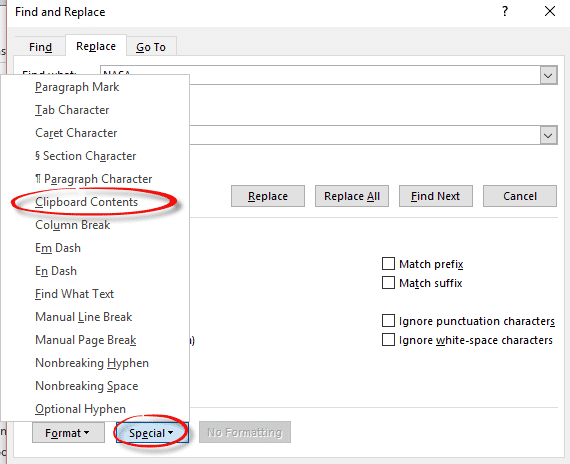
But there is ‘Clipboard Contents’ which is a handy trick for all sorts of situations like this. It’s the workaround for inserting into Word things that aren’t directly possible from the Replace command.
Make the link you want in the Word document then Copy it to the clipboard. The link should have the visible text with link ‘underneath’ and, if you wish, ScreenTip.
Open the Replace and use the ^c code to insert from the clipboard in the ‘Replace with’ field. ‘Find what’ is the acronym.
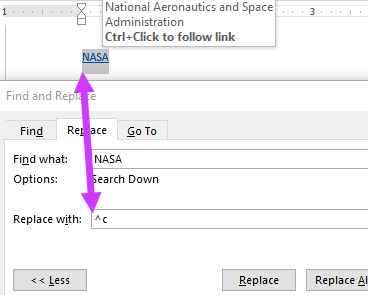
Now all (or selected) instances of NASA you can replace with NASA and link to their web site.
You could do the same thing with a link to a glossary in the same document.