Spanish Flag in Microsoft Office: The Right Image, the Right Colors
Need the Spanish flag in Word, Excel or PowerPoint? Here is the fast, correct way to do it. We will show you where to download a proper scalable version of Spain’s flag (so it stays sharp at any size), the exact red and yellow color codes you need to match it in a document, worksheet or slide, and how to add subtle shadow, reflection and bevel effects that look professional without mangling a national flag. The same steps work in Microsoft 365, Office 2024, Office 2021 and Office 2019, on Windows and Mac.
Get the Spain Flag Image
There are many, many copies of the Spanish flag available. We’ve opted for the Wikipedia site because it has an SVG scalable version (preferred) and PNG versions for older MS Office and other programs.
SVG graphics are supported by Microsoft 365 and Office 2021/2019. They maintain high quality regardless of resizing.
Go to https://en.wikipedia.org/wiki/File:Flag_of_Spain.svg . Below the image is a choice of download sizes. Right-click and choose ‘Save link as…’ (or similar depending on browser).


For Microsoft 365, Office 2021 and 2019 choose ‘Original file’ which is the SVG version.
Otherwise choose one of the ‘PNG preview’ options. Select a resolution larger than what you’ll need in your document.
An alternative source is the Office image search at Insert | Pictures | Online pictures. It gives you a few variations to choose from.

Click the funnel icon to filter the search.
The same steps work for any other national flag, just look for a different source.
Spain Flag Colors
The two main colors in the flag are useful to know when designing a document, worksheet or slide. It helps choose matching or contrasting colors.
Red: 173, 21, 25 or #AD1519
Yellow: 250, 189, 0 or #FABD00
You might see other color codes quoted, these are probably older versions. Above are the color codes from Spanish Royal Decree 441/1981.
Where possible, use the # Hex color codes, see Hex color code advantages in Office .
Insert Spanish Flag to Word, PowerPoint or Excel
Once the flag image is saved to your computer, it’s the usual process to insert into a document. Go to Insert | Pictures, and choose the image you just downloaded.
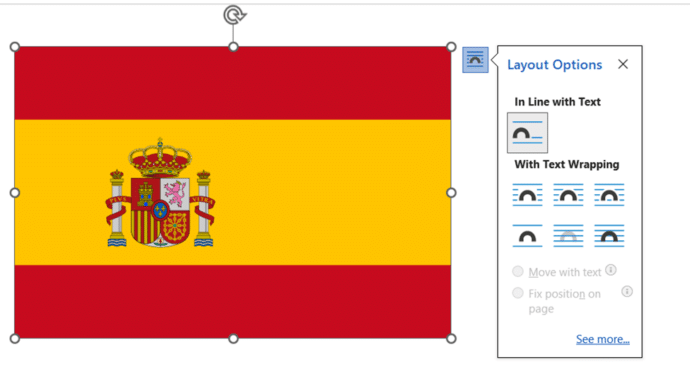
In Office, you can resize and position the image just like any other.
Flag Effects
Once you have the image in Office, all the usual Office Graphic or Picture Format options are available. If you are using an SVG file, you will have a Graphics Options tab on the ribbon, when you click on the image, whereas if you are using another image format, it will say Picture Format.
Some of the Graphics Effects like Shadow, Reflection and Bevel add a little visual interest without distorting the flag to a level that might offend.
Shadow
For a nice little shadow effect, try Graphics Effects | Shadow | Outer which adds a little ‘shadow’ to the right and bottom of the image. Open the side-pane to change the finer settings.

Reflection
Graphics Effects | Reflection is another way to add a little effect to an image. Choose a preset then go to Reflection Settings for more options in the side-pane.

Beveled Edges
Graphics Format | Graphics Effects | Bevel is another choice for a slight 3D effect. Choose a preset then go to 3D Options to change the finer settings.

Beyond these choices there are many more available, especially if you’re using an SVG. Graphics Fill or Graphics Outline can change the colors of an image.
French Flag in Word, Excel and PowerPoint: Get the Colors Right
England Flag in Word, Excel and PowerPoint: The Right Way
Argentina Flag in Word, Excel and PowerPoint: Get the Right One
Insert the British ‘Union Jack’ flag into Word, Excel or PowerPoint
Add the Irish Flag into Word, Excel or PowerPoint
Add the US Flag into Word, Excel or PowerPoint
Australian flag and more into Word, Excel or PowerPoint docs
Add the Indian Flag into Word, Excel or PowerPoint
Hex Color Codes in Microsoft Office: How to Use Exact Colors Every Time