Get the most from Pie and Pizza Icons/SVG in Microsoft Office
The Pie, Pizza and Pie Chart icons in Microsoft Office are boring and dull. Learn how to make pie and pizza SVG icons look (and taste?) better in Microsoft Office. Convert Office icons to shapes, recolor slices, hide parts, and add effects in Word, Excel and PowerPoint
Just part of our tongue-in-cheek Pi 𝜋 Day and Pie series of articles.
Icons (SVG) for Pie not Pi
Icons (SVG graphics) at Insert | Illustrations | Icons doesn’t have anything ‘Pi’ related but does have ‘Pie’ icons both edible and chart.

Prefer emoji? See Pie or Pi emoji and more in Microsoft Office
Pie Charts
There are Pie Charts either on their own or on a screen.
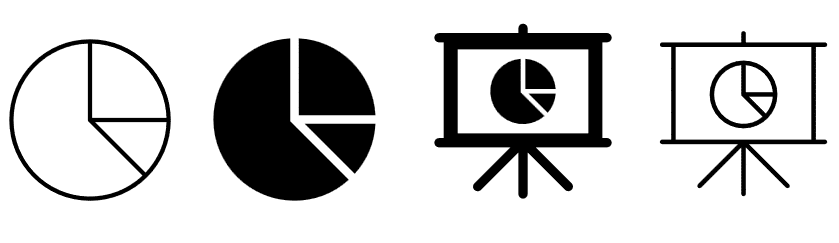
See Excel’s five Pie Chart tricks to make real pie charts!
Pie Icons
There are baked pies with the sweet/savory filling left to your imagination.

Pizza icons
Or a pizza which we’ll use to show some handy tricks with Icons/SVG in Office.

Decorating a Pizza Icon
As you can see above, the pizza icon, like all Office Icons, can only be recolored as a whole thing. But Office Icons can be broken into editable segments via the Graphics Format | Convert to Shape command.
Now, in the Selection Pane, you can see the four separate parts that make up the pizza icon. Each part of the icon can be changed, including recoloring. We’ve renamed from the Office defaults to more understandable labels.

Hiding parts of an icon/SVG
Would you prefer a slice of pizza or the pie without the slice? That’s possible with a little more Office trickery. Here’s two versions of the icon, one with the slice only and the other of the main pie without the slice. Plus a little rotation so the pizza looks like Pac-Man <g>.

Use the Show/Hide buttons at right to control which parts are visible. There’s also the option to delete a part of the graphic, but show/hide is easily reversible.
Icon / SVG formatting choices
Once you have an icon in separate parts, there’s all sorts of things you can do from the Shape Format tab. Especially the three menus in Shape Styles; Shape Fill, Shape Outline and Shape Effects.

In this example we’ve selected the main pizza segment then chosen Shape Effects | Shadow | Inner to give a little 3D look. Use Format Shape pane to tweak the in-built selection to suit (Transparency, Blur, Angle and Distance).

Pi 𝜋 Day fun
Better Icon and SVG Editing Trick in Office
Four SVG Editing Choices for Office 365, 2019, and 2021
Find More SVG Icons for Microsoft Office Documents
See More with Selection Pane in Excel, PowerPoint, and Word
Use an Icon or SVG as a Bullet in Word
Sketchy and Wriggly Lines in Icons and SVG Graphics
Get Over 3,000 More Icons from Google for Office
Save Images or Slides to SVG Format