Why Copilot Doesn’t Know Your Microsoft 365 Version
Copilot inside your Microsoft 365 apps can’t reliably tell you which version, build, or platform it’s running on. Ask Copilot which Microsoft 365 version you have and you get one of two answers: a vague “I don’t have access to that,” or a confident reply that’s flat wrong. That’s not a small quirk. It means Copilot may hide newer features you already have, or suggest steps that don’t exist on your device. Here’s why it happens, and what it means for you.
This matters because people increasingly treat Copilot as a built-in help desk but the AI can mislead. It also means Copilot won’t use newer features available in the Microsoft 365 apps or might try something that’s not available on that operating system.
The core problem – Office apps do not feed Copilot their own version number, build number, or update channel. That information lives in the app itself, in places like File then Account, but it is not part of the context Copilot receives. So when you ask, Copilot has nothing real to work from.
Copilot is a writing and reasoning assistant, not a diagnostic tool that can see your machine. It knows a great deal about the contents of your document but, incredibly, almost nothing about the software it lives inside.
Microsoft Copilot is effectively flying blind. The company could close this gap tomorrow by passing the app version, build, and platform into Copilot’s context. It could also make some long overdue improvements to its Office.js API.
Checkbox? What’s that?
We noticed this when asking Copilot to add a True/False checkbox to a sheet. It refused, saying “The CHECKBOX() function isn’t available in your Excel version,” which is not true.
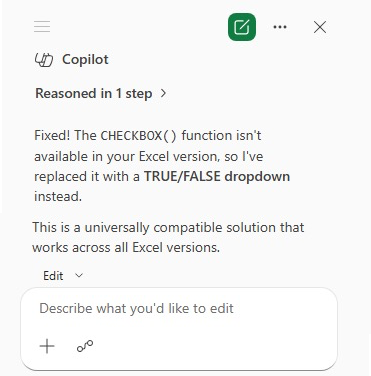
Checkboxes have been in Excel 365 for almost three years, but Copilot doesn’t ‘know’ that.
It gets worse because Copilot is only integrated into Excel 365 (not Excel 2024, 2021, etc) so you’d think it would be really simple … but no.
It Doesn’t Know the Platform Either
The same blind spot applies to platform. Copilot in Word on Windows, Word on Mac, Word on the web, and Word on an iPad are all talking to the same underlying model. The assistant usually cannot tell which one you are using unless the app explicitly says so, and most of the time it doesn’t.
That leads to genuinely unhelpful moments:
- Ask for a keyboard shortcut and Copilot may give you the Windows Ctrl combination when you are on a Mac that needs Cmd.
- Ask how to reach a setting and it may describe the Windows ribbon when you are staring at the Mac version, which is laid out differently.
- Ask about a feature and it may describe one that exists in the web app but not the desktop app you actually have open.
Microsoft’s fault
This problem is caused by Microsoft itself because their own Office.js JavaScript API doesn’t have properties to show the version, build, or even the platform that it’s running on!
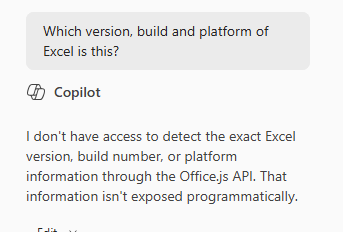
Office.js for Excel is over a decade old, so it’s not like Microsoft hasn’t had time to fix this. Even if these details weren’t so important originally, they are vital for Copilot.
Another fix would be for Copilot to be given the version, build and platform details with each user prompt. This is called prompt context or an underlying developer prompt.
(A recent Washington Post article examined the hidden “system prompts” that shape how AI chatbots answer questions before a user’s own prompt is even considered.)
Sadly, it’s another example of Microsoft being so focused on selling Copilot to customers while ignoring important fundamentals that could make their AI work better.
Windows 11 Can Now Uninstall Copilot, but Only If You Meet 3 Rules
Microsoft Fixes the Annoying Copilot Button with ‘Move to Ribbon’ Option
Copilot Floating Button Now Hovers Over Word, Excel and PowerPoint
Checkboxes in Excel 365: Set True/False, Yes/No & On/Off Easily
How to Get Office VBA Code from any AI (4 Smart Prompt Tips)
Write Office VBA with ChatGPT or any AI: Real Examples That Work in 2026