How to Install Only Publisher and Skip the Rest of Microsoft Office
Publisher 365 stops working on 13 October 2026. If you are moving to an older Microsoft Office to keep Publisher alive, you do not have to install the whole suite. Here is how to install only Publisher from Office 2019 or Office 2021, leaving Word, Excel, Outlook and the rest off your computer. It takes about ten minutes, uses a free Microsoft tool, and it also works on a machine that already has the full Office installed.
With the upcoming end of Publisher 365, many people are getting an older version of Microsoft Office that includes Publisher.
End of Publisher: a quick reminder
- Publisher 365 in Microsoft 365 stops working completely on 13 October 2026.
- Publisher 2021, 2019, and earlier versions in some Microsoft Office bundles will continue to work.
- .pub Publisher files have no good conversion options, so many people are setting up an older Publisher instead.
One option is to get an older version of Microsoft Office Professional and install it on your computer. That should work, but there can be compatibility problems with newer versions of Office or Microsoft 365. Installing two versions of Office on one computer isn’t supported by Microsoft. At Office Watch, we’ve heard from too many people who have had trouble doing it.
The best and most reliable way to keep Publisher
The very best and most reliable way to have multiple versions of Office is to use a virtual machine, such as Hyper-V, which comes with Windows 10 or 11 (except Home editions), or Parallels on a Mac. This keeps each Office release completely separate, with no chance of conflicts. Or put Publisher on a old computer that you might have lying around.
We hear from a lot of people who don’t want to try virtual machines even though it’s the safer and reliable solution.
If that’s not possible, a safer way is to install only the parts of Office that you want, such as Publisher alone. And install the older software AFTER the more recent software. Other apps, such as Word and Excel, aren’t installed at all. This saves a little disk space, but more importantly, it reduces the risk of conflict or confusion between apps.
Check out Microsoft Publisher Ends in October 2026: Key Dates, Alternatives and How to Keep .pub Files.
Get Publisher only from Office 2021, 2019, and 2016
Here’s how to install only Publisher from Office 2019 or Office 2021. The Professional and Professional Plus bundles include Publisher.
These instructions also work for some Office 2016 installs, but only if it’s a Click-to-Run install, not the older MSI or single large download.
Office 2019 and 2021 use Microsoft’s Click-to-Run installer, which has no “Custom install” screen with checkboxes like the old Office 2010 and 2013 MSI installers had. The supported way to install Publisher on its own is to use the free Office Deployment Tool (ODT), where you list the apps you want to exclude.
It works on a fresh install and on an existing one, so you can strip Word, Excel, Outlook, PowerPoint and Access from a machine that already has the full suite, leaving only Publisher.
Before installing Publisher
Three settings decide whether this works. Get any of them wrong and the installer either fails outright or quietly installs a completely different edition of Office.
Bitness: 32-bit or 64-bit
Open any Office app, then go to File | Account | About Word. The button name changes to match whichever app you opened, so it might say About Excel or About Outlook. The version line ends with 32-bit or 64-bit. Anything you install must match what is already on the machine. Almost everyone has 64-bit these days, but check rather than assume.
Product ID and Channel are two different things
This is where most people come unstuck. The configuration file has two separate settings that sound like they do the same job:
- Product ID says which Office bundle to install. For example,
Professional2019Retail. - Channel says which update track that bundle follows. For example,
PerpetualVL2019.
A Channel value never goes in the Product ID slot. Typing PerpetualVL2019 where a Product ID belongs is the single most common reason a Publisher only install fails, and the error message will not tell you that is what happened.
If Office is already on the computer, copy the values instead of guessing
Open Registry Editor and go to:
HKEY_LOCAL_MACHINE\SOFTWARE\Microsoft\Office\ClickToRun\Configuration
Three values matter:
- ProductReleaseIds is your Product ID, exactly as written.
- AudienceData is normally your Channel, such as
PerpetualVL2019. - Platform confirms
x86for 32-bit orx64for 64-bit.
Copy all three exactly, character for character.
If Office is not installed yet
Pick the matching pair for whatever you bought. Only these bundles include Publisher. Home & Student and Home & Business never have.
| What you bought | Product ID | Channel |
|---|---|---|
| Office Professional 2019, retail box or download | Professional2019Retail | PerpetualVL2019 |
| Office Professional Plus 2019, volume license | ProPlus2019Volume | PerpetualVL2019 |
| Office Standard 2019, volume license | Standard2019Volume | PerpetualVL2019 |
| Office Professional 2021, retail box or download | Professional2021Retail | PerpetualVL2021 |
| Office LTSC Professional Plus 2021, volume license | ProPlus2021Volume | PerpetualVL2021 |
| Office LTSC Standard 2021, volume license | Standard2021Volume | PerpetualVL2021 |
A cheap Office key bought from a third-party site is almost always a volume license, so you probably want one of the Volume rows rather than the Retail ones. If the seller was vague about what they sold you, find out before you run the installer.
Warning: get the pairing wrong and the Office Deployment Tool can start downloading and installing an entirely different edition of Office. On a slow connection that is a couple of wasted gigabytes and an hour you will not get back.
Get the Office Deployment Tool
Download the Office Deployment Tool. It is a self-extracting file. Run it and extract it to a simple folder such as C:\ODT. You will get setup.exe plus some sample XML configuration files.
Build a configuration file for Publisher only
The deployment tool needs a configuration file, which is plain text XML you can edit yourself.
The easiest way to make the configuration file is to go online to Microsoft’s Office Customization Tool. Work through the options for bitness and product, then uncheck every app except Publisher and export the XML.
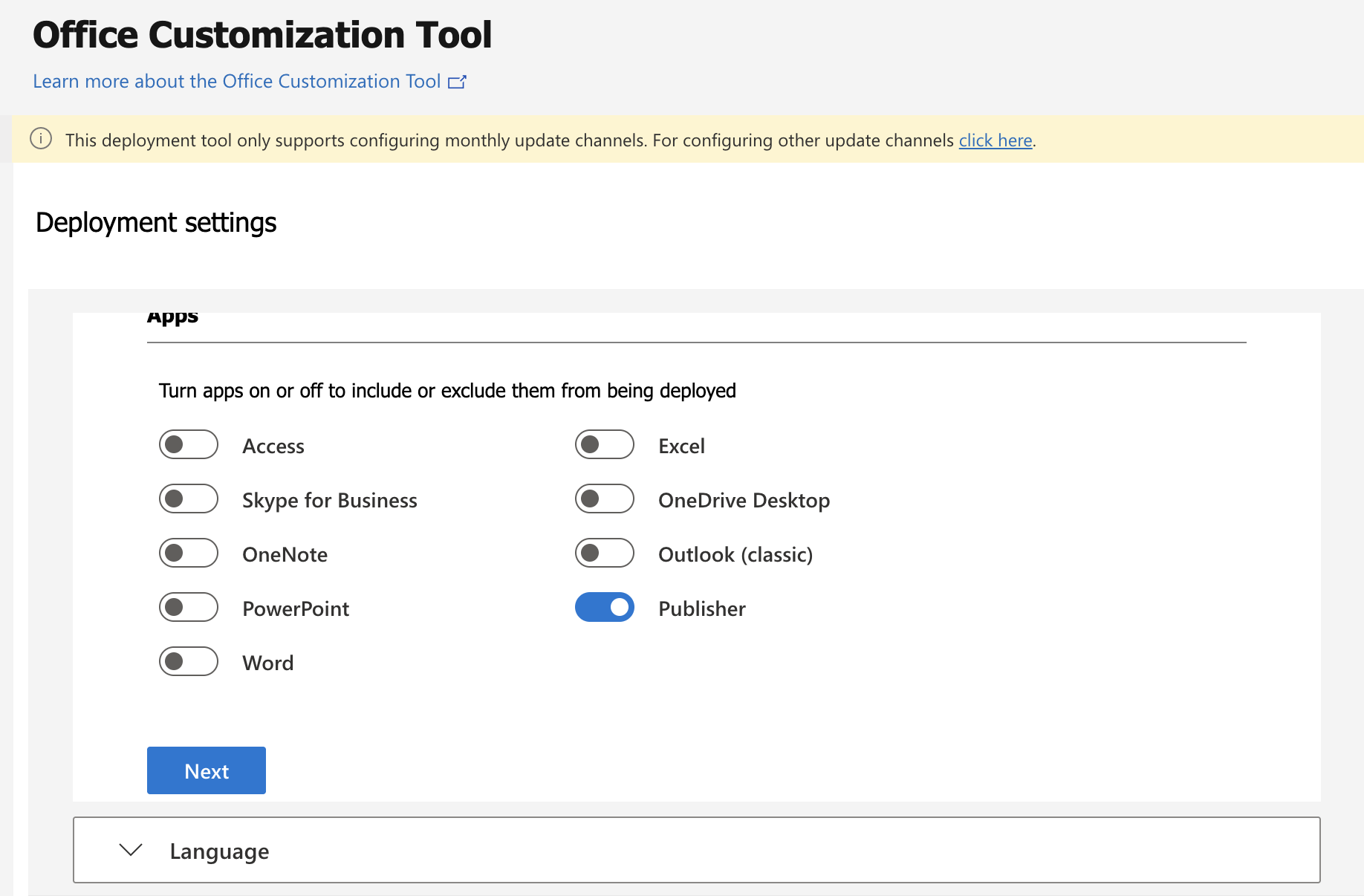
Save that as configuration.xml in the same folder as the Office Deployment Tool.
Handmade configuration
If you prefer the DIY approach, make a configuration.xml file using any text editor, such as Notepad, then save your configuration.xml in the same folder as setup.exe. Change OfficeClientEdition to 32 if you are using 32-bit Office.
Here’s the entire configuration file. Change the Channel and Product ID to suit your version of Office and the package you have.
<Configuration>

  <Add OfficeClientEdition="64" Channel="PerpetualVL2019">

    <Product ID="Professional2019Retail">

      <Language ID="en-us" />

      <ExcludeApp ID="Access" />
      <ExcludeApp ID="Excel" />
      <ExcludeApp ID="Groove" />
      <ExcludeApp ID="Lync" />
      <ExcludeApp ID="OneDrive" />
      <ExcludeApp ID="OneNote" />
      <ExcludeApp ID="Outlook" />
      <ExcludeApp ID="PowerPoint" />
      <ExcludeApp ID="Teams" />
      <ExcludeApp ID="Word" />
      <ExcludeApp ID="Bing" />

    </Product>

  </Add>

  <Display Level="Full" AcceptEULA="TRUE" />

</Configuration>
Everything not listed as an ExcludeApp gets installed, so Publisher is the only app that survives. Excluding an app that is not part of your edition does no harm.
Run the Office installation
Open Command Prompt as administrator, then:
cd C:\ODT
setup.exe /configure configuration.xml
You will see the familiar Office installation progress window. When it finishes, Publisher is the only Office 2019 or 2021 app in your Start menu.
Removing apps from an existing install
The same command strips apps from an existing Office installation. Running setup.exe /configure against a Click-to-Run install that is already there will remove the excluded apps rather than install them. Your license and activation are untouched, since the Office Professional key covers the suite whether you install one app or all of them.
Two warnings
- Get the Product ID exactly right. A mismatch can trigger a full reinstall of the wrong version of Office.
- Close all Office apps first, and make a note of your Outlook data file locations if Outlook is being removed. Removing the app does not delete .pst or .ost files, but knowing where they are saves panic later.
How Publisher can be deleted
After you’ve installed Publisher, it might disappear later. Having two version of any Office apps is NOT supported by Microsoft and not recommended.
Installing a full version of Microsoft 365 or Microsoft Office will automatically delete past versions of Office, that includes any modern version Publisher installed on it’s own.
If that happens, reinstall Publisher AFTER the newer Microsoft 365 or Office is setup.
On a new computer, install the latest Microsoft 365/Office first, then the Publisher only special installation.
Even then, the combination of two Office versions might not work.
What this actually saves you
You won’t save a lot of disk space by excluding most Office apps. That’s because Publisher shares a large chunk of code with the rest of Office, so a “Publisher only” install still uses a surprising amout of space: roughly 1 to 2 GB.
The real benefit is a clean Start menu, no unwanted file associations, no conflicts between similar apps, and no Outlook or Teams nagging you.
Keep Publisher Working: Which Microsoft Office Version to Buy in 2026
Microsoft Publisher Ends in October 2026: Key Dates, Alternatives and How to Keep .pub Files
Which Microsoft Office (Including Publisher) Can You Still Buy in 2026?
Beware the Publisher 365 Kill Switch Deadline
Convert Publisher to Word: We Try Microsoft’s Method
Is My Microsoft Office .MSI or Click to Run?
64-bit or 32-bit Office: Which Version Should You Choose?
Installing Older Office on Windows 11
Ultra-cheap Microsoft Office Deals: Are They Legal and Do They Work?