Add Rows Above or Below a Dynamic Array in Excel
If your Microsoft Excel workbook uses dynamic arrays, you might have run into a common frustration: adding a heading or a total below (or above) the spilled list often triggers a #SPILL! error or leaves awkward gaps when the list expands/contracts. It’s easy to “stack” your dynamic array with extra rows along such as a heading (above) or summary/total line (below).
Dynamic arrays can expand or contract as needed so the traditional way of adding a total doesn’t work. This example works OK with a SUM function in D6.
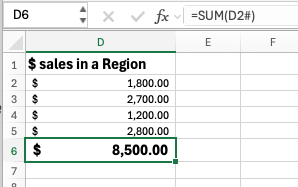
Cell D2 has a Filter() function e.g. =FILTER(RegionSales[Sales],RegionSales[Region]="East") which shows the sales figures for one region.
Notice the Sum() reference in D6 has the starting cell (D2) plus the pound/hash # symbol which tells Excel to use all the cells below.
The problem with the fixed Total line comes if the list is longer or shorter.
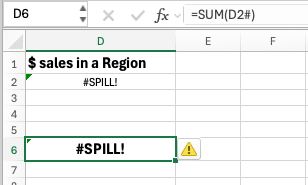

If the list needs more rows, there’s a #SPILL error because the SUM() in D6 is blocking the array.
A shorter list doesn’t raise an error but leaves a gap.
Add total or anything to the end of a dynamic array
The more elegant solution is to use VSTACK() to add array items together. In this case the dynamic array plus another row at the end.
=    VSTACK(

        FILTER(RegionSales[Sales],RegionSales[Region]="East"),

        SUM(FILTER(RegionSales[Sales],RegionSales[Region]="East"))

    )
However, that’s asking Excel to calculate the same Filter() twice, which isn’t efficient and asking for trouble later (if one formula is changed but not both). The better solution adds Let() so the main calculation is only done once and given the name “list”.
=LET(

    list, FILTER(RegionSales[Sales],RegionSales[Region]="East"),

    VSTACK(

        list,

        SUM(list)

    )

)
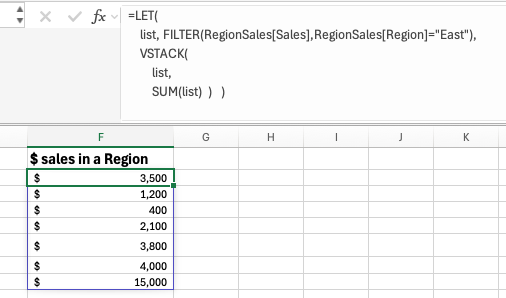
If you’ve been wondering why Microsoft added VSTACK() and HSTACK(), this is just one example of their uses. See Combine Excel Arrays with HStack() or VStack()
Add a heading
The heading can also be added by including another item, in the VSTACK().
=LET(

    list, FILTER(RegionSales[Sales],RegionSales[Region]="East"),

    VSTACK("Total $ sales for a region",

        list,

        SUM(list)  )   )
There’s not much point doing that for a fixed text heading. Change it to something that changes and the heading option becomes very useful.
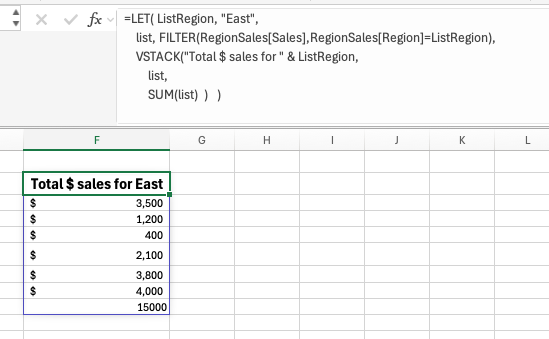
=LET( ListRegion, "East",

    list, FILTER(RegionSales[Sales],RegionSales[Region]=ListRegion),

    VSTACK("Total $ sales for " & ListRegion,

        list,

        SUM(list)  )   )
Add another List variable to make the heading change automatically.
More than just totals
The Sum() part of the Vstack can be anything, count, average etc.
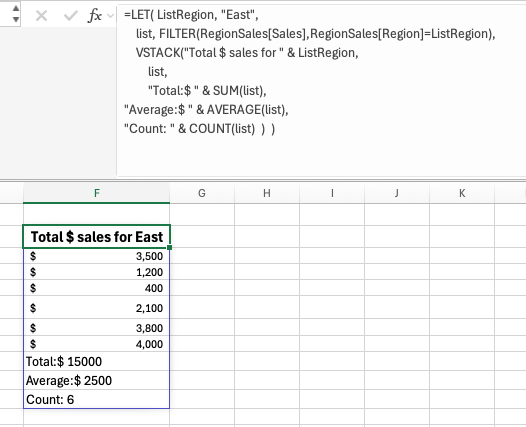
Or add more Vstack make a longer summary below the main list. Here’s code for three summary lines under the dynamic array.
=LET( ListRegion, "East",

    list, FILTER(RegionSales[Sales],RegionSales[Region]=ListRegion),

    VSTACK("Total $ sales for " & ListRegion,

        list,

        "Total:$ " & SUM(list),

"Average:$ " & AVERAGE(list),

"Count: " & COUNT(list)  )  )