How to Remove Emoji from Word docs or Outlook emails
Word documents and Outlook emails can be cluttered with unnecessary emoji. Copilot AI loves adding emoji, like it or not. If you’re tired of seeing smiley faces in your reports or emails, here’s practical ways to clean them out. Learn step-by-step methods to find and remove emoji using font searches or wildcard sweeps so your text stays professional and distraction-free.
Copilot or ChatGPT responses often come with way too many emoji, cluttering up the headings. Which prompts us to look for ways to remove these nuisances. As a example, here’s a “Think Deeper” response, copied into Word.

Quick (but imperfect): search by emoji font
Many, but not all, emojis render in Segoe UI Emoji on Windows.
- Press
Ctrl+Hto open the Find tab. - Click More | Format | Font…
- Set Font | Segoe UI Emoji
- Leave Find what empty | Find Next
- Find In | Main Document.
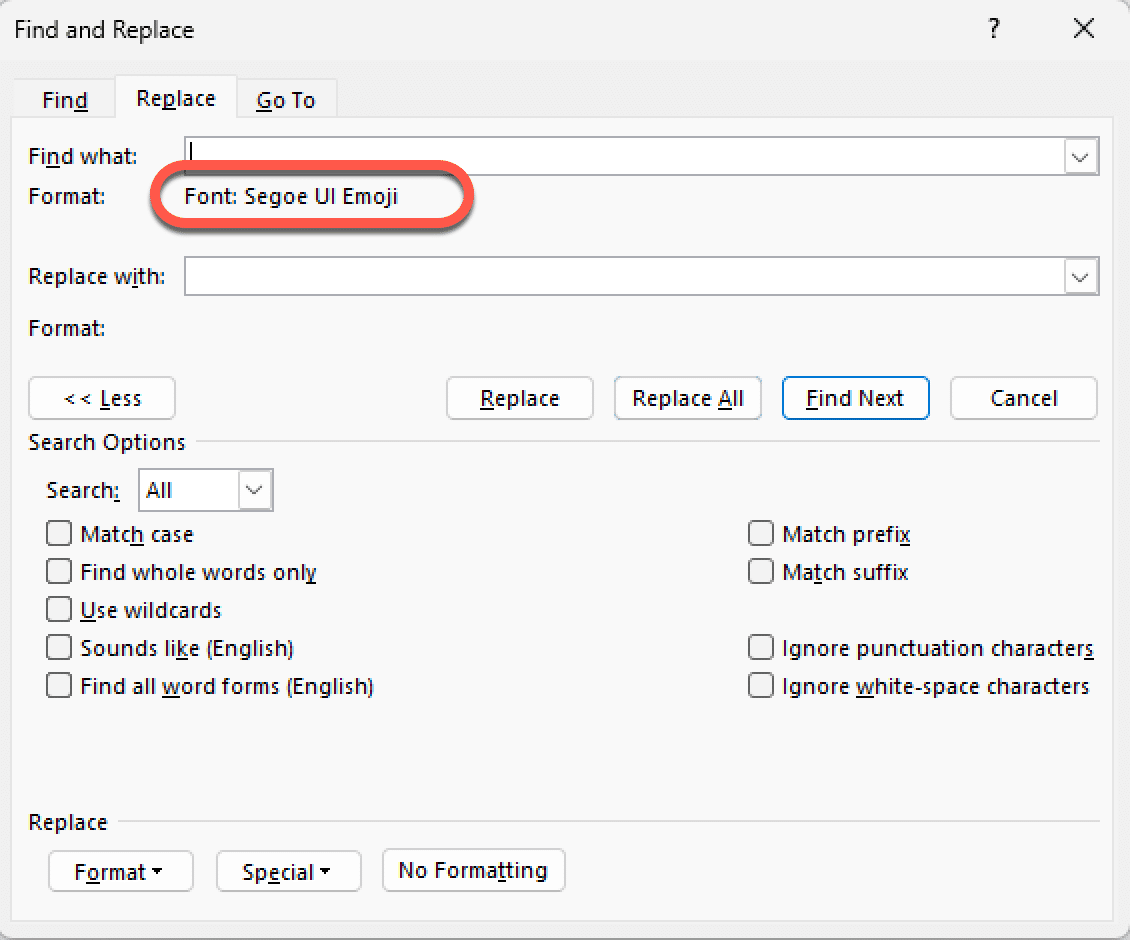
You might need to search for other emoji fonts, depending on the document.
On Word for Mac, search for the “Apple Color Emoji” font.
This misses emojis using other fonts and catches any text styled with that font even if it’s not an emoji (rare but possible).
“Non-ASCII” sweep (broad net)
If you just want to surface anything non-ASCII (which will include emojis but also some less common accented letters, symbols, etc.):
Ctrl+H| Find tab | turn on Use wildcards- This enables Regular Expressions (Regex) options.
- In Find what, enter:
[!^001-^255] - Find Next.

How this works: most characters used in English and other Indo-European languages are in the first 255 of the much larger Unicode list. This maintained compatibility with the older ASCII system which only supported 255 symbols (compared to the over 150,000 in the latest Unicode version).
[!^001-^255] asks Word to find any character NOT (!) in the first 255 characters.
Many but not all emoji are in the range U+1F000–U+1FFFF. In Word you could search for “[^u55356-^u55359][^u56320-^u57343]” using wildcards but even that might not find all emoji.
It’s safer to look for any non-ASCII characters with Find Next, delete when necessary, then move to the next one. That will prevent accidental deletion of a non-emoji character.
Copilot or ChatGPT – maybe in the future?
You can try uploading a Word document to an AI system like Copilot or ChatGPT then asking it to remove all emoji.
Copilot in Word 365 or the web site can’t edit an existing document. All it offers is a convoluted process of copy and paste which doesn’t preserve all the formatting of the original document.

Copilot Deep Research Tested: Real Results, Flaws, and Formatting Fails