Three APA Formatting Traps in Microsoft Word That Ruin Academic Papers
Microsoft Word makes academic writing easier but it also hides some frustrating APA formatting traps. From automatic spacing errors to headers that don’t match APA guidelines, small Word defaults can quickly throw your paper off compliance. Here are three common APA formatting mistakes in Microsoft Word and how to fix them before submission.
In Three quick ways to get the APA Format in Microsoft Word we help find a Word document sample that almost matches the APA standard.
There are three areas most likely to trip you up and need checking or fixing.
Headers
The APA v7 standard is a page number at top-right of all pages, including the title page. Sometimes the page number is only for page 2 and later.
Page Numbering is NOT setup in the Microsoft Word template though it’s hard to understand why not. The APA download docx has page numbering in the header.
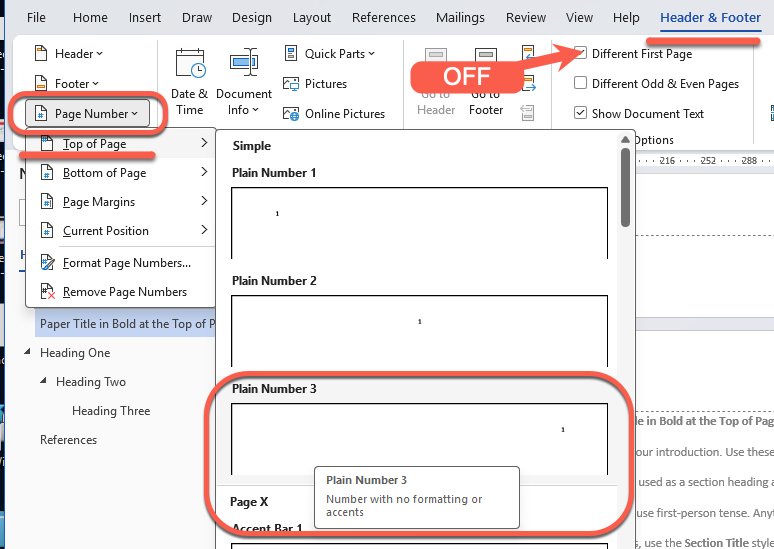
Add the page number by clicking at the top of a page (or later) to open the header section.
On the Header & Footer tab:
- Options | Different First Page is OFF
- OR turn ON and change the page 2 header.
- Header & Footer | Page Number | Top of Page | Plain Number 3.
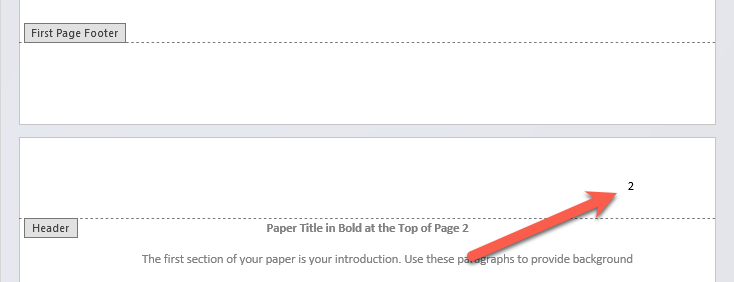
References / Bibliography
References or Bibliography start with the first line on the left margin with a “hanging indent” for the second and later lines are indented.
Use double line spacing, not a blank line between references.
The Word APA template has this setup already with the Bibliography style
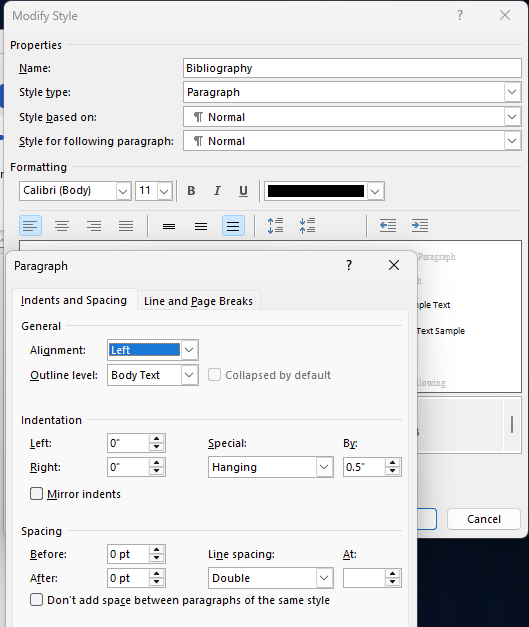
Select all your references (or Ctrl+A if they’re on their own page)
- Go to Home | Paragraph click the small arrow to open the full dialog
- Under Indentation, find the Special dropdown
- Select Hanging
- Set the By value to 0.5″
Citations
Citations are something that trips up many students and needs to be done with special care. Check carefully what the requirements are for your course.
Word has inbuilt Citations and Bibliography features including an APA format choice.
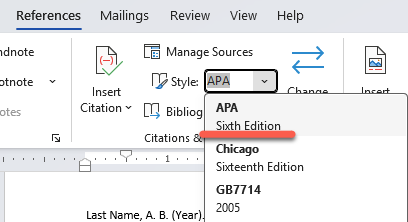
However all the modern versions of Word have the older “Sixth Edition” style not the newer, 2019, Seventh Edition.
The differences are mostly in the text rather than Word settings. For example, hyperlinks and other online sources have specific and streamlined rules in the 7th edition.
Three quick ways to get the APA Format in Microsoft Word
APA Basic Page Setup in Microsoft Word: Margins, Fonts, Spacing and More