Excel’s Flash Fill has a fatal flaw: it forgets. Flash Fill runs once, on the rows in front of it, and then it’s done. Edit a cell, add a row or refresh the data and nothing updates. Excel now has four alternatives all better ways to split or join text that stick around and keep working: Power Query’s Column From Examples, the TEXTSPLIT family, the new REGEX functions and Copilot. Here’s when to use each one, and which one finally handles unusual situations.
Excel’s Flash Fill is now 13 years old. It was a clever and useful trick in its day but now there are better and more reliable ways to split or join text.
The main problem with Flash Fill is its lack of memory or persistence. It works only while you were using it, any customizations are lost as soon as the user moves onto another Excel task.
Any changes to the source cells (edits or additional rows) do not get the “Flash Fill” treatment.
Flash Fill can be trained to deal with exceptions as in this list of names split into first/last, but you still have to find them e.g. “de la” “Van Der” etc.

There are better ways to ‘fix’ text than Flash Fill.
Power Query with Column from Examples
If your data changes or gets refreshed regularly, Power Query’s Column from Examples is the better choice. It works just like Flash Fill, you type a few examples of the result you want and Excel works out the pattern, but the difference is that Power Query saves those steps. Every time the source data is refreshed, the same split or join runs again automatically. Flash Fill is a once only trick; Column from Examples is repeatable.
To use it, load your data into Power Query (Data | Get & Transform | From Table/Range), then in the Power Query Editor go to Add Column | Column from Examples. Start typing your sample results and Excel fills in the rest.
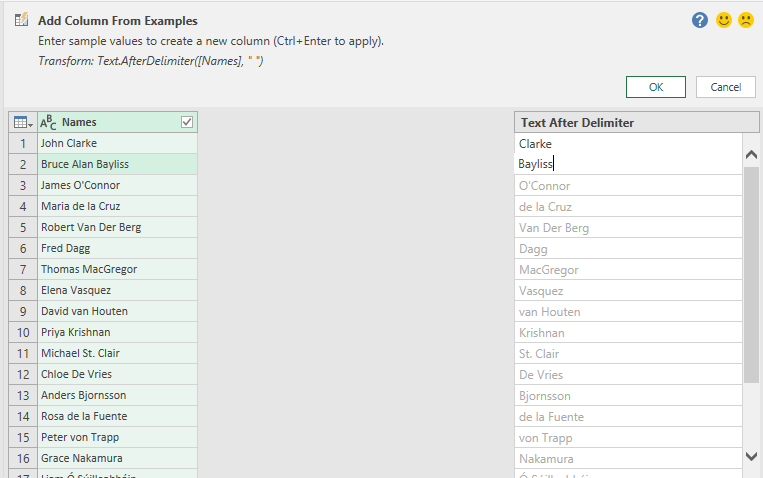
Click OK, then Close & Load to drop the finished table back into your worksheet. From then on, a single Refresh redoes the whole job on updated data.
Power Query is in Excel 365, Excel 2024 and earlier for Windows. Also in Excel 365 for Mac but Column from Example sisn’t available.
PowerQuery mystery solved – how to Remove Duplicates, keeping most recent record
Excel Tables and Transpose – Solved!
Convert Excel’s COPILOT() Output into Static Cells – Stop Auto-Updates & Preserve Values
Join Tables with Excel Power Query
Check these Excel Power Query settings before it’s too late
Newer TEXT… functions
TEXTSPLIT, TEXTBEFORE and TEXTAFTER do the same splitting jobs as Flash Fill but as real formulas. See Excel’s better text splitting powers
TEXTSPLIT breaks a text string into separate cells using a delimiter (like a space or comma), spilling the results across columns or down rows. But, as you can see, it’s very literal and doesn’t handle exceptions at all.

TEXTBEFORE and TEXTAFTER grab everything before or after a character you choose, which is perfect for splitting email addresses or file paths. For names, try this which assumes one first name and no middle name.
First name: =TEXTBEFORE([Name},” “)
Last name: =TEXTAFTER([Name],” “)
Because they are formulas, change the source cells and the result updates instantly.
This option isn’t good for handling exceptions.
Regex functions
REGEXTEST, REGEXEXTRACT and REGEXREPLACE arrived in Excel 365 for Windows and Mac. It can handle the messy, real world cases that trip Flash Fill up, like surnames with “van” or “Al” prefixes. See Excel has ‘real’ Regular Expression functions
RegexExtract is the best for splitting names. It’s third argument called return_mode. Set it to 2 and it returns the capture groups of the first match as an array, which spills across two cells.
=REGEXEXTRACT(A2,"^(\S+)\s+(.*)$",2)
Break down the pattern:
- ^(\S+) grabs the first run of non space characters. That’s the first name.
- \s+ swallows the space between them.
- (.*)$ grabs everything else to the end of the cell. That’s the surname, spaces and all.
They take a little learning but give you full control over the pattern. Any AI can help you write the regex pattern you need.
Copilot or other AI
Copilot in the side pane or Copilot() function in Excel 365 can be used instead of Flash Fill and is especially good for splitting names into First, Middle, Last including exceptions.
In the Copilot side-pane try a prompt like this:
Split each full name in A2:A22 into first name and surname. Ignore any middle names entirely. Keep multi word surname particles such as de, de la, van, van der, von, dos and St. attached to the surname. Return exactly two columns, first name then surname, with no header row.
The result is good and handles exceptions by creating an extraordinary formula to get the last name.
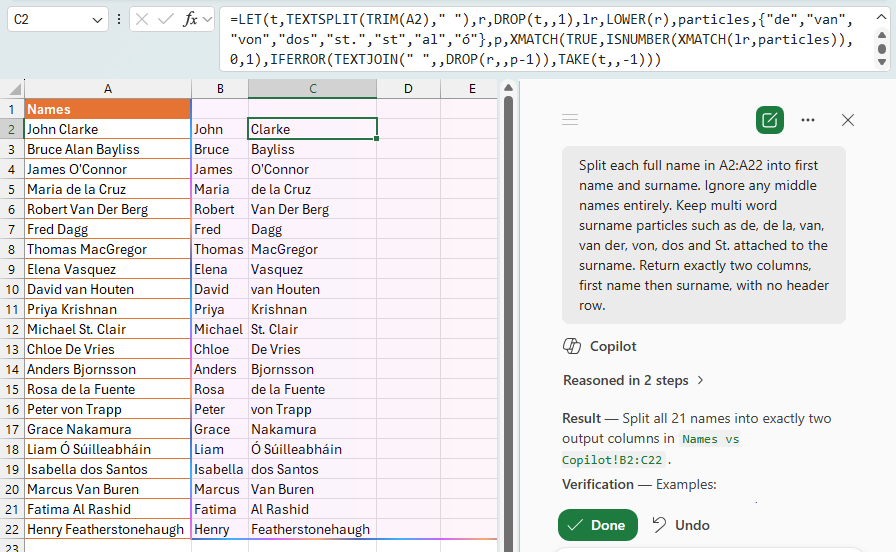
Or use the same prompt in a Copilot() function.
=COPILOT(“Split each full name into first name and surname. Ignore any middle names entirely. Keep multi word surname particles such as de, de la, van, van der, von, dos and St. attached to the surname. Return exactly two columns, first name then surname, with no header row.”, A2:A22)
Avoid unnecessary calls and save AI Credits by using one formula that sends many cells for processing.
Discover the COPILOT Function in Excel
Convert Excel’s COPILOT() Output into Static Cells – Stop Auto-Updates & Preserve Values
Excel Flash Fill Magic: Split, Join and Reformat Text Fast
Split Text in Excel the Easy Way: TEXTSPLIT, TEXTBEFORE and TEXTAFTER Explained
Excel has ‘real’ Regular Expression functions
Join Tables with Excel Power Query
Check these Excel Power Query settings before it’s too late
