Excel Flash Fill Magic: Split, Join and Reformat Text Fast
Excel Flash Fill is one of the fastest ways to split, join and reformat text in Microsoft Excel without writing a single formula. Type one or two examples of the result you want and Excel spots the pattern, then fills the rest of the column automatically. It works on Windows and Mac in Excel 2013 and later, and it handles names, email addresses and phone numbers in seconds. Here is exactly how Flash Fill works, how to turn it on, and the gotchas to watch for.
Flash Fill was added in Excel 2013 for Windows. It’s both useful and looks good in the demonstrations. However there are limitations.
In Excel there’s often need to join, separate or reformat strings of text. Flash Fill copies your actions when retyping data from nearby cells and automatically does the same for matching cells. It can also learn about exceptions to the rule when a different change is needed.
Excel is ‘learning by example’. It’s converting your typed examples into computer code (regular expressions) that can be applied to the other cells in the same list.
Joining text into a single cell
Here’s a simple example to start with. You have two columns for First and Last name and want a column with the two elements combined.

As you type the second name (the ‘Br’ in Bruce) in Column C, Flash Fill works out that you’re trying to join the words in column A and B so it prompts with a greyed list of the rest of column C filled in. Just type Enter to confirm the Flash Fill or keep typing to ignore it.
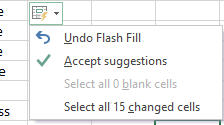
There’s a tooltip menu item that gives you explicit choices if you need them.
Flash Fill is smarter than that simple example, check out this list with some middle names

The names are filled as in the first example with the middle names ignored. But if I go back and ‘fix’ the first entry with a middle name ….

As soon as I revise the cell by adding the middle name, Flash Fill kicks in and updates the other cells to also add a middle name.

There are other examples of this when the initial Flash Fill doesn’t properly work out that last name prefixes like ‘Al’ and ‘van’ should be included. Edit the results and Flash Fill should pick up the revised pattern and copy it down the list.
Splitting text into separate cells
Flash Fill also works the other way, taking a long text string and splitting into separate cells.
Here’s a list of names. Add a column for the first/given name and start typing examples. Flash Fill should kick in with the second row.

Then repeat the process for the last or surname.

Just like with joining text, you can correct Flash Fill’s initial attempt for exceptions like surnames prefixed with ‘Al’ or ‘van’.
Email addresses
Flash Fill doesn’t just work with names. Any text string will work, like email addresses.
Split email addresses into username and domain like this, starting with the username

Then another column for the domain name.

Or go the other way to convert names into email addresses.

Phone Numbers
Phone numbers can also get the Flash Fill treatment. For example changing unformatted numbers into something more readable.

Or changing the format to another style.

Turning on or off
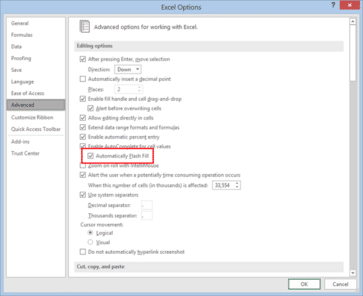
Normally automatic Flash Fill is on by default, but to check this, go to File | Options | Advanced.
Start Flash Fill Manually
Sometimes, automatic Flash Fill doesn’t work, or you may have it turned off in the options for some reason. You can, however, make it happen manually, and there are three ways to do that.
Again, we need to first type in the data in the first line. Then, select the whole column, and do one of the following:
- Use the keyboard shortcut Control + E.
- Click the Flash Fill button under Home | Editing | Fill | Flash Fill.

- Click the Flash Fill button under Data | Data Tools.

(that’s right … the same feature, Flash Fill, has buttons on separate ribbons. The only example we can find of a feature duplicated across Office ribbons).
Repeatable Flash Fill in PowerQuery
Flash Fill isn’t much help with data that changing, it’s a ‘once only’ feature.
If you like the ‘learn by example’ method, try PowerQuery in Excel for Windows or Mac with it’s Column from Examples option. That’s like Flash Fill but is saved and reapplied each time the data source is refreshed.

Flash Fill gotchas
There are some things to keep in mind with Flash Fill.
Flash Fill is a once-only deal not a dynamic listing. If you change some of the source cells then the results are NOT automatically updated.
Reformatting data that’s changing needs other approaches such as a string manipulation formula or PowerQuery.
If you have multiple columns of similar data (maybe info in different formats), be careful that Flash Fill is copying from the column you expect. It’s usually, but not always, the immediate left column.
It’s intended to help people separate out details from info that’s in some order but not fully ready for Excel to use. For example details pasted into Excel from other sources.
Text Splitting Functions in Excel you must try
Meet the man behind Excel’s Flash Fill
What happened to Flash Fill in Excel?
Name Parsing: Smarter AI Way to Split First, Middle and Last Names
Excel Regular Expression Functions: A Game Changer for Data Manipulation
Four ways to split date into day, month, year in Excel
How to Import Text with Excel without Mistakes
Text formatting in Excel with wrapping, line breaks and merging
How to Compare Two Columns in Excel: Find Matches and Missing Values Fast