Excel’s Two New IMPORT Functions Make Pulling External Data Easier
Microsoft Excel has introduced two powerful new functions that make importing external data into spreadsheets faster and simpler. IMPORTTEXT and IMPORTCSV functions let you pull data directly from text or CSV files into Excel with a single formula, creating refreshable dynamic arrays can be updated when the source changes. These functions give Excel users a lightweight, formula-based way to bring external data straight into the worksheet but Power Query might be a better way to do it.
Power Query is Excel’s existing tool for importing and transforming external data but for anyone who just wants to grab a CSV file and get it into a spreadsheet, Power Query can feel like using a sledgehammer to crack a nut.
The new Import Function, ImportText() and ImportCSV(), are designed for exactly those simpler jobs.

The result lands in a dynamic array — meaning Excel automatically spills the data into as many cells as needed. The data can be refreshed on demand using the same option as other data connections at Data | Refresh All.
IMPORTTEXT
The more flexible of the two. It handles .txt, .csv, and .tsv files and gives users control over how the data is parsed.

Syntax: =IMPORTTEXT(file_path, [delimiter], [rows_to_skip], [rows_to_take], [encoding], [locale])
- The file path can be a local path (e.g.,
C:\Data\myfile.txt) or a URL. - The delimiter argument accepts standard characters — or special ones via Excel’s
CHAR()function. - For fixed-width files, users can pass an array of column positions instead of a delimiter character. For example:
=IMPORTTEXT("C:\Data\fixedwidth.txt", {1,3})
IMPORTCSV
A simplified version of IMPORTTEXT, purpose-built for .csv files. It assumes comma delimiters and UTF-8 encoding by default, so there are fewer parameters to worry about.
Syntax: =IMPORTCSV(file_path, [rows_to_skip], [rows_to_take], [locale])
Most users pulling in a straightforward CSV file will only need to specify the file path.
Copy the full path and name
Tip: to get the full path and file name from Windows Explorer. Select the file, hold down a Shift key then right-click to open the menu and look for the ‘Copy as Path’ option. That path can be pasted into an Import…() function.
Updating Import…() functions
If users regularly import CSV or text files into Excel, especially when the data changes and needs refreshing these functions are worth knowing about. The workflow is straightforward: type the formula once, point it at the file, and Excel handles the rest.
ImportText() and ImportCSV() do NOT work with the usual Excel formula update / recalculation process. That’s good because you don’t want the delay of a data import every time the worksheet is recalculated.
Refresh the ImportText() and ImportCSV() functions like other data sources via Data | Refresh All whenever the source file needs updating.
Not a Data Connection
Even though ImportText() and ImportCSV() are updated via Excel Data Connections, they do NOT show up as a Data Connection using Data | Queries and Connections.
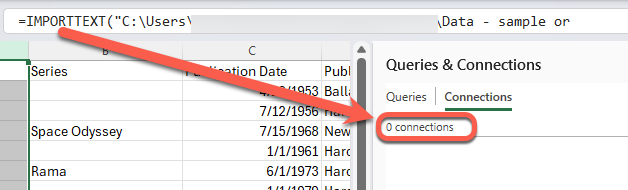
That pane was a reliable way to see most incoming sources for a workbook, but now there’s another exception to watch out for.
IMPORTCSV vs IMPORTTEXT: which to use?
IMPORTCSV is the choice for most everyday CSV imports. It’s shorter to type and requires fewer decisions.
Switch to IMPORTTEXT when the file uses a different delimiter (tabs, pipes, semicolons), requires a specific character encoding (such as Windows-1252 for older files), or contains fixed-width columns.
For a standard comma-separated UTF-8 file, IMPORTCSV does the job with less fuss.
Using with Copilot
These days Microsoft can’t do anything without including a mention of Copilot. They note that either Import function can be used as context for the =COPILOT() function, meaning users can import a dataset and then ask Copilot questions about it directly within the formula bar.
That requires a Microsoft 365 Copilot license and there’s nothing special about that. Copilot in Excel can be used with any spreadsheet and data source.
As usual with Copilot / AI promises, the reality is a lot less useful than the hype. This imported data has a “Publication Date” column but Copilot can’t ‘see’ it.

IMPORT problems
Some quick tests of the two Import functions in the current beta release uncovered two annoyances.
Absolute paths only
Both functions require a full file path or URL. Relative paths don’t work.
That means you can’t point to a data file in the same folder as the Excel workbook or some path relative to that like a sub-folder.
Anytime the workbook is moved, the Import function has to be changed.
Relative Path workaround
The workaround is to get the path of the workbook then add the data file name.
Get the workbook path only using this formula
=LEFT(CELL("filename",A1),FIND("[",CELL("filename",A1))-1)Add that to an Import function to make this clumsy but workable formula
=IMPORTCSV(LEFT(CELL("filename",A1),FIND("[",CELL("filename",A1))-1)&"books.csv")However, that workaround didn’t work with .xlsx saved to OneDrive/SharePoint because a URL was returned, not the local path.
No tables
Transforming imported data into an Excel table would seem an obvious thing to do … but you can’t.
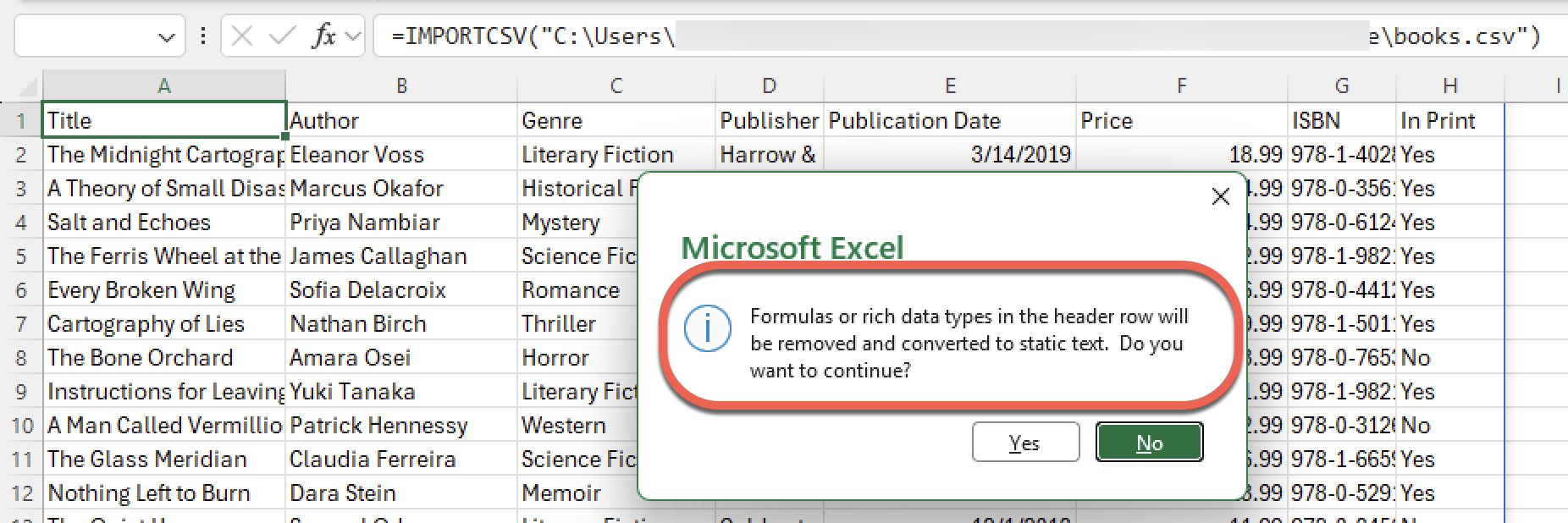
Or rather you can convert imported data into a table but the Import…() function will be deleted. No refreshing of the data will be possible.
The workaround is using PowerQuery to import the data array then output to another sheet as a table. That’s not only convoluted and time-consuming, it’s also unnecessary. To get CSV or other imported text data into an Excel Table, just use PowerQuery directly. Ignore the new Import…() functions completely.
OK but PowerQuery is better
Power Query isn’t going anywhere, and it remains the better choice because Power Query has options for merging, transforming, checking and changing imported data. In other words, what data nerds call ‘normalizing’.
For “quick and dirty” imports of a single file, IMPORTCSV and IMPORTTEXT are a much faster route. As long as you can be sure that the incoming data is 100% correct and you don’t want an Excel Table.
I rarely see a CSV or text data file that didn’t need some extra “help” from Power Query before adding into Excel. Reformatting dates, fixing exceptions or spelling, adding calculated fields or reformatted text.
Who gets it?
The two IMPORT functions are currently available Excel 365 for Windows Beta Channel Insiders v2502 build 18604.20002 or later.
There’s no word yet on when they’ll roll out to general availability or Excel for Mac.
How to Import PDFs into Excel and Auto-Refresh Data Using Power Query