Microsoft Teams now puts a Test mic and speaker button right on the meeting join screen, so you can run a quick audio check in the seconds before you click Join. Teams has let you test audio for years. What is new is where the test lives and how fast it runs. Here is what actually changed with the new Teams audio test, who gets it, and whether it matters to you.
If you’re thinking “hang on, Teams has let me test my audio for years,” you’re not wrong. The “new” feature is a different way to test audio only, not the camera.
Microphone and Camera testing in Teams
Teams has offered device testing for a long time. There were three main ways to do it:
- Make a test call under Settings then Devices. This places a call to a Microsoft bot, records a short message from you, and plays it back so you can hear how your mic and speaker sound. The limits were real though: desktop app only (not the web version), business accounts only (not free Teams), and English only.
- Device preview under Settings then Devices, where you choose your speaker, mic, and camera and see a live camera preview.
- The join screen you see before entering a meeting, which already let you pick devices and check your camera.
So the capability was there. The catch was that the most useful test, the bot call, was buried in Settings and meant placing an actual call to a robot. Not exactly where your brain goes in the ten seconds before a meeting starts.
What’s genuinely new
The new feature puts a Test mic and speaker button right on the screen you see before joining a meeting, under Computer audio. It runs a simple guided check to confirm your devices are working before you click Join.
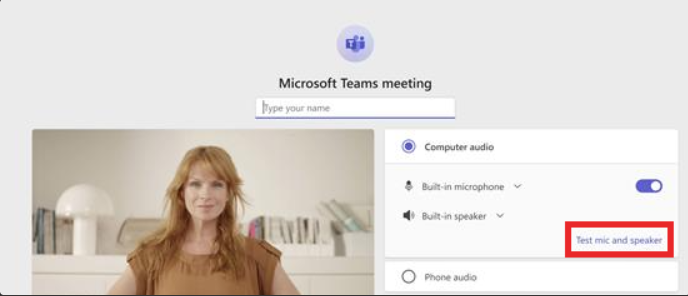
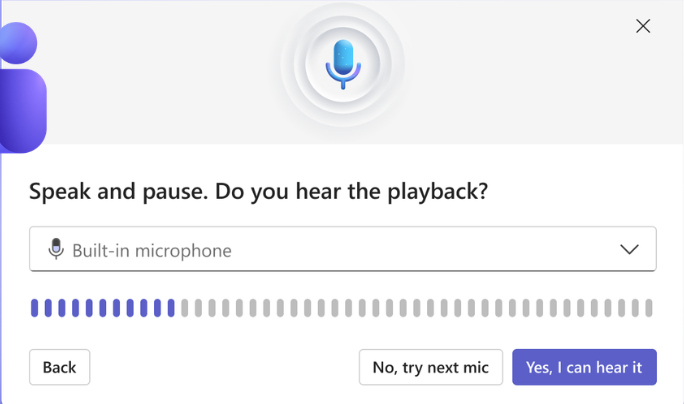
Two things set it apart from the old test call:
- It’s where you need it. The button sits on the join screen itself, at the exact moment you realize you should check your audio, rather than hidden in a Settings menu.
- No bot call. It’s a standalone guided check of your speaker and mic. You’re not calling Microsoft’s Test Call Bot and recording a message.
Audio test only
Worth noting: this checks your mic and speaker, not your camera. So it’s narrower than the full bot test call, but faster to run.
If you already rely on Make a test call, relax, nothing is being taken away. This is just a faster, better positioned version of the same idea, dropped exactly where most people actually panic about their audio: the second before joining.
Teams should arguably have put audio testing on the join screen years ago, the way Zoom did. Better late than never.
Hopefully a camera test will be added soon.
Who gets it?
This is rolling out through the Microsoft 365 Insider program, so it’s a preview feature, not something every account has. Microsoft is being very vague about the rollout saying:
“ The Test mic and speaker feature is rolling out to users across desktop experiences, with additional platform support following. “
Two new video meeting options in Teams
Get your presentation directly into a Teams call or meeting
Teams Free (classic) is shutting down: what’s next?
How to Remove the Teams Office Button: Step by Step Guide
Outlook in-person event: RSVP for Face-to-Face or Virtual Attendance
Microsoft 365 Companion Apps: People, Calendar & File Search Explained
Microsoft’s MAI Playground: Test Microsoft’s Own AI Models Free
New Outlook’s 5 “Productivity” Features: What Microsoft Isn’t Telling You
