Windows 11 Can Now Uninstall Copilot, but Only If You Meet 3 Rules
Microsoft has quietly added a new Group Policy and Registry switch to Windows 11 that can remove the Microsoft Copilot app and the Microsoft 365 Copilot app from your PC. It sounds like the Copilot kill switch many Windows 11 users have been waiting for, but the fine print is tight. The policy only works on certain Windows editions, only fires after an idle window, and ignores Copilot baked into Microsoft 365 apps and Edge. Here is exactly what it does, what it does not do, and how to use it on Windows 11 Pro, Enterprise, Education, and even Home with a Registry tweak.
The setting, called Remove Microsoft Copilot app, arrived with the Windows 11 April 2026 Update.
Don’t get excited. This setting is very limited:
- Only applies to the two Copilot apps (Copilot app and Microsoft 365 Copilot app)
- NOT Copilot integrated into Microsoft 365 apps.
- NOT Copilot in the Edge browser
- NOT the full kill switch some headlines suggest.
- Not an immediate action. It takes either 14 or 28 days to happen.
The new policy is aimed at fleets of PCs and a specific nuisance: Copilot reappearing after a Windows reinstall or after a feature update. Windows will reinstall Copilot apps even after they’ve been uninstalled.
If you manage a few machines for a small business, a family, or a non-profit, this gives you one switch to keep Copilot off all of them …maybe.
Microsoft has been quiet about how many people actually use Copilot on Windows 11, and the silence speaks for itself. Adding an official removal switch, even one with conditions attached, is a small admission that pushing the AI assistant onto every PC was not a clever move.
A cynical person might think that Microsoft has done this so they can point to “A way to remove Copilot” without mentioning the many conditions on the method.
What this means for you
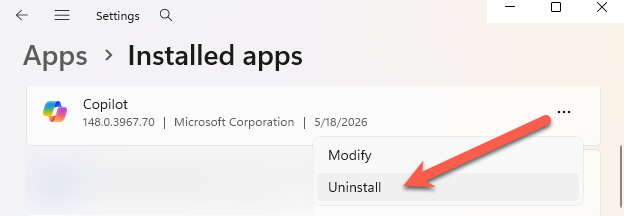
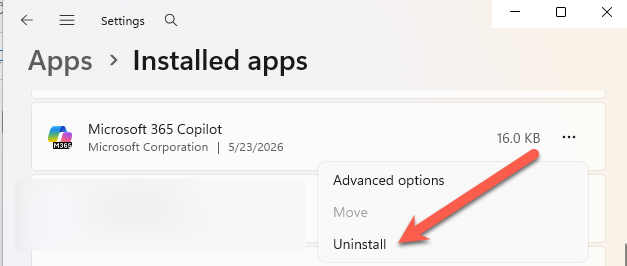
If you just want Copilot gone from your own PC, you do not need any of this. Open Start, find one or both Copilot apps, right click, choose Uninstall. Done, at least for the moment.
The fine print Microsoft buried
According to Microsoft’s own documentation, the policy only fires when all three of these are true:
- Both Microsoft Copilot and Microsoft 365 Copilot apps are installed on the device
- The user did not install the Copilot app manually
- The Copilot app was not launched in the last 14 days
Read that again. If you have ever clicked on Copilot to see what it does, the clock resets and the policy will not remove it. Windows Latest reports a 28 day window in their testing, but Microsoft’s documentation says 14. Either way, the policy or registry setting delays before acting. It is not an instant uninstall.
There is also a SKU catch. Microsoft Learn lists the policy as supported on Enterprise, Education, and IoT Enterprise / LTSC. The same page’s description paragraph includes Professional too, which contradicts the table on the same page.
Windows 11 Home is not supported either way, but home users can use the Registry workaround below.
How to remove Copilot apps using Group Policy
This works on Windows 11 Pro, Enterprise, and Education (the Group Policy Editor gpedit.msc editor is not usually available on Home).
- Press Windows key + R, type gpedit.msc, press Enter.
- Browse to User Configuration | Administrative Templates | Windows Components | Windows AI.
- Double click Remove Microsoft Copilot app.
- Set it to Enabled, click OK.
- Sign out and back in, or restart.
Nothing visible happens straight away. The uninstall triggers later, once the 14/28 day idle condition is met.
How to remove Copilot apps on Windows 11 Home (Registry edit)
Home users can create the same setting by hand. Back up your registry first or set a System Restore point. Editing the wrong key can break Windows.
- Press Windows key + R, type regedit, press Enter.
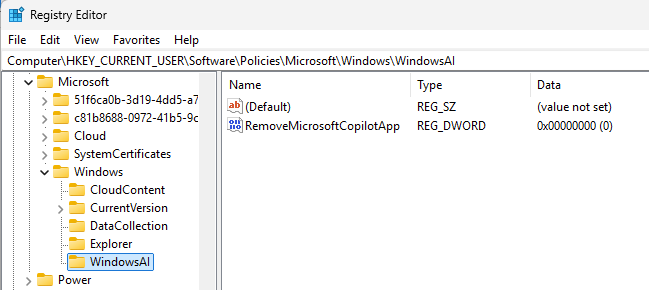
- Navigate to: HKEY_CURRENT_USER\Software\Policies\Microsoft\Windows
- Right click Windows, choose New | Key, name it WindowsAI.
- Click the new WindowsAI key. On the right pane, right click and choose New > DWORD (32 bit) Value.
- Name it RemoveMicrosoftCopilotApp
- Double click it and set the value to 1.
- Sign out and back in, or restart.
Microsoft may block this on Win11 Home in future updates, since Home is not officially supported.
Will Copilot stay gone?
Probably, but not guaranteed. Microsoft is persistent and shameless in pushing Copilot.
The occasional Windows update has been known to put Copilot back. The Group Policy or Registry method is the most durable because it keeps reapplying.
Microsoft Fixes the Annoying Copilot Button with ‘Move to Ribbon’ Option
Microsoft buries the Copilot button and floats a nag in its place
Microsoft 365 Classic Explained: A Lower Cost, No AI Subscription Option
Six More Warnings Hidden in Copilot’s Legal Fine Print, What Office Users Need to Know
Copilot Access Levels for Microsoft 365 Consumer Plans: What You Actually Get