Copilot “Move to Ribbon” Finally Works in Windows (With One Big Catch)
The much anticipated Copilot “Move to Ribbon” option has finally arrived in Microsoft 365 for Windows, and unlike the Mac version, the Copilot button really does return to the ribbon. The good news is that the choice is sticky, so it applies to all future Word documents instead of being a one time fix. The catch is that Microsoft still won’t let you move, customize, or assign a shortcut to the button, so paying customers get the feature they asked for with far less control than a normal ribbon command.
Move to ribbon has appeared on one of our Windows test machines (but not all).
Unlike the Mac version of Microsoft 365, in the Windows version the Copilot button really does move back to the ribbon.
Right-click on the Copilot floating bug (sorry “Dynamic Action Button”) to see a “Move to Ribbon” option.
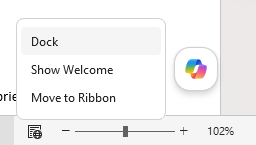
That puts the Copilot button back on the Home tab where it was in the first place.
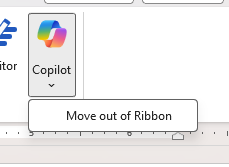
You have to do this for each app; Word, Excel and PowerPoint separately.
Sadly, the previous Copilot menu options have been removed and the “dynamic” suggestions don’t appear either.
The only choice is to return the floating button aka “Move out of Ribbon”.
In other words, Microsoft continues with its haphazard and non-standard implementation of Copilot into the Microsoft 365 apps.
Good news, “Move to Ribbon” is sticky
The really good and somewhat unexpected news is that “Move to Ribbon” applies to all future Word documents.
Once “Move to Ribbon” is chosen, the Copilot button should stay on the ribbon until you choose otherwise.
It’s not the ‘one off’ choice that many feared.
… and the bad news
The bad (or not so great) news is that the Copilot button isn’t really on the ribbon, at least not in the way it’s supposed to be.
Both the Editor and Copilot buttons are forced onto the end of the Home tab and can’t be changed like other buttons.
Look at “Customize the Ribbon” to see there’s no mention of the two buttons in the customization list.
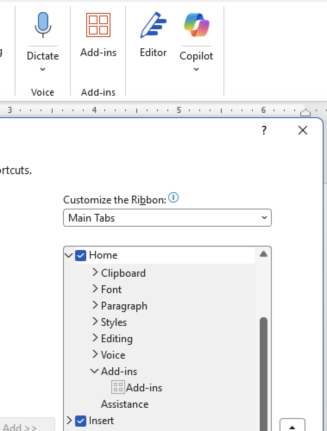
That means customers can’t move the Copilot button to another position or ribbon.
Copilot also can’t be moved to the Quick Access Toolbar or linked to another shortcut key.
For some (selfish?) reason, Microsoft has ignored their own ribbon interface system and dropped Copilot into Microsoft 365 in a different way. That means paying customers have little control over how Copilot appears.
Shortcut – what shortcut?
The tooltip for the Copilot button doesn’t mention the shortcut.
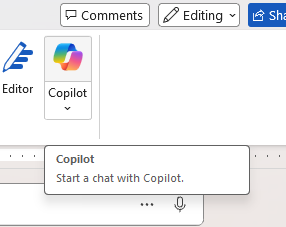
Unlike real ribbon buttons, with a tooltip that shows the shortcut key (in the Windows and Web apps).
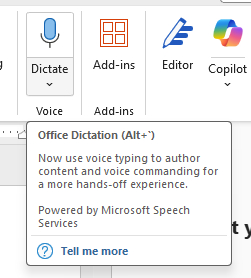
That’s assuming the Copilot shortcut keys work at all. None of our test machines recognize the Copilot shortcuts that were supposed to be in place since mid-May. Perhaps you’ll have better luck with these in Word 365 and Outlook 365?
F6 Copilot on Windows, Mac and Web
Alt + C Copilot on Windows – desktop app and Web
Cmd + Ctrl + C Copilot on Mac – desktop and Web.
Microsoft’s Copilot ‘Move to Ribbon’ Arrives for Mac But Not as Promised
Copilot Floating Button Now Hovers Over Word, Excel and PowerPoint
Windows 11 Can Now Uninstall Copilot, but Only If You Meet 3 Rules
Why Copilot Doesn’t Know Your Microsoft 365 Version
KeyTips Explained: The Fastest Microsoft Office Keyboard Shortcuts You Already Have