PowerToys Shortcut Guide Now Works With Word, Excel and Outlook
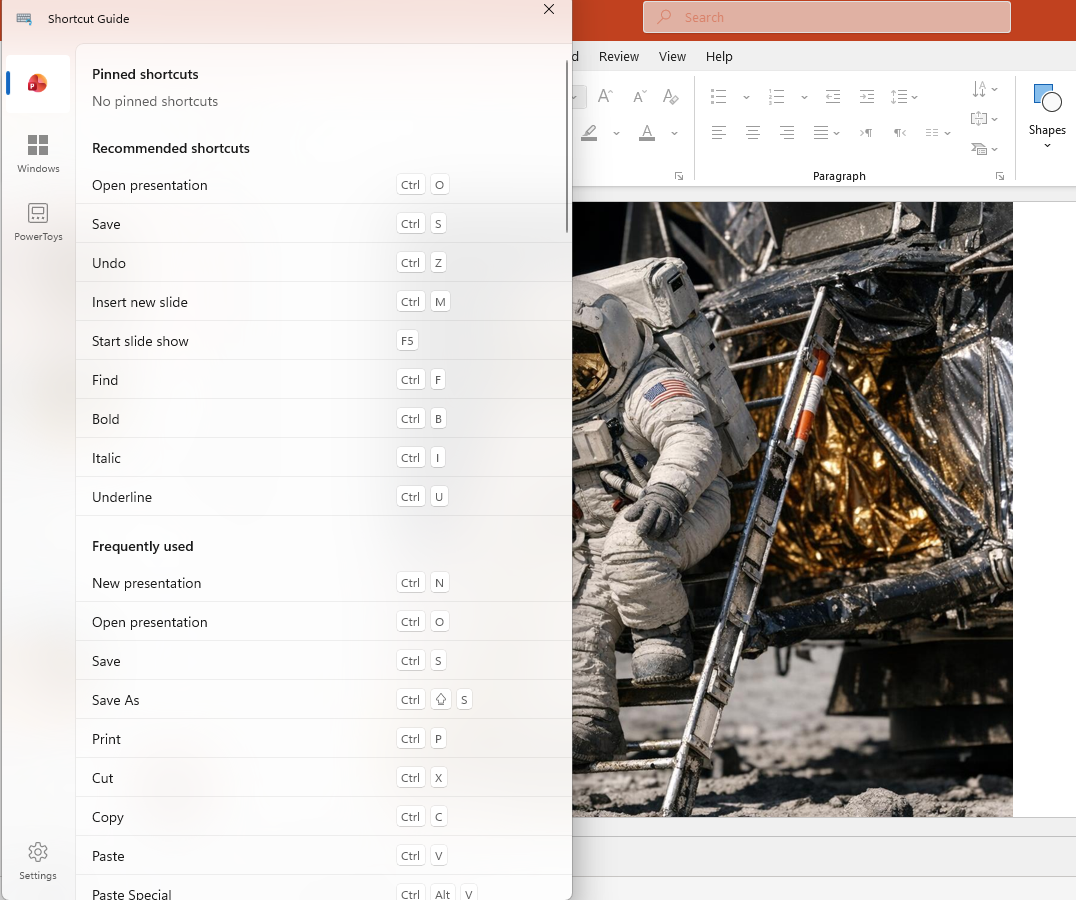
Microsoft has rebuilt the PowerToys Shortcut Guide, and this version finally earns a place in every Microsoft 365 or Microsoft Office user’s toolkit. Instead of a generic list of Windows shortcuts, the guide is now app aware. Open Word, Excel, Outlook classic, PowerPoint, Access, OneNote, Project, Publisher or Visio, and the guide instantly shows the shortcuts for that specific app in a window you can keep open while you work.
The Shortcut guide is now app aware and opens a shortcut list for the currently open app. That includes almost the entire Microsoft 365 / Office range: Access, Excel, OneNote, Outlook, PowerPoint, Project, Publisher, Visio, and Word.
In Excel the shortcut guide looks like this.
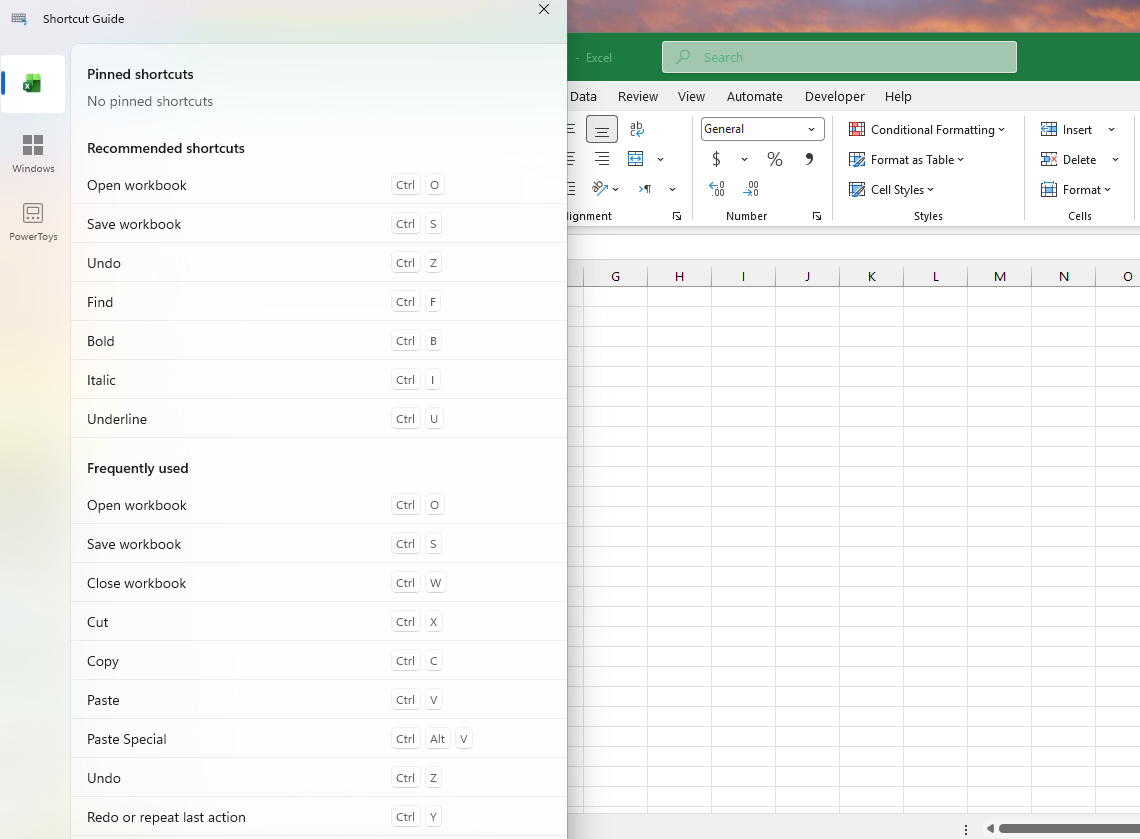
This is not a flyout that pops up and vanishes. It opens as a regular window that sits alongside the app you are using, so you can keep it open for reference while you work.
Close the guide by pressing Escape, clicking the usual Close button or clicking away from the current app.
Pinned Shortcuts
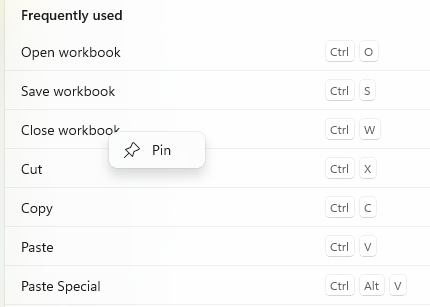
Shortcuts can be pinned to the top of the list, just right-click on a shortcut and choose ‘Pin’.
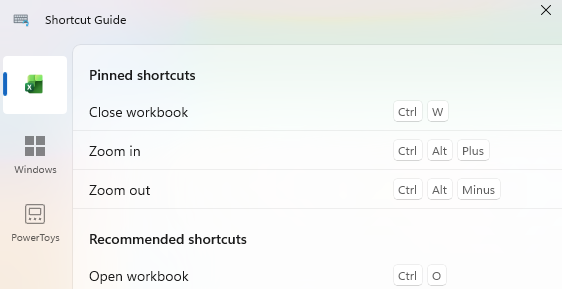
That shortcut is copied to the “Pinned Shortcuts” at the top.
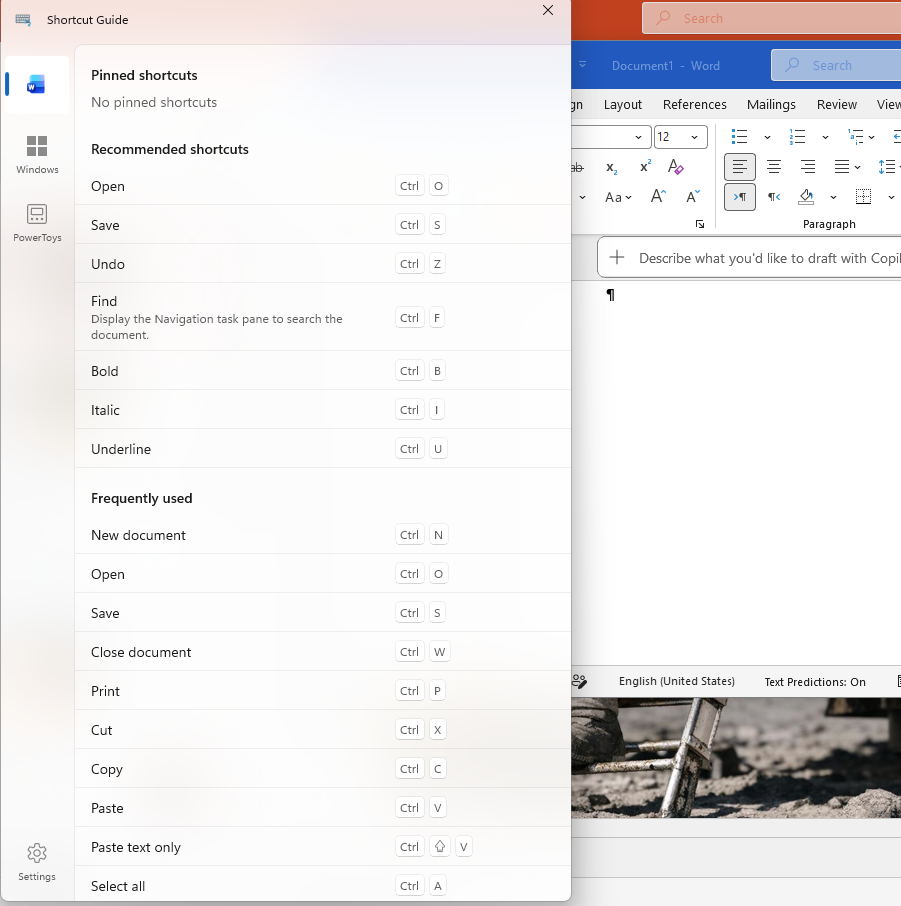
Word
PowerPoint
Outlook classic
At present, only classic Outlook has a shortcut guide, not new Outlook.
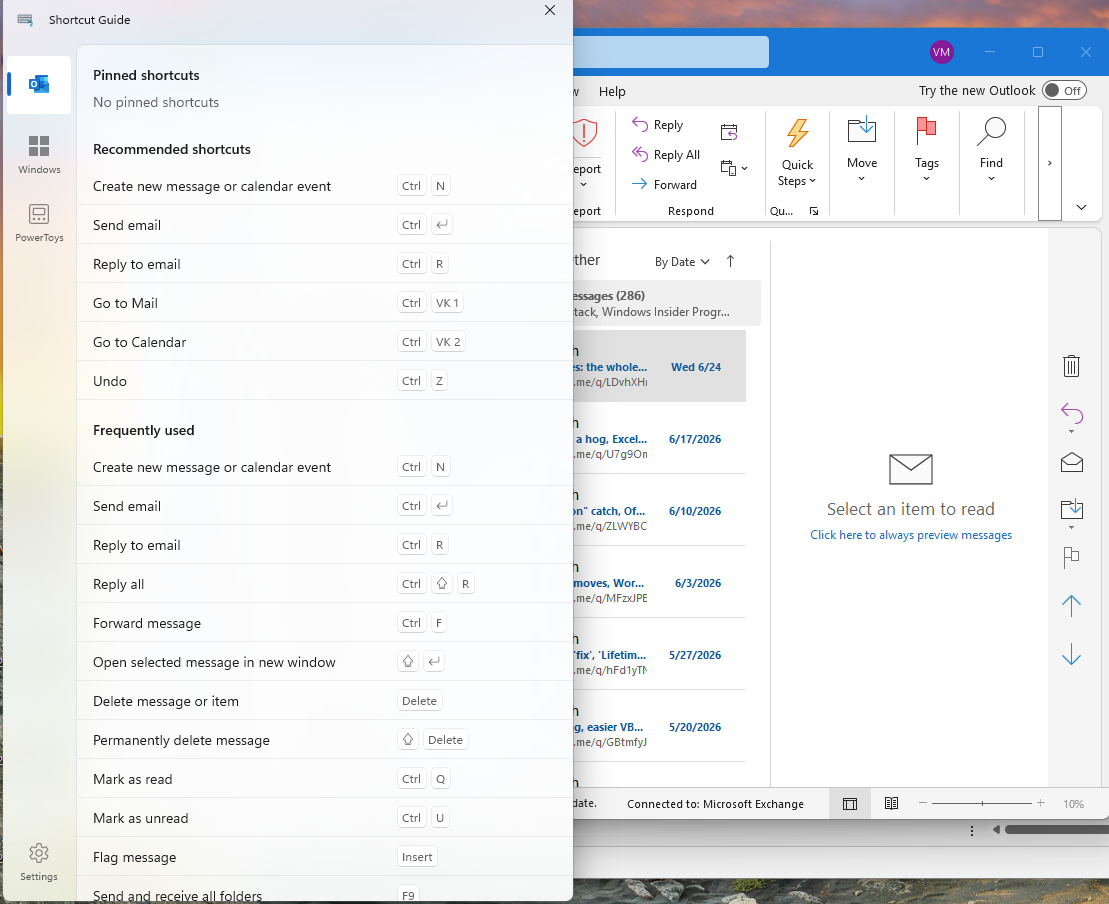
For new Outlook, the Shortcut Guide opens the Windows shortcuts instead.
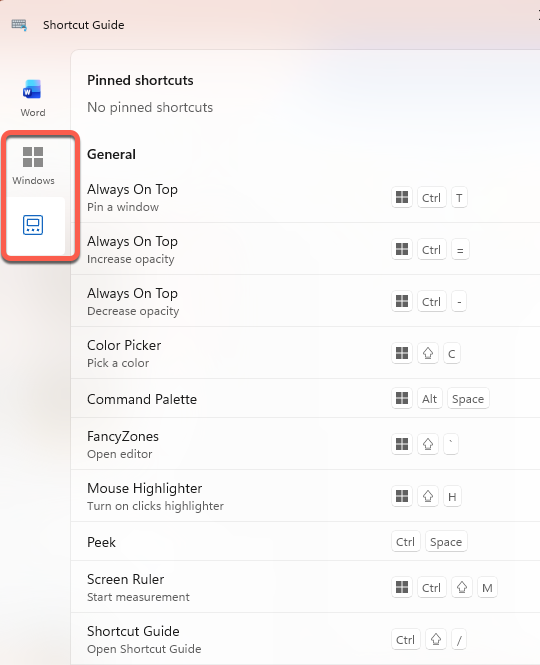
Windows and PowerToys shortcuts
Click on the left-side icons to see the shortcuts for Windows generally and other PowerToys.
Install and Setup
After installing PowerToys look for the Shortcut Guide option under System Tools.
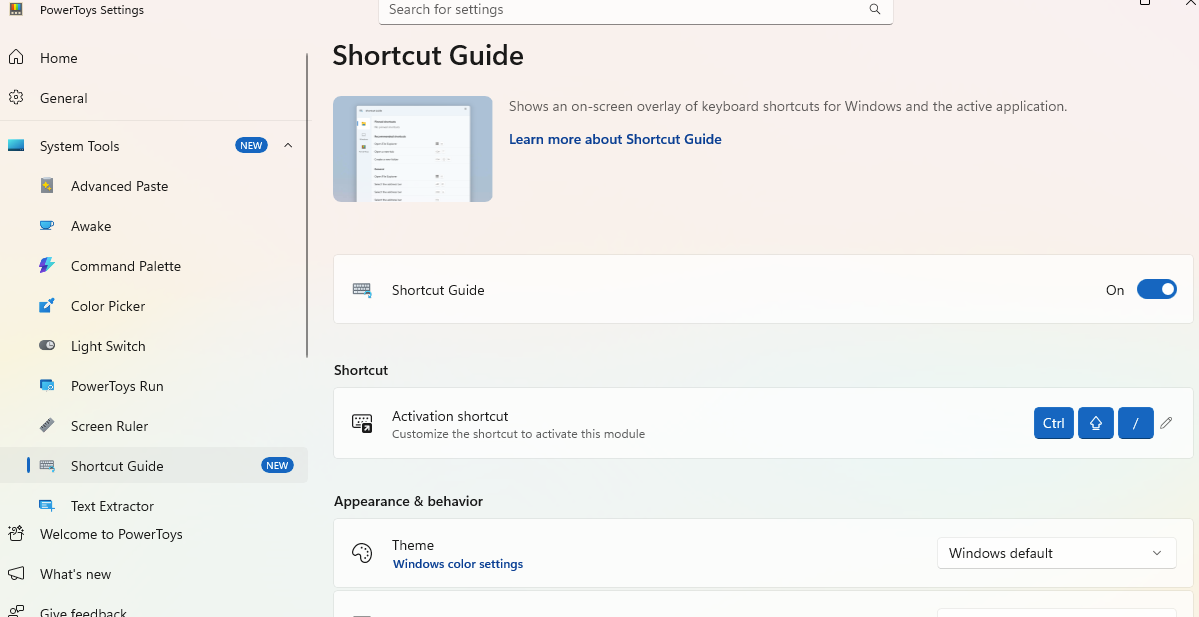
Win + Shift + ? is the default shortcut but that can be changed.
PowerToys work on both Windows 11 and Windows 10, both Intel and ARM-based machines.
New to PowerToys? Both our Windows 11 and Windows 10 books have a chapter about the various PowerToys.
Supported Apps
Here are some of the currently supported apps.
More apps are likely to be added because additional shortcut guides (called “manifests”) can be easily made (YAML text file) and added either by the PowerToys developers or others. See the Shortcut Guide info page.
Microsoft 365 / Office
Access, Excel, OneNote, Outlook classic, PowerPoint, Project, Publisher, Visio, Word
Windows
Windows shell (desktop and global shortcuts), File Explorer, Notepad, Paint
Browsers
Microsoft Edge, Google Chrome, Mozilla Firefox
PowerToys and more
Other PowerToys plus other apps including some Adobe products.
KeyTips Explained: The Fastest Microsoft Office Keyboard Shortcuts You Already Have
Discover Office Keyboard Shortcuts in Windows 11 and 10
Outlook Shortcuts Essential for Quick Navigation
Switch Between Windows in Office with Windows or Mac Shortcuts
Word Keyboard Shortcuts, Add, Change or Remove
Add a Fast Keyboard Shortcut for Any Word Style
Random Numbers in Excel: RAND, RANDBETWEEN and RANDARRAY Explained
64-bit or 32-bit Office: Which Microsoft 365 Version Should You Choose?