3 Easy Ways to Get an X Symbol in Word and PowerPoint
Need to drop an X symbol in Word or PowerPoint to cross something out, overlay a “don’t do this” graphic, or just mark a spot? Microsoft Office gives you two solid sources built right into the apps, plus a fourth option that opens up the entire web. Each one comes with tradeoffs around transparency, sizing and font styling, so the right pick depends on what you’re laying the X over and how subtle (or in your face) you want the result to be. Here’s how each option works, when to use it and the exact menu clicks to get there.
As usual in modern Office, there’s plenty of choices available either within the product or from elsewhere.
Icons
Microsoft 365, Office 2019 and later apps have Icons, actually SVG graphics. They are simple to use, re-color, re-size and have a transparent ‘no fill’ background by default.
Insert | Icons then find an X by searching for ‘cross’.

Transparency
Icons / SVG graphics can be recolored and crucially for this application made partly transparent so the text below can be seen. Go to the formatting pane then Format Graphic | Picture Transparency then adjust the transparency setting to suit – we usually go for around 50-60%

Letter X
Any capital X or lower-case x in any font can work but, unlike an icon or SVG, there’s no transparency option for the letter. Using fainter color options is a partial workaround.
The upside is a lot more styles to choose from, here’s a few variations on the simple letter X we found in the Office font collection.
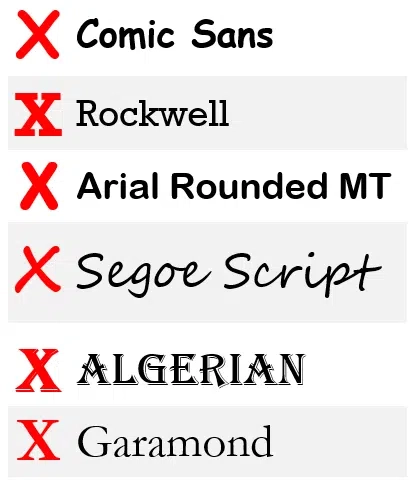
And that’s before looking at Bold, Italic or Bold Italic options!
To overlay a letter, put it into a Text Box (Insert tab). The Text Box acts as a container that can be controlled separately from standard text.

Once you’ve inserted a simple text box, there’s a few changes to make on the Shape Format tab:
Shape Outline – remove the border by changing to ‘No Outline’.
Shape Fill – ensure it’s set to ‘No Fill’, that makes the box background transparent.
Finally, set Layout Options to In Front or Behind with ‘Move with text’ chosen.

Now the text box can be dragged to overlay text or another text box.
Any graphic
Any graphic can work as the symbol overlay as long as it can be made partly transparent so the text shows through (if in front of text) or faint so the text appears over it (if Behind text).
Icons or other SVG graphics are the easiest to work with in Office.
Search the web for SVG graphics
Three ways to overlay X on text in Word
Finding more SVG or Icons for your Office documents
Customized Don’t / Not Allowed symbols for Word, Excel and PowerPoint
Make a ‘Stop’ circle / diagonal symbol in Word, Excel & PowerPoint
How to Insert Symbols in Word and Outlook Instantly Using Alt + X