Microsoft talks about “Office Math” in Microsoft Office but you won’t find that name in Word, Excel, PowerPoint or OneNote. We explain where to find “Office Math” and why it appears under the name “Equation” in Microsoft 365 or Office. Also how to convert “Equation Editor” formulas into modern “Office Math”
Microsoft talks about “Office Math” in doc and blog posts which is strange because that name doesn’t appear in any Word, Excel, OneNote or PowerPoint ribbon or menu.
Office Math – the official name for the equation making feature in Office/Microsoft 365. Sometimes called “OfficeMath” without the space.
Equation – the label for “Office Math” that appears in Office/Microsoft 365 apps.
Equation Editor – the name for the old and long-gone equation making feature in Office.
To make things more confusing, many people talk about the “Equation Editor” even though that component was dropped many years ago. Using the old name is understandable because Microsoft keeps the “Equation” name in the Office apps..
Not even the Office search box knows what “Office Math” really is, only giving two slightly-off answers or none (it varies).
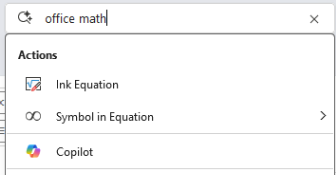
Office Math = Equation
When Microsoft says “Office Math” it means the feature at Insert | Equation in Word or Insert | Symbol | Equation in Excel or PowerPoint.
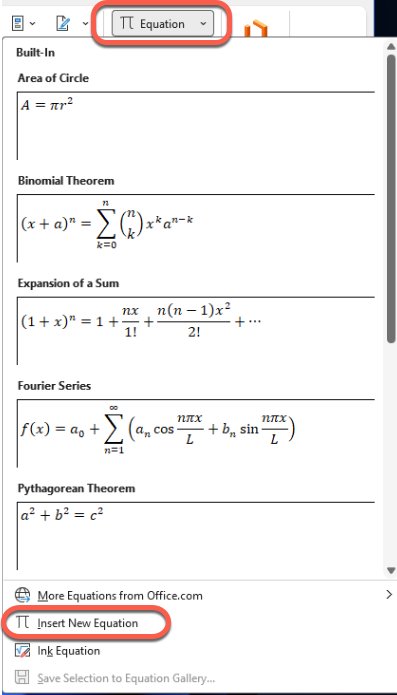
Equation / Office Math lets you make properly formatted equations with all the special symbols and structures that confuse most of us <g>.
You won’t find the name “Office Math” anywhere on the Equation ribbon either.

History of Equation Editor to Office Math
In Microsoft Office, there have been two different tools for creating mathematical equations over the years.
Equation Editor (legacy tool)
This was the older equation tool in Office, based on Microsoft Equation 3.0, which was based on technology from MathType. It created equations as OLE (Object Linking and Embedding) objects. Microsoft deprecated this tool after Office 2007 and removed it entirely from later Office release due to security vulnerabilities.
One infamous Equation Editor security bug was in the software for 17 years. Even worse, it seems Microsoft didn’t have the original programming code and had to manually hack the Equation Editor program.
If you open old documents containing Equation Editor objects, you’ll see them but can’t edit them without converting to the newer format. There’s a “Convert to Office Math” option – the only mention of that name we could find the new software.
Office Math (modern tool)
This is the current built-in equation editor, introduced in Office 2007. You access it via Insert
| Equation in Word. It uses native Office equation format (Office Math Markup Language aka Office Math ML or OMML). OMML integrates much better with modern Office features and is more secure.
It supports LaTeX input, has a visual equation builder with templates, and creates equations that are actually part of the document rather than embedded objects.
The practical difference today: Office Math is what people have been using for almost two decades. It’s more powerful, better integrated, and actively supported.
If you encounter Equation Editor objects in older documents, Office will typically prompt you to convert them to the modern Office Math format when you try to edit them. This is the only place we’ve seen the term “Office Math” used in Office software.
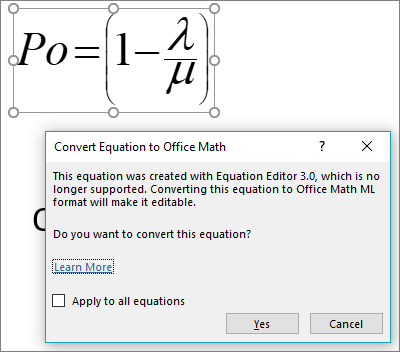
It seems that Microsoft decided to somewhat hide the transition between the old Equation Editor and the replacement by keeping the term “Equation” on the ribbon and menus. That might have seemed like a good idea in 2007 but now the result is that Microsoft writes about “Office Math” in documentation and blog posts while the software itself doesn’t use that name.
The naming gap only confuses customers. It’s past time that the ribbon plus other on-screen labels were changed so there’s consistent naming.
Converting Equation Editor to Office Math
Equation Editor objects in older documents can be viewed but not edited. Instead, convert them to the modern format.
The “Convert to Office Math” command is now available on Mac as well as Windows in Word and PowerPoint. Additionally, a “Convert All to Office Math” command in Word and PowerPoint for Windows and Mac allows users to convert all Equation Editor objects in a document or presentation at once.
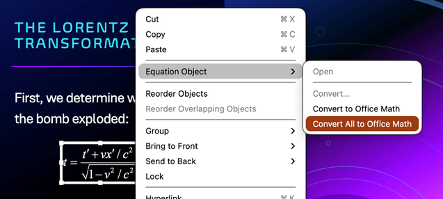
Both commands are accessible on the context menu that appears when users right-click or press Shift + F10 (on Windows) or Control + Return (on macOS 15 or later) on an Equation Editor object.
