Olympic style medal tables (Gold, Silver, Bronze) can be rank correctly in Excel including allowance for joint or equal results. This guide shows how to build an accurate Olympic style rankings table in Excel that match how medal standings are officially calculated. 🥇🥈🥉 VBA and Lambda code included.
Use this to make the right wording for a published table of results in the Olympic-style (Gold, Silver, Bronze) with joint or multiple equal winners noted. Output to a web page or data source for a Word mail merge (for certificates etc.).
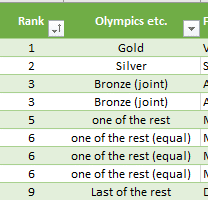
Use this for students in classes, sports events or any other place you like.
We’ll show you two ways to do this. Custom VBA which works with any desktop version of Excel or the modern Lambda() custom function available in Excel 365 and Excel 2024.
Here’s the VBA code for a custom function RankOlympic() passing in the ranking, Highest value ranking (i.e. numer of participants) and how many entries have that ranking. It’s pretty easy to follow.

It doesn’t just handle Gold, Silver, Bronze but all the other results. The code also copes with two people getting the same score/ranking e.g. Equal when two people have the same result or Joint when there’s three or more on the same result.
The custom VBA is similar to other ranking functions at Many Ordinal RANK() options in Excel with joint, equal rankings, words and more.
How it works
The code is available (below) as either a VBA custom function or a Lambda() function (Excel 365 and Excel 2024 only).
Either way, RankOlympic() takes three parameters:
pNumber – the ranking as an integer. 1 = First 2 = Second etc.
pTopRank – the number of rankings (players, students) overall. Use Count() to get this.
pNumEqualRankings – the number of people who have the same ranking (i.e. pNumber). Use CountIF as in COUNTIF([Ranking],[@Ranking]) to count the matches of the current rank (pNumber) against the all the rankings in the list/table.
The table and function look like this:
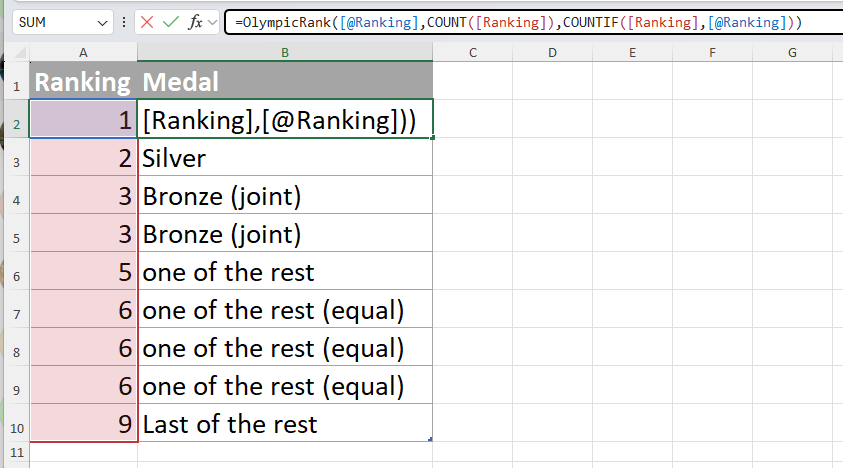
Of course, you can change the wording to whatever you like or another language.
VBA Code
Function RankOlympic(pNumber As Integer, pTopRank As Integer, pNumEqualRankings As Integer) As String

' Office-Watch.com
 ' Olympic style rankings.

Select Case pNumber

    Case 1
    RankOlympic = "Gold"

    Case 2
     RankOlympic = "Silver"

    Case 3
     RankOlympic = "Bronze"

    Case 4
     RankOlympic = "Just missed out"

    Case Else
     RankOlympic = "one of the rest"

End Select

' For bottom ranked item
 If pNumber = pTopRank Then
     RankOlympic = "Last of the rest"
 End If

' returns a suffix depending on the number of equal rankings.
 Select Case pNumEqualRankings

    Case 1
   ' nothing to do

    Case 2
     RankOlympic = RankOlympic & " (joint)"

    Case Else
     RankOlympic = RankOlympic & " (equal)"

End Select
 End Function
Lambda code
For Excel 365 and Excel 2024, this Lambda() version is a better way to do it.
In the Advanced Formula Editor it appears like this:
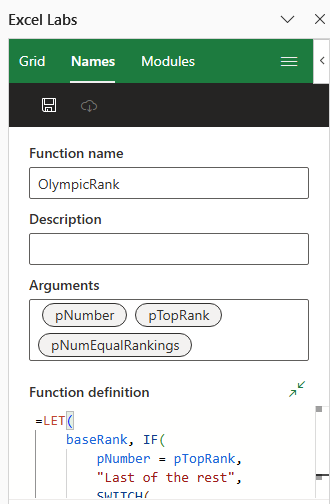
Here’s the code in full
=LET(
    baseRank, IF(
        pNumber = pTopRank,
        "Last of the rest",
        SWITCH(
            pNumber,
            1, "Gold",
            2, "Silver",
            3, "Bronze",
            4, "Just missed out",
            "one of the rest"
        )
    ),
    suffix, SWITCH(pNumEqualRankings, 1, "", 2, " (joint)", " (equal)"),
    baseRank & suffix
)
Lambda – strange name for a really good extra in Excel
Easier Excel metric conversion and more with Lambda()
