Which Copilot Model Should You Use in Word? Auto, Claude or GPT
Word now lets you choose which AI runs Copilot, but Microsoft does a poor job of explaining what the choices actually do. The Copilot model picker in Word offers Auto, two Anthropic Claude models and OpenAI’s GPT in Quick Response or Think Deeper flavors. Here is what each Copilot model in Word is good at, which one to leave selected for daily work, and when it is worth waiting for a slower, smarter answer.
The choice of AI models in Copilot changes regularly; in fact it changed while researching this article. Any specific advice will be quickly out of date. In organizations, admins might limit the AI model selection.
Choose a Copilot AI model from the Copilot side-pane under the ‘three dots’ menu.
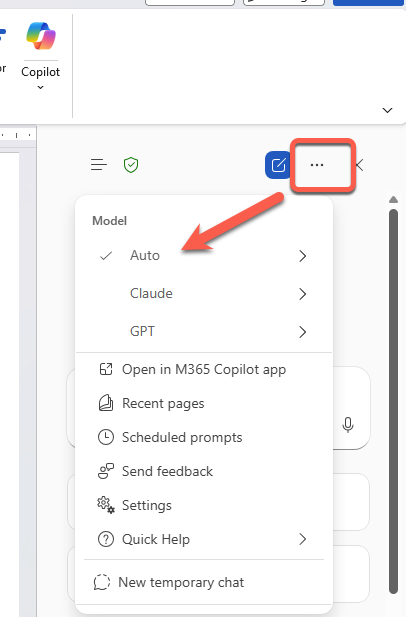
In other places where Copilot appears, like the Word mini-toolbar, there’s no model choice and you’re forced to the Auto model.
Copilot Auto is enough for many tasks
For simple tasks, the Auto option is enough. It’s the default and any general AI model will give much the same answers.
The Auto in Word is really three separate choices:
Auto – fully automatic. The AI decides how much time/effort to put into the task.
Quick Response – aims for a speedy answer
Think Deeper – takes more time for a, hopefully, better answer.
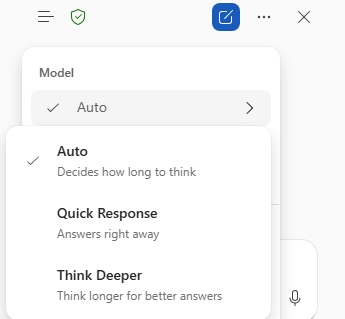
The only concern about Auto is that customers don’t know what model is used. There are reports that Microsoft is using their own and largely untested MAI models without telling customers.
Claude inside Word
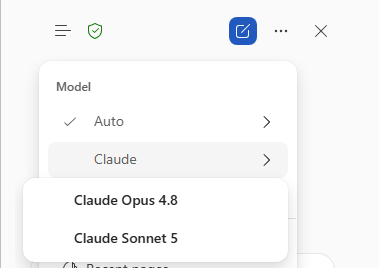
Anthropic’s Claude is available, currently in two choices:
Opus 4.8 – the heavyweight model. It is slower and works harder, and that extra effort shows up in the quality of the answer on complex jobs.
Sonnet 5 – a more balanced model. Faster and lighter than Opus while still writing well.
GPT choices in Word
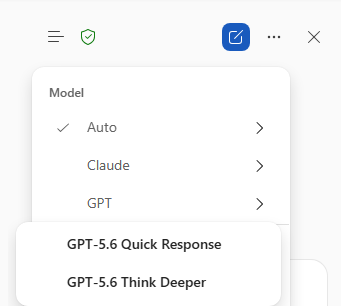
OpenAI’s GPT models (now version 5.6) have two choices.
Quick Response – OpenAI’s fast lane that answers right away with no extended “thinking” step.
Think Deeper – spend more time reasoning before it answers.
Unlike the Claude choices, the GPT options don’t match the names used by OpenAI.
Which Copilot model for what task in Word?
The choice is a speed versus depth trade-off.
The deeper models (Opus and Think Deeper) make you wait longer and are wasted on trivial edits.
The fast options (Quick Response, Sonnet) give near instant answers but can miss nuance on complicated work.
The general view is that both Claude and GPT are good general application AI services. Claude is better at text drafting and analysis while ChatGPT is better for images and graphics.
The best advice is to pick the lightest model that can actually do the job, then step up a level if the answer disappoints.
Speed over depth: GPT Quick Response
Everyday writing, well balanced: Claude Sonnet
Hard thinking, analysis, careful reasoning: Claude Opus
Structured, multi-part answers: GPT Think Deeper
Cannot be bothered choosing: Auto
Fast answers are enough most of the time. Save the deep models for when the answer really counts.
- Keep the model choice on Claude Sonnet or GPT Quick Response for the bulk of your daily work.
- Flip to Claude Opus the moment a job needs real judgment or more in-depth research.
The question matters, not the length
One of the silliest suggestions from social media ‘experts’ is to use the “Quick or Fast” models for short prompts and “Think Deeper” for longer prompts. Nonsense.
Match the model choice to how hard the thinking is, not how long the text is. A short question can need deep reasoning, and a long document can just need a fast tidy up. But for more complicated tasks, the model choice can make a difference.
GPT 5.6 Arrives in Microsoft 365 Copilot, But Microsoft Hides What You Get
Microsoft quietly swaps the AI inside Excel and Outlook
Copilot Can Now Actually Do the Work in Word, Excel, and PowerPoint
Microsoft Copilot Researcher Gets a Two-Brain Upgrade: Critique and Council Explained
Copilot Access Levels for Microsoft 365 Consumer Plans: What You Actually Get
Standard vs Priority Access in Copilot: What Is the Difference?
Why AI Is Almost Intelligent: The Honest Truth About ChatGPT and Copilot
Microsoft 365 Copilot App vs Copilot App: What’s the Difference?
Build a Better Excel Workbook with Copilot: Smarter Prompts, Stronger Results