Windows 11 26H2: 5 Improvements for Microsoft Office Users
Windows 11 26H2 is rolling out now, and for once there is something in it for Microsoft 365 and Office users. The headline change is that Windows Search will finally stop padding your results with Bing hits and Microsoft Store listings, so hunting for a Word document actually finds Word documents. You also get the Taskbar back on the top, left or right of the screen, more control over what the Start Menu shows, and the ability to pause updates for 35 days at a time. Here are the five changes worth knowing about, and exactly which settings to change today.
Local Only Search: Strip Web Results Out of Windows Search
This is the big and long-overdue change for a lot of people.
It has finally penetrated Microsoft’s thick corporate skull that customers don’t want searches cluttered up with web or Microsoft Store results. Go to Settings | Privacy & security | Search | Show suggested search results, and turn off:
- Web Searches
- Microsoft Store
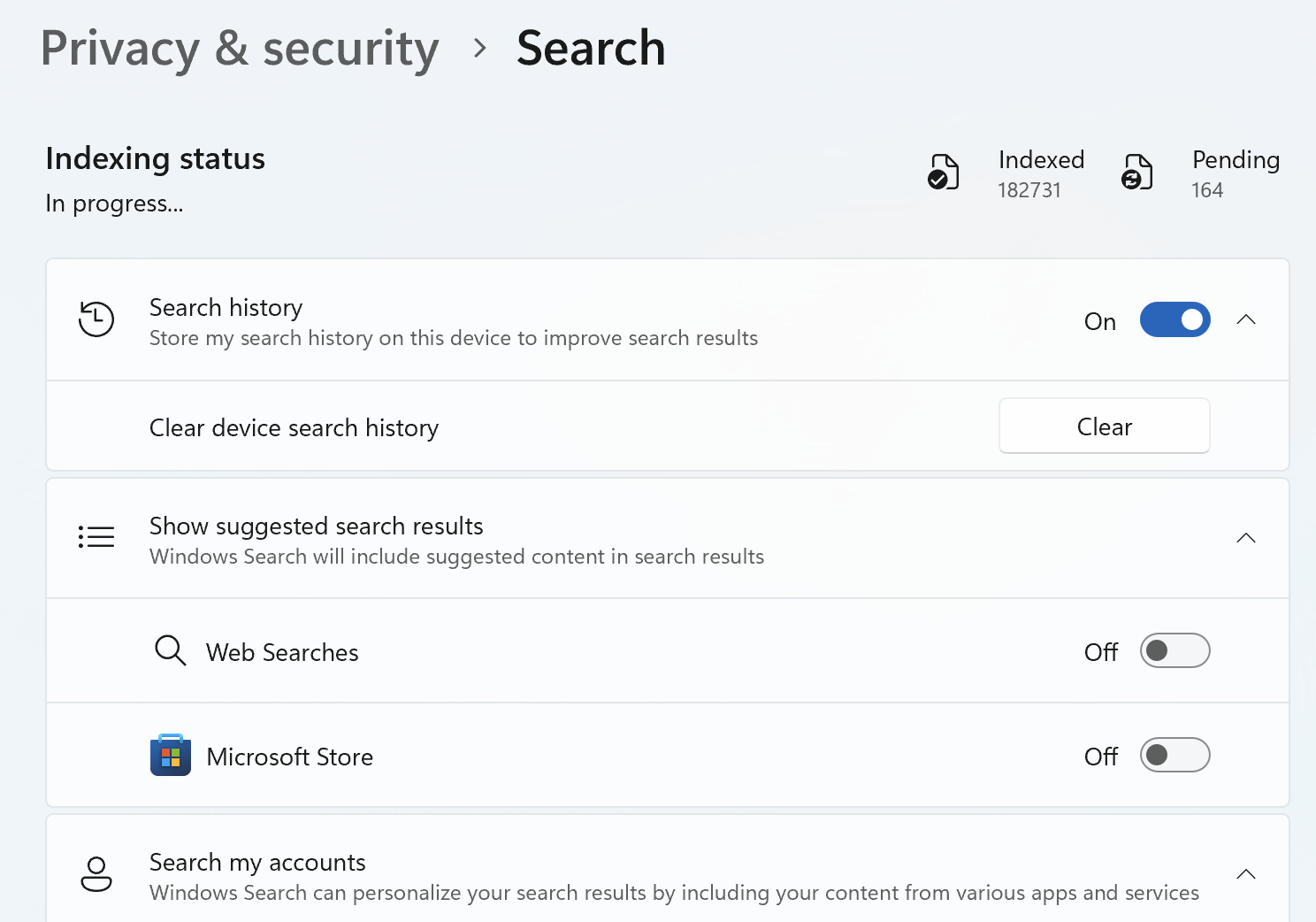
Turn these options OFF unless you really want web results included. Despite Microsoft’s efforts, most people use other methods to do online searches (Google, AI or even Bing).
If you want searches that stay on your own computer, scroll down a little more to “Search my accounts”. Disabling one or both of “Microsoft account” and “Work or School account” will remove anything on OneDrive or SharePoint from the results.
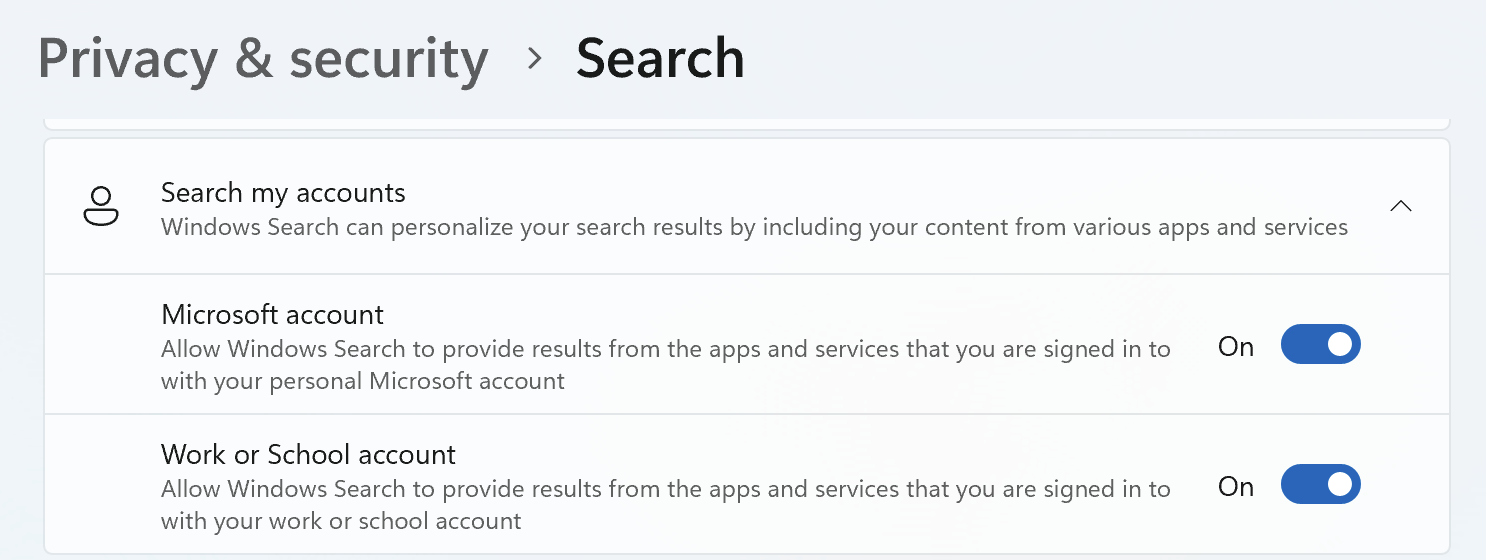
If you have some or all your documents on OneDrive then leave this option ON so you don’t miss important files.
If those choices don’t appear, make sure Windows 11 is up to date. If it is current, your IT admin may not have enabled these options yet.
Low Latency Profile: Do Apps Actually Start Faster?
A feature called “Low Latency Profile” is really a trick to start apps a little faster than in the past.
It’s Windows briefly putting its foot down on the CPU accelerator whenever the user expects an immediate response, like opening the Start Menu or Search, opening context menus with a right click, or starting apps.
Low Latency Profile is on automatically with no off switch. There could still be a small battery cost on heavily used laptops, particularly if applications constantly trigger interactive work. If Windows is already set for High Performance (in Power settings) then there’s not much more possible.
It might be a useful responsiveness improvement, but not a cure for slow applications, bloated background processes, or Windows’ deeper performance problems.
Start Menu Changes in 26H2: Size, Recent and Privacy
Microsoft has been doing a lot of tinkering with the Start Menu. The most recent Start Menu changes associated with Windows 11 26H2 are:
- Start Menu size – Small, Large, or Automatic
- Recommended has been renamed Recent
- Separate switches to show or hide Pinned, Recent, and All
- Option to hide the account name and profile picture
- Redesigned Start settings page
Check out Settings | Personalization | Start.
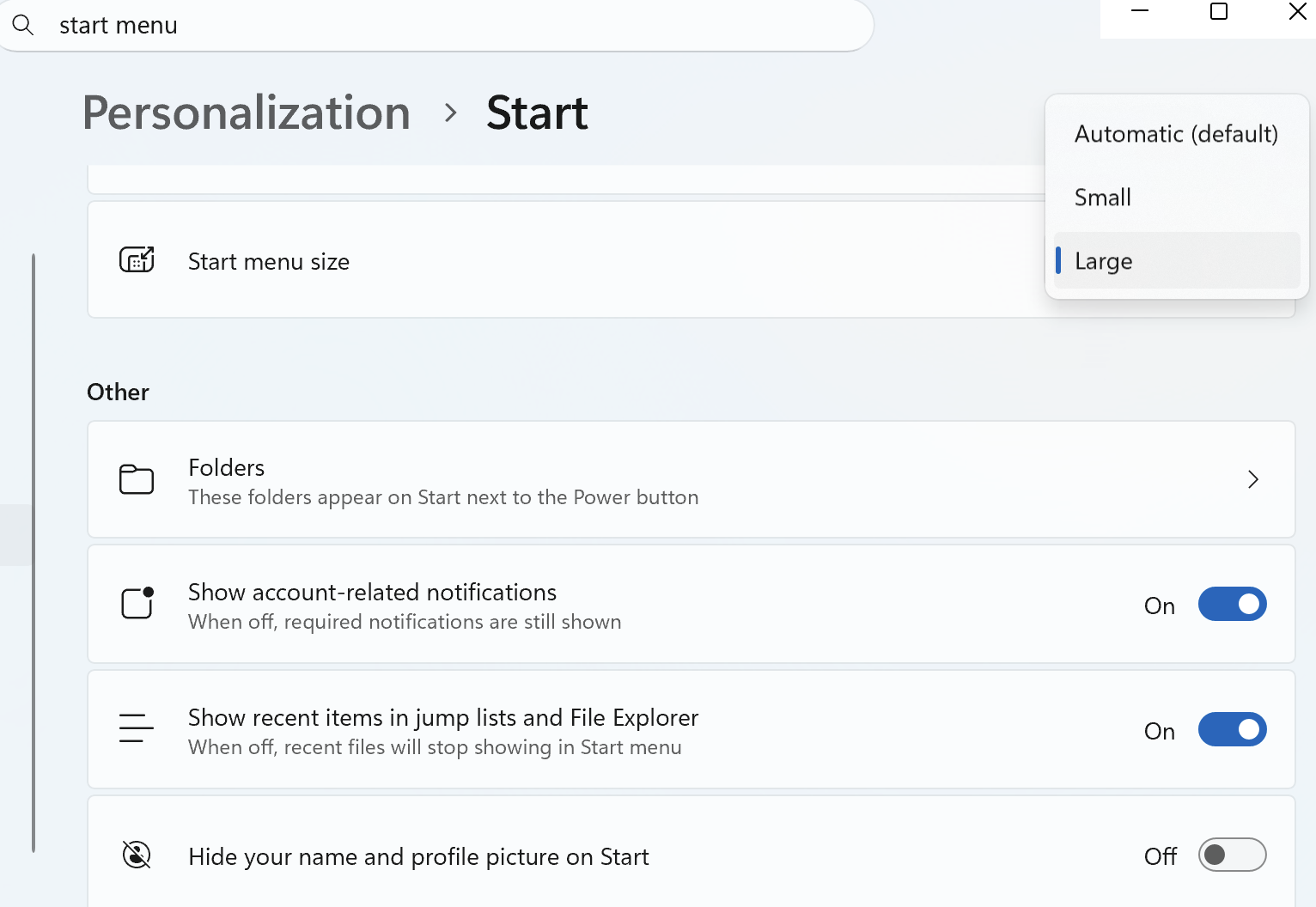
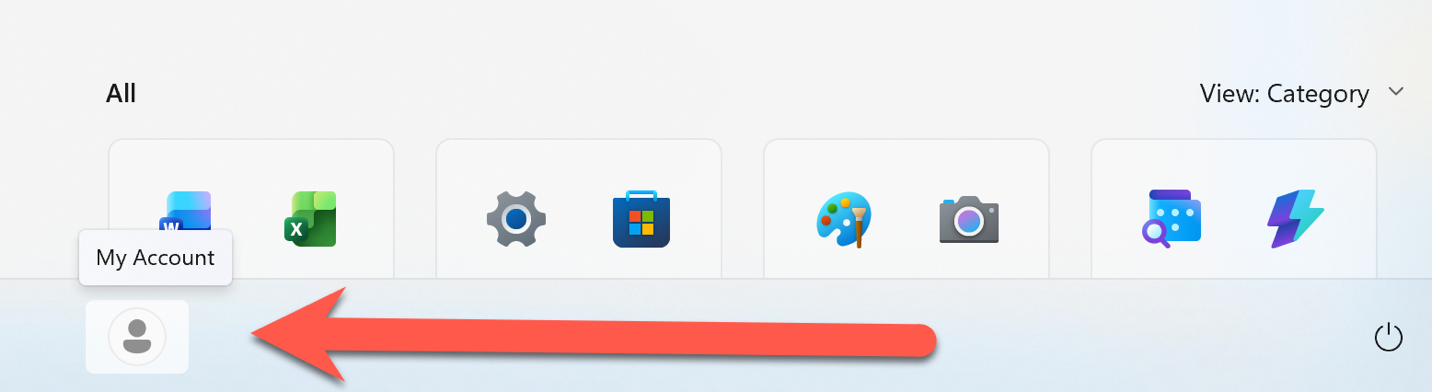
That’s where the size options are, as well as “Hide your name and profile picture on Start”, which changes the bottom left to an anonymous icon.
Taskbar Changes: Move It Back to the Top, Left or Right
Windows 11 is finally getting taskbar options that Microsoft removed years ago.
At Settings | Personalization | Taskbar you can again move the taskbar to the top, left or right of the screen.
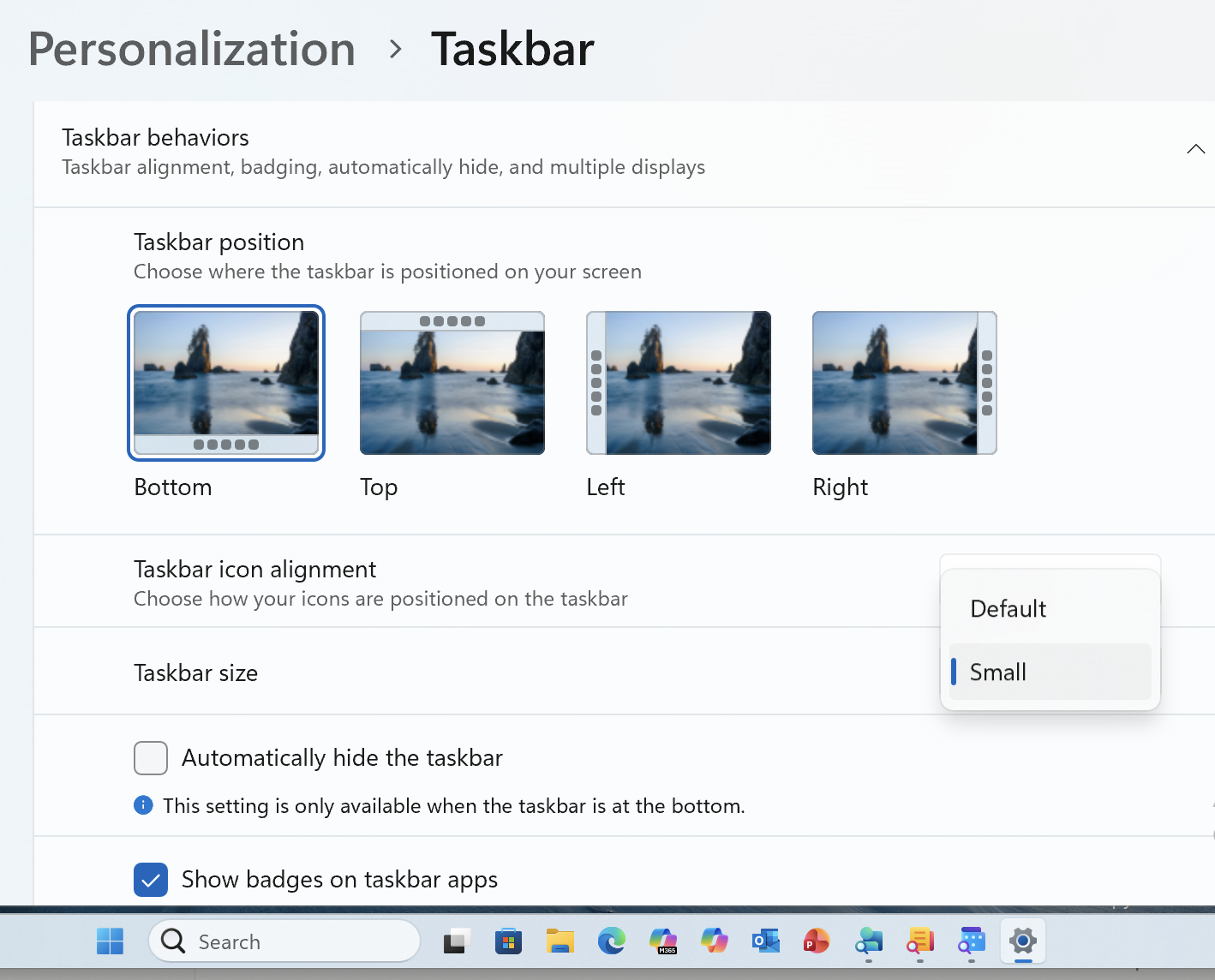
Left or top taskbar reclaims vertical space on widescreen monitors, which matters when you are working in a long Word document or a tall Excel sheet.
Taskbar icons can be made smaller, as shown in the image above.
Pause Windows Updates for 35 Days and Keep Extending
It is now possible to pause updates for up to 35 days at a time and extend the pause as often as you need.
That’s great for machines used for critical tasks, or as a precaution while you work on an important project. Also great for anyone working offline or with slow or expensive internet access.
Microsoft says Windows Update is also getting smarter. Behind the scenes, bundling updates together to minimize the number of times per month that you’ll need to restart your computer to install them.
Better still would be options that recognize the fallible nature of Microsoft updates. A choice like “Update only 10 days after release” would give each patch rollout a chance to be properly tested by the paying public before more cautious users install it.
More Windows 11 Changes That Affect Your Office Apps
If the new Local Only Search still is not finding what you want, Windows Find Missing Files or Folders with These Tips goes further, including the indexed folders Windows quietly skips and how to force a genuinely complete search. Related to that, if documents you thought were on your PC keep turning up in the cloud, Why did Windows move my files to OneDrive? explains how that happened and how to undo it.
Low Latency Profile is not the only way Microsoft is fiddling with app startup times. Make Word start faster with Office Startup Boost covers the Office side of the same trick, including the memory and disk requirements and how to switch it off. If you want the same speed boost for Excel, Outlook or an older version of Office, Get Office Startup Boost for any Office app and any version shows how to do it yourself with tools already in Windows.
Being able to pause updates for 35 days is more useful than it sounds, and Windows 11 Update Breaks Word, Excel and Office Sign-In: What to Do Now is a recent reminder of exactly why. For the other side of that argument, New Windows 11 option: Update both Windows and Office looks at Microsoft’s push to bundle Windows and Office updates together and whether you should let it.
If 26H2 has you thinking about the move to Windows 11, Will Your Microsoft Office Work on Windows 11? sorts out which Office versions come with you and which get left behind.