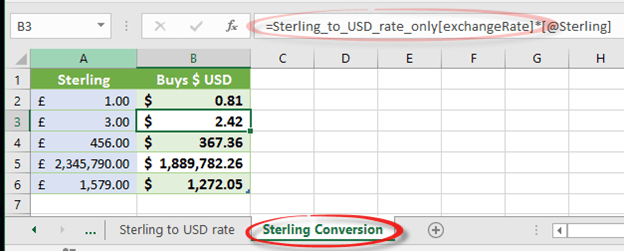
Excel; getting a single value from a large data feed
Maybe you don’t want a full list of stock prices or exchange rates to lookup various values.
All you want is a single stock price or exchange rate to update your worksheet.
That’s certainly possible by narrowing down the query so it returns a single value and no more. Select a filter to narrow down the data selection to a single row then select a single column from that row.
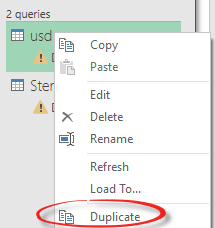
For our example, we’ll use the exchange rate data feed demonstrated here. Make a new version of the feed by selecting the existing feed and choosing Duplicate.
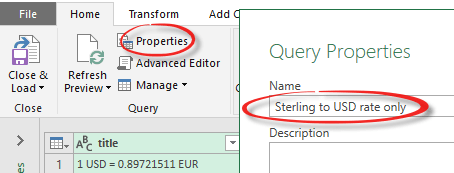
Then rename the duplicated query so it’s clearer than just adding a number at the end (Excel’s default). In the Query Editor choose Properties and update the query name.
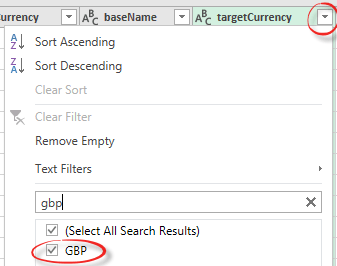
To select a filter, choose the column to filter by and select the value you want to appear. In this case, the targetCurrency column and the GBP (UK Sterling) value. The search option makes it easy to find what you want from a long list.
Now we only have a single row containing the value you want.

To reduce the columns list, go to Manage Columns and de-select all but one column.
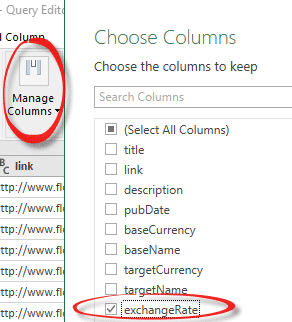
And now there’s a single value in the Query.
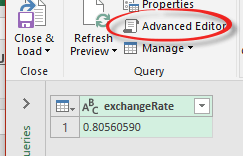
Close the Query Editor from Close & Load to drop the value into a worksheet, as usual.
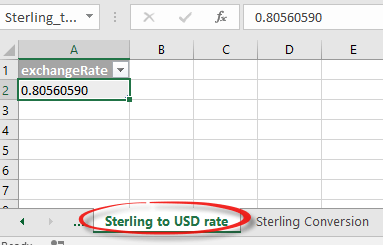
Then link to that cell from other worksheets.