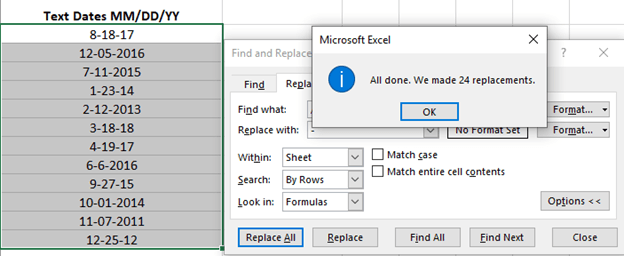
Replacing text or separators in selected Excel cells
A little side-trick for converting text dates to Excel dates is replacing the text separator. Excel lets you replace text within the selected cells only.
If the text dates are in the correct order (e.g. m/d/y ) but use the wrong separator for your Windows regional setting (e.g. m-d-y ).
Excel’s Replace function will replace text only in the current selection – but it’s not obvious. There’s no ‘Replace Selection’ option to choose.
Select the dates to change then open the Replace box (Home | Editing | Replace or better Ctrl + H ).
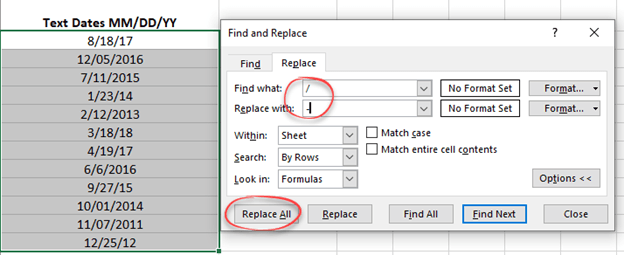
Find what: the character to find. In this case a backslash /
Replace with: the character to replace. For this example, a dash –
You might expect to choose ‘Selection’ from the Within list, but no.
Since you already have selected cells, Replace All will only act on the selection. See what we mean about not obvious?