Microsoft has quietly added a “Move to ribbon” option to the much hated Copilot Dynamic Access Button in Word, Excel and PowerPoint, after a wave of customer complaints about the floating button cluttering every document, workbook and slide deck. The fix gives paying Microsoft 365 customers a way to push Copilot back where it belongs on the Home tab, instead of hovering over their work. Here’s what the new option does, what Microsoft isn’t telling you, and the unanswered questions that still matter.
Microsoft has backtracked a little on their Copilot “Dynamic Access Button” addition to Word, Excel and PowerPoint. This intrusion into customers’ workspace was greeted with predictable anger and scorn by paying customers. “Predictable” to anyone except, apparently, Microsoft management 😎
The Dynamic Access Button (DAB but we call it a ‘bug’ because it’s so annoying) appears when any document, workbook or slide deck is opened. It’s an unsubtle way for Microsoft to push Copilot on customers, like it or not.
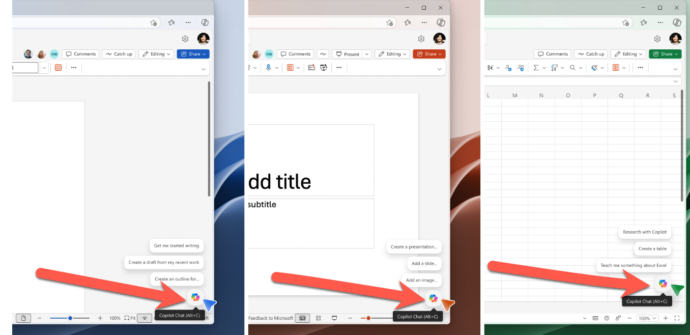
Move to ribbon
The Copilot button is getting another option “Move to ribbon”
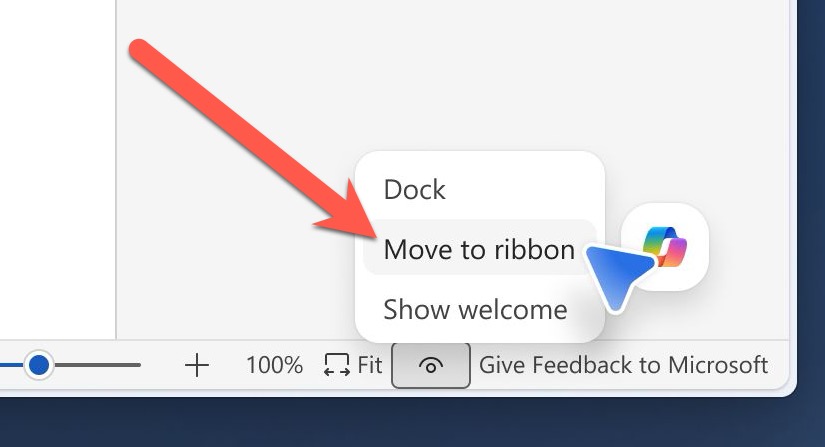
That puts the Copilot button back on the Home tab, where it should be all the time.
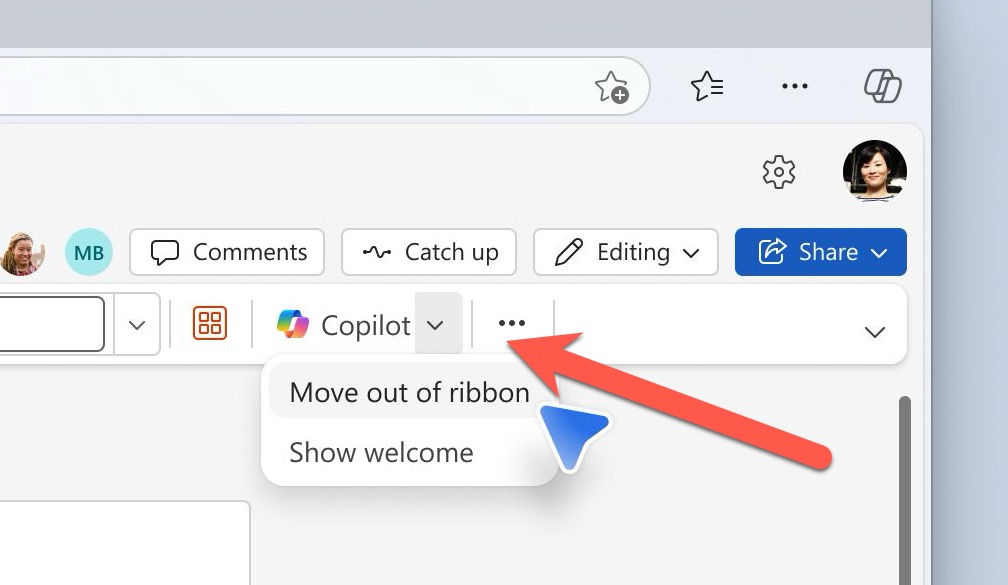
That’s in addition to the existing buttons:
Dock – which reduces the icon to a little nick in the side of the vertical slider.
Show Welcome – which opens the Copilot side-pane.
Unanswered questions
All that sounds great, but we’d like to see these changes in the real world because Microsoft’s description leaves unanswered questions.
“Move to ribbon” sounds good but only if it’s a persistent setting that applies to all docs, sheets or decks opened by the app.
If the Copilot bug reappears for each new window, a lot of customers will be even more unhappy than they are now.
Is the “Move to ribbon” setting per app or global for Word, Excel and PowerPoint?
Is there a related registry setting to control the appearance of the ‘bug’?
Office Watch will report on how the ‘Move to ribbon’ feature really works as soon as we can.
Contextual suggestions don’t appear on the ribbon button as drop-down list. That’s a missed opportunity by Microsoft because the suggestions feature isn’t a bad idea, just the way it’s presented.
Microsoft can’t admit a mistake
Microsoft can’t bring itself to admit a mistake, instead it tries to hide their error in lots of euphemism and AI generated word-salad.
The announcement of the Copilot bug changes is headed:
“Shaping Copilot across Word, Excel, and PowerPoint”
Instead of something like:
“We’ve listened … Copilot button can now move off”
“Ooops, we went too far with the Copilot button”.
It’s good that Microsoft has acted on customer feedback though it would have been hard to ignore the howls of protest. Complaints so loud that even Microsoft management had to listen.
The speed of the change suggests that some in the company knew the original “DAB” would fall flat on customers. The ‘Move to Ribbon’ option was probably done earlier but disabled in public releases. The company had to try the more intrusive approach first, in hope of increasing Copilot sales.
This sentence in the announcement caught our eye (our bold text).
“While we are seeing increased engagement with Copilot in Office apps with this update, we are also hearing the need for more control over how Copilot appears.”
The first part is a give-away of Microsoft’s real intentions with the Copilot ‘bug’. “Increased engagement with Copilot” is the real reason behind these changes. Microsoft’s desperate need to sell Copilot to customers is far more important than “a workflow that feels more natural”.
The second part of the sentence is an understatement. “hearing the need for more control” is euphemism for “people hate it with a passion“!
Copilot Floating Button Now Hovers Over Word, Excel and PowerPoint
Microsoft buries the Copilot button and floats a nag in its place
Microsoft 365 Classic Explained: A Lower Cost, No AI Subscription Option
Build a Better Excel Workbook with Copilot: Smarter Prompts, Stronger Results
Why AI Is Almost Intelligent: The Honest Truth About ChatGPT and Copilot
All Copilot articles on Office Watch
Is “Lifetime” Microsoft Office Real? The Truth Buyers Need to Know
KeyTips Explained: The Fastest Microsoft Office Keyboard Shortcuts You Already Have
