Why Word Layouts Break: Section Breaks Explained
Section breaks are the hidden cause behind some of Word’s most frustrating layout problems: random extra pages, headers that change unexpectedly, and pages that refuse to switch from portrait to landscape. Most Word users have never heard of section breaks, let alone seen one, because Word keeps them invisible by default. This guide explains exactly what section breaks are, shows you all seven break types, what each one does, and gives you a simple first step to diagnose and fix layout problems in any Word document.
If your Word document has ever sprouted a random extra page, shown different headers on different pages, or refused to switch from portrait to landscape mid-document, section breaks are almost certainly the culprit. Not because you used them wrong but because most people don’t know they exist.
Word is built around sections, and sections are controlled by section breaks. Once you understand what section breaks do and how to see them, a whole category of mysterious Word behavior suddenly makes sense.
What a Section Break Actually Is
Most people know about page breaks. A section break is more powerful. It divides your document into independent zones, and each zone can have its own page orientation, margins, paper size, headers and footers, columns, and page numbering.
Think of it this way: a page break just moves you to the next page. A section break gives you a hidden barrier to separate parts of a document to allow different formatting to exist in one document.
The practical rule: treat section breaks like load-bearing walls. You can remove them, but check what’s holding what up before you do.
Every Word document has at least one section, even if you never inserted a section break. Here’s a blank document with the Section indicator showing on the Status Bar. Choose that by right-clicking on the Status Bar and choose ‘Section’.
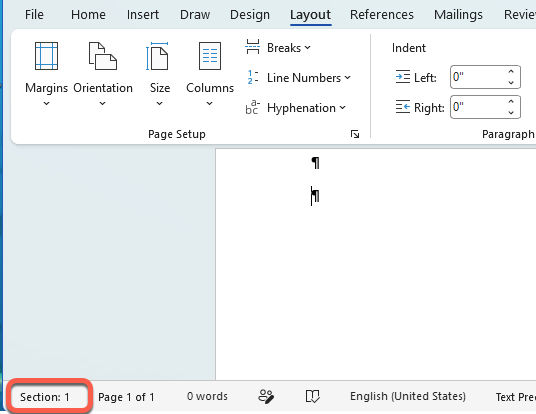
The moment you insert one, you have two sections, each with its own layout settings. Adding a multi-column section will automatically insert continuous section breaks to separate the column area from the single-column text around it.
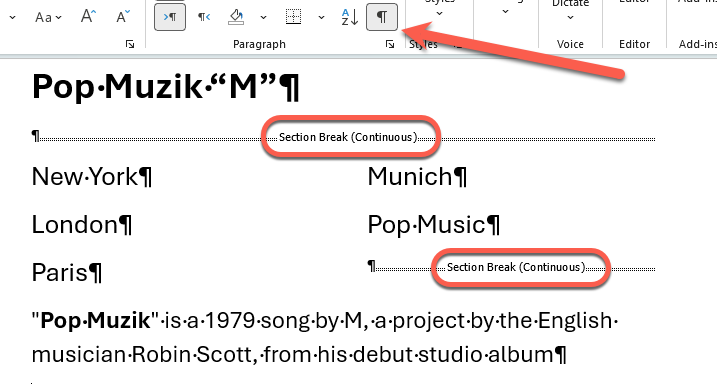
To see section breaks, click the Show All button on the Home | Paragraph ribbon, see above.
The 7 Types of Page or Section Break
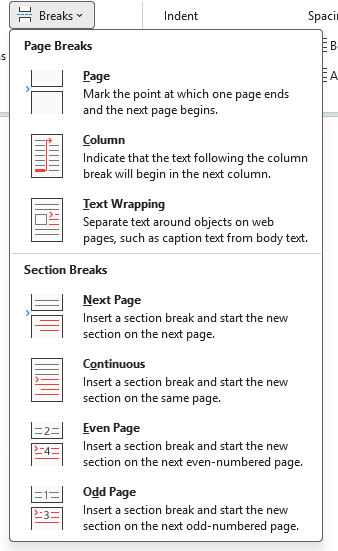
Word offers seven break types, and picking the wrong one is the most common source of layout confusion. Microsoft splits them into three Page Breaks and four Section Breaks but there’s a lot of overlap between the two types because three of the Section Breaks force a new page.
The main difference between Page Breaks and Section Breaks is formatting. A plain page break does not carry formatting instructions. Only a section break can do that, use Next Page instead.
All seven break types appear under the Layout tab, Page Setup.
Page Breaks
Page Break – forces a new page after the break
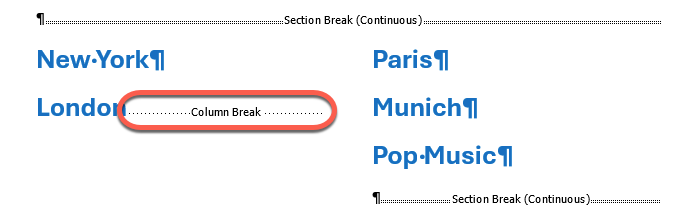
Column Break – inside a multi-column section, force a new column instead of letting Word decide.
Text Wrapping – ends the current line and pushes the cursor to the next line while staying inside the same paragraph. The main purpose is to work around images or objects that have text wrapping applied to them.
Section Breaks
Next Page starts the new section at the top of a new page. This is the one you want most of the time. It’s also how to switch between Portrait and Landscape orientation in the same document

Even Page starts the new section on the next even-numbered page. Used in book layouts where chapters must start on a left-hand page.
Odd Page starts the new section on the next odd-numbered page. Used in book layouts where chapters must start on a right-hand page.
Continuous starts the new section on the same page. Use this when you want to switch column settings in the middle of a page without breaking to a new page. Word will insert continuous section breaks automatically when you change column settings.
The most dangerous one is Continuous. It looks invisible in normal view and causes formatting changes that appear to have no explanation. When someone reports that “half my page changed to two columns for no reason,” a Continuous section break is usually hiding or missing somewhere in the text.
Why This Explains So Many Weird Word Problems
Section break formatting is stored in a non-obvious place. Word stores each section’s layout settings inside the section break mark itself (or in the final paragraph mark for the last section). This has two practical consequences that catch people out constantly.
First, deleting a section break also deletes its formatting. If you delete the break between a landscape section and a portrait section, the landscape section inherits the portrait settings from the section that follows. Your landscape page flips back to portrait and you have no idea why.
Second, copying a section break pastes its layout settings too. If you copy text that includes a section break and paste it into another document. You may be bringing along margins, headers, and page sizes you never asked for.
How to See Section Breaks
Word hides section breaks by default, which is why they cause so much confusion.
To show them: go to the Home tab and click the paragraph mark button (it looks like a backwards P, labeled ¶). This turns on Show/Hide, which makes section breaks visible as a double dotted line with the break type labeled in the middle.
Show All in Word for Windows has been shown above. Here’s the same button in Word for Mac.

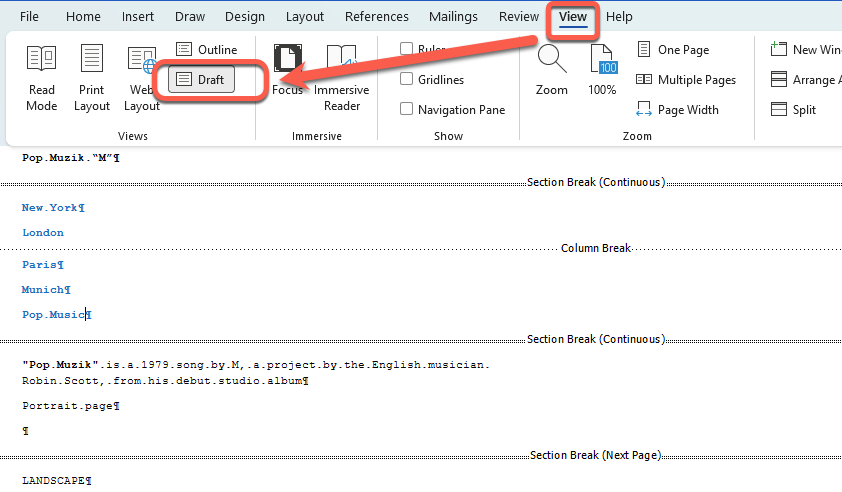
You can also get a cleaner overview by going to View | Draft view, which shows all section breaks clearly without the visual clutter of the print layout.
What This Means for You
If your document has a layout problem, the first thing to do is turn on Show/Hide and look for section breaks. Ask yourself:
- Is there a section break where you didn’t expect one? That may have arrived via a paste from another document.
- Is a break missing? It’s too easy to delete a section break when they aren’t visible.
- Are you about to delete a section break? Check what formatting is stored in it first, because deleting it will merge the two sections and the surviving formatting may not be what you need.
- Are headers or footers behaving differently on certain pages? Each section has its own headers and footers, and they can be linked or unlinked from the previous section. A stray section break can quietly break that link.
Mastering Headers and Footers in Microsoft Word: Simple Steps for a Professional Look
Starting Word Page Numbers from a Specific Page
What’s Really Inside a Word, Excel, or PowerPoint File (And How to See It)
Paper Sizing Tricks in Microsoft Word
Flowing Column Text in Word with Break-Out or Sidebar
Word Web More Features: Editing Header/Footer and Columns in Word for the Web
Fix Image Placement in Word: Use This Simple Layout Shortcut