Classic Outlook Quick Steps Go Gray After Microsoft 365 Update: The Fast Fix
The latest Microsoft 365 update has broken Quick Steps in classic Outlook for Windows. If your Quick Step contains an action that can’t be applied to the selected message, the whole button turns gray on the ribbon and refuses to click.
The bug arrived with Outlook 365 classic for Windows version 2512 build 19530.20138 and it affects Quick Steps with Flags and Categories actions. The known troublemakers are “Clear flags on message” and “Clear categories”.
Happily, this bug has been quickly fixed. After first suggesting that Microsoft was “investigating” and a fix might take weeks, instead the bug was removed in days. Nice.
The fix is just restarting Outlook classic when online When Outlook starts again it should pickup what Microsoft calls a “a change from the service”.
Which Outlook?
As usual, Microsoft is unnecessarily vague about which Outlook is affected by the bug.
The company only says “Outlook for Microsoft 365” which doesn’t help a lot.
- Outlook for Windows or Mac?
- If Outlook for Windows – classic or new Outlook?
The bug is in Outlook 365 classic for Windows but we only know that because the version/build numbers are for the Microsoft 365 Windows releases. Outlook new is a web app and updated separately.
This kind of inside knowledge should not be necessary, especially in support articles. Would it really kill Microsoft to be specific e.g. “Outlook classic in Microsoft 365 for Windows” is just a few more words.
Other workarounds
It restarting Outlook doesn’t fix the problem, here are two workarounds.
Assign a keyboard shortcut to the affected Quick Step. The shortcut will run even when the ribbon button is grayed out.
It’s a classic case of the keyboard hotkey path being untouched by an interface bug.
To add a shortcut:
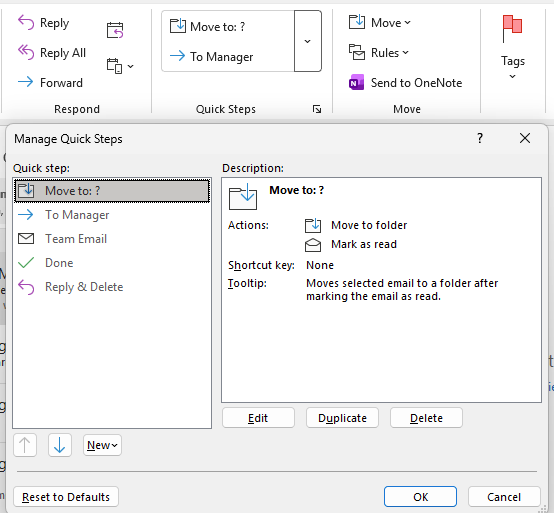
- Open Manage Quick Steps from the Quick Steps gallery
- Select the affected Quick Step and click Edit
- Pick a key combination from the Shortcut key dropdown
- Click Save or Finish
Press the shortcut on any selected message and the Quick Step runs normally, categories or no categories.
Rolling back to Version 2511
If you’d rather revert, you can roll Microsoft 365 Apps back to Version 2511 (Build 19426.20218). This is more involved and requires admin rights.
Open a Command Prompt as Administrator and run:
"%programfiles%\Common Files\Microsoft Shared\ClickToRun\officec2rclient.exe" /update user updatetoversion=16.0.19426.20218Then prevent Office from updating itself straight back to the broken build. Go to File | Office Account | Update Options | Disable Updates.
Warning. Turning off updates means you won’t get security patches either. Only do this if you’ll remember to turn updates back on once Microsoft ships a fix.
All about Quick Actions in Outlook for Windows
Beyond Outlook Rules: 8 Hidden Features That Manage Your Email Without You Knowing
Outlook New to Classic: How to Revert Back
How to get ‘real’ Outlook (classic) instead of new Outlook
Microsoft buries the Copilot button and floats a nag in its place
Microsoft Rewrites How Microsoft 365 Updates Are Delivered: What IT Admins Need to Know
Outlook Shortcuts Essential for Quick Navigation
Microsoft 365 Classic Explained: A Lower Cost, No AI Subscription Option