The latest Microsoft Office 365 for Windows has a new and, to date, undocumented, toolbar or “personalized Office experience”. This ‘toolbar just for you’ is both more and less than it appears. The toolbar is an effort to declutter the top or title bar of the Office apps. Microsoft has
How can you change the Author name in an Office document? How can you know that the name in a Microsoft Word document is the actual person not an imposter? It’s easy enough to go to File | Info to see and change the document Author name. We did that
Last week Microsoft made a series of announcements of new and changed features in Microsoft Office and Microsoft 365. Here’s a brief roundup of what the main ten promises and what they mean for you (if anything). The important word is ‘announcement’. Almost all the statements are about future arrivals,
If you thought the modern world could not get any stranger, we’ve got bad news. Microsoft Office and Oreos (the chocolate cookie) have combined for a marketing stunt with online events (sorry “snack breaks”), special packs, tchotchke and emoji. Poor old Clippy has been dragged in as well. On the
Combine or divide adjacent Microsoft Word or PowerPoint table cells into a merged single cell or split a cell in two. Welcome to ‘Merge Cells’ where you can combine adjacent cells into a single cell. It’s very handy for table formatting tricks and other unusual situations like a longer than
Footnote marks aren’t limited to numbers. Microsoft Word has many choices for listing footnotes or endnotes including the standard symbol order for notes or even your choice of custom symbols or emoji. Just one possibility for a footnote mark is a right-pointing hand like this: In-built Footnote/Endnote number choices Go
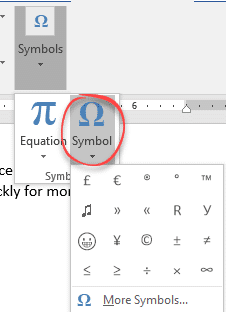
Type the Yen ¥ currency symbol into Microsoft Word, Excel, PowerPoint or Outlook. Both in Office for Windows and Office for Mac. Yen is used for Japanese currency and the Chinese Renminbi / Yuan. Microsoft Excel also offers the Yen symbol for Mongolia even though the tögrög currency uses another
Recreate the Murphy Brown TV show’s look as a design inspiration for Word and PowerPoint – the fonts, colors and lines. You may not want to use the exact look of the Murphy Brown title card, but it’s a starting point for design variations of your own. We’ll show how
Word can generate a list of all the tables in a document. Like a Table of Contents, this list of tables or Table of tables can include page references or links to each table. A Table of tables can be useful for creating a proper appendix or reference within more
Suggested fonts including “handwriting fonts” to help teach writing recognition and improve literacy. Office Watch reader Wim V saw our article on Avoiding Comic Sans and wrote to us about a use for Comic Sans and other fonts used in teaching literacy. Some fonts can be used to teach people how
A Word document and a floppy disk caught a serial killer back in 2010. There are still lessons for anyone wanting to keep their personal or business data confidential. Known as the ‘BTK killer’, he murdered 10 people in Kansas between 1974 and 1991. The murderer was finally caught in
If you look in folders that contain Office documents (Word, Excel, PowerPoint) you might see the occasional .tmp file. What are they? Could they be useful? How to look inside. Can they be safely deleted? The quick answers are: probably Word or Office document remnants, could be handy to recover
Here’s eight better but simple table formatting options not available from Microsoft Word’s Table Style gallery. Word’s Table Style gallery is a tempting selection of table formats but it doesn’t show you all the options to make your table look good. Some of these variations are right there on the
There are five different types of style (collection of formatting settings) in Microsoft Word. There’s three styles for text plus Tables and List styles. Paragraph styles Originally, Word only had paragraph styles. Styles could only be applied to an entire paragraph. Any changes to an individual word or phrase had
There are two ways to reveal or un-hide a hidden style, most commonly “Body Text” style. There’s the long-winded Microsoft approved method and the faster way. By default, Body Text style in Microsoft Word is ‘hidden until used’. That seems like a Catch-22, its not visible until it’s used but
The default ‘Body Text’ style in Word needs some changes to suit your needs. Here’s some suggestions for things to alter or check to make sure they suit your, er, style. Can’t see a Body Text style? See Make Body Text style appear in Microsoft Word Body Text style can be
Microsoft Word has a simple and quick way to reveal the Unicode value or character number for any letter, symbol or emoji using the Alt + X shortcut. As you may know, each character shown on a computer is really a number. There’s an accepted list of symbols called Unicode
Two ways to change the default or opening paper size for Microsoft Word documents. Change to Letter , Legal, A4 or any other paper size. These two options haven’t changed for many years. The fundamentals haven’t changed since the very first Word for Windows. This will change the paper size when you
A small but very welcome change to the File menu in Office 365 for Windows to handle the overflow at the bottom of the window. It’s one of those changes that Microsoft doesn’t promote or even mention. Maybe because it’s quite small or perhaps because it fixes an embarrassing design
It’s very easy to change the paper size in Microsoft Word, whether just for a single document, or change the default paper size for all your documents. You don’t always want to use the same paper size for all your Word documents – different types of projects require different paper,
Microsoft Word has a booklet printing option but there’s a simple alternative if it’s not working or you’d like options not available in Word. Here’s how to booklet print in Word and also a simpler alternative. Word’s Booklet Printing is done in the document (Layout | Paragraph | Page Setup
Add a keyboard shortcut for any Microsoft Word style including Headings and Normal style. A shortcut is faster than clicking on the ribbon anytime you want to apply a style. For commonly used styles it’s easier and faster to use a keyboard shortcut. Microsoft even supplies a few with Word,
Here’s how to apply the same formatting, borders and picture styles to more than one picture or graphic in Word, PowerPoint or Excel. There’s an unexpected and easy way to do it. Picture Format tools don’t have custom styles (Microsoft please note) only the in-built pre-sets. If you want to
Put the Reference Mark ※ into Microsoft Word, Excel, PowerPoint or Outlook. Both in Office for Windows and Office for Mac. Reference Mark ※ or reference symbol is used in Asian writing (Chinese, Japanese, Korean) like the Asterix * in western languages. It marks some additional notes to text. It’s called